SnapAShot - smallest free tool for taking screenshots of different size
Time Boss (Pro) FAQ
recent changes 17.09.2025General
⛛
- Program installation
- The error 'This advertised application will not be installed because it might be unsafe...'
- Program uninstalling
- How to update Time Boss parental control to a newer version (to Time Boss Pro)?
- After installing the "big" Windows 10 update, the program stopped launching. What to do?
- How to open the Control panel of Time Boss?
- How to set time limits?
- How to change the interface language?
- Can I pay for the license via PayPal?
- How to register a program?
- Does the registration key have an expiration date?
- Does the registration key apply to program updates or after updating parental control software need to purchase a new key?
- Internet monitor stopped restricting websites, what happened?
- Is it possible to limit the time of visiting a specific website, for example Facebook?
- How can I control Time Boss Pro on my child's computer via the internet using an Android phone?
Program users
⛛
- Who is Parent (aka Boss, aka Master)?
- Who is Child?
- Who is Someone?
- Who are the users, do they need to be created somehow or are they Windows users?
- Does the program control new users created in Windows?
- The program does not recognize the user under his name, but perceives as Someone, why?
- Can a user who does not have administrator rights on the computer manage the program?
- There is one user on the computer (Administrator), how can he restrict the Internet and games?
- How to set up parental control if there is one Windows user on the computer (one child account)?
- What happens when a child runs out of time and there is only one account (child) on the computer? Does the computer just shut down? And if you need to urgently add time, how to do it? It turns out that the computer just turns on and then turns off?
- The child creates new users in Windows and plays in their sessions. What to do?
- Does Time Boss understand domain users?
- What should be the name of the domain user in Time Boss?
- On a children's computer, there are three users (Windows accounts) - each of the children has its own, can you do something so that the program settings for one account can be applied to others?
- Can parental control limit me? To always display the remaining computer time?
- Can I turn off computer tracking completely? I control the children's computer remotely and there is no need to write any logs on my personal computer.
- Why do you need the amount of time and boundaries, are there not enough boundaries or timetable?
- Is the total computer time a global limit? For example, if the limit is set to 2 hours a day work on the Internet and work on Skype for 2 hours a day, and the total time of a PC is 3 hours, how will it work?
- In Windows 10, after the child's time expires, the program starts endlessly lock computer and unlock. What's happening?
- How to copy user settings from one user to another, or from one PC to another PC?
Child learns over the Internet
⛛
- The child can learn via the Internet at any time, and he should not use other programs (games) and websites at all.
- The child can learn via the Internet and also use any programs, but no more than 2 hours a day.
- The child can learn via the Internet and additionally open any websites, but no more than 2 hours a day
- The child can learn via the Internet and additionally play games, but only with those that I allow and no more than 2 hours a day.
Change the remaining time for the current day. Grants
⛛
- How to quickly add time to the child for today (the child wants to play more)?
- How to quickly reduce the child's time for today?
- What are grants (prizes) and how to use them?
- Why does the program not allow increasing the remaining time in the window 'Today's control. Last remaining time'?
- The remaining time was changed for the child in the Control panel, but still does the computer keep shutting down at other times?
- Why does Time Boss give the child one more minute after the time is up?
- When I try to add time to the child, the computer turns off, those i just physically do not have time to do anything. What to do?
- Question: There is a user account. Time limit is 18.00-22.00 daily. I entered a prize time of 15 minutes for the test. Activated the prize at 10.00. I tested for 3 minutes, then put the computer into sleep mode. Then the user turned on the computer at 18.00. The remaining 12 minutes of prize money ended, and the computer was blocked at 18.12. Why?
- Warnings appear frequently, why?
Breaks
⛛
- How to get child to take breaks while sitting at the computer?
- Can the child postpone the forced break for himself?
- How can a child interrupt their computer time (distracted by a phone call, lunch, etc.)?
- How to make it so that when the computer is not used, the program itself is paused and the time limit was not spent? The child forgets to pause and his entire limit flies away in vain.
- Why does the time continue to count down when the screensaver is running?
- How to make it so that the time does not stop (continues to decrease) with an active screensaver?
- What if a child uses the screensaver as an always active desktop screensaver?
- How to stop programs in break time? My son has been locking the screen before his time is up and still able to listen to music...
Restricting Internet access
⛛
- How to restrict access to the Internet?
- How to restrict the content viewed on the Internet?
- Internet monitor stopped restricting websites, what happened?
- How to restrict the content viewed in Internet Explorer (IE)?
- Where and how is the list of visited sites saved?
- Is it possible to limit the time of visiting a specific website, for example Facebook?
- How do I allow my child to visit only certain websites?
- How to change the time a child visits Facebook with grants?
- Does TB control https websites and browser incognito mode?
- How to increase Time Boss reaction speed to "bad" words?
- Can TB completely turn off the browser instead of switching to the "Block page" (the child is "cheating" something with the URLs)?
- Can Time Boss be used when using another program to restrict the viewing of content on the Internet?
- How does the program calculate the time spent on the Internet? Firefox, Opera, ICQ (quip) work with the Internet ... perhaps some other programs. I would like the total running time of all programs on the Internet to not exceed, for example, 3 hours a day. What need to do?
- I would like to understand how the Internet is blocked, it is the prohibition of launching certain programs or blocking specific/all ports for this user. For example, for me it is necessary that after the time expires, Internet access is terminated and only Skype worked, is it possible?
- I add the domain *giraffe* to the White list, but the site still won't load! Why?
- How to block access to a specific site, for example, Google videos or Google pictures?
- Is it possible to ban a specific channel on YouTube?
- Sometimes the time counts down incorrectly when watching a video in full screen mode on YouTube or playing an online game. Why?
- There is a time limit for an online game (for example, Tanks online, tankionline.com). When switching to full screen game mode, the time limit stops working. What to do?
- How to restrict access to certain sites by the amount of time spent on them? For example, a list of sites: disney.com, fb.com. The child can visit them at any time of the day, but if at some point he spent 18 minutes on disney.com, 12 minutes on fb.com, which the sum gives 30 minutes, then access to these sites is closed until the end of the day?
- We want to prohibit the child from accessing any sites of the *.com* domain zone except *site1.com* and *abc.com*. How?
- For my daughter, i use the White list of websites. She started teach HTML at school, thus local files (created on disk) should be allowed. How to allow local directory for all browsers?
- How to restrict Internet browsing (for example, two hours) and not restrict HTML files on a computer at all (my daughter started learning HTML at school)?
- Child uses the WQQ browser (or any other). How to limit it?
- Are there any plans to implement content filtering for other browsers?
- The child, after the end of the allowed time, loads Windows in SafeMode with Networking and quietly "hangs" on the Internet. The "Safe Mode Protection" checkbox is enabled. What do you advise?
- How can a child see his remaining time on the Internet and his list of prohibited sites and programs?
- How to enter a password and give extra time to a site? There is such a thing for programs, but for sites?
- Google Chrome browser won't launch after installation, where did I click the extra ones?
- After installing version 3.15, I notice noticeable CPU consumption by the time_boss_v.exe process. The computer works only in parent mode, all control is turned off. How do I disable this process?
- The child's profile has White lists of programs and sites. Internet monitor is turned on. After opening the child's session, any browser may freeze. Why?
- Every time Windows has an update, for some reason it is hard to block www.bing.com. Why?
Restricting access to programs, games and folders
⛛
- How to limit the program (game) by time?
- How do I allow my child to only play certain games?
- Does the program have the ability to restrict games only and give grants for games only?
- I need to allow access to applications on different days and accordingly, close access to applications on different days of the week. How to do it?
- I was wondering if there is an easy to way to do a report of all of the applications used that counted against the user on a particular day? For example, it would be good to be able to say/see, you had 2 hours of usage and you used 90 minutes on Minecraft and the other 30 minutes on League of Legends.
- Why can't I block games from a folder named in my national language (Chinese)?
- How can I block Java games?
- How to enable Java when white list is active (OpenOffice does not print)?
- How block Minecraft game?
- Why did the Lunar client (Minecraft client) stop working for the child?
- How block Fortnite games?
- How block War Thunder games?
- How can I block online games e.g. Runeescape?
- How can I block Steam games?
- How can I block Roblox games?
- How can I block BlueStacks games?
- How can I block old DOS games?
- How to limit online browsers games, e.g. Legend: Legacy of the Dragons?
- How to add all Windows Metro Applications to a group?
- How to block applications from Microsoft Store (e.g. Book Bazaar Reader)?
- How to set restrictions on online games in the program? I would like to install this limitation, only for games, not to the detriment of his time on the computer for study.
- How to set a time limit for 2 programs, so that later the child within 1 hour or started one program or the second. Those the total time of using the programs was no more than an hour?
- My child copies or renames a folder with a game that has restrictions, what should I do?
- Can I enter the name of a folder (directory) manually?
- How to block the Windows Microsoft Store of apps?
- How to install a game under the account of a child?
- How can I hide my folders (with subfolders and files)?
- I cannot set a ban on entering the folder, I check, and the program still starts up! Why?
- Is there a way for the child to see how much does he have time for each group of prohibited programs?
- How can a child choose (enter) a prize (grant) for programs in advance, before they are blocked?
- A child uses Skype on a locked PC and this time is not counted, how to prevent this?
- Skype audio is disabled if Skype is in White list. Why?
- How to enable LibreOffice when White list is active?
- How to prevent the launch of programs from a flash drive?
Event log, statistics, screenshots
⛛
- How can I view the event log?
- How can I view screenshots?
- How can I view statistics?
- How to receive screenshots and event log on my email automatically?
- How to send screenshots to my Outlook email?
- How to send screenshots to Gmail (or other email)?
- How to disable the taking of screenshots?
- Screenshots do not saved in kids session. Why?
- I want to copy all the screenshots, where can I find them?
- Sometimes when I check the screen captures, they are black. Why?
- Where can I view summary time statistics for day, week, month?
- Are there statistics that show the total running time of any program during the day?
- Why I view incorrect summary time on statistics page?
- Can I see statistics for a previous month?
- Why is it that my “Save messages in log lasts 30 days”, but the Event History only shows 6 or 7 days? Can I view the 30 day logs some other way?
- How to reset time statistics?
- How can I save data from Event log or Statistics pages?
- How to copy data from Event log or Statistics pages?
- Why Notepad and others systems programs are absent in Event log?
- How to save screenshot to my file?
- Where can I see screenshots of the second monitor?
- Where located the screenshots files?
- Where user with Child rights can view his time-table and statistics?
- How to use Backup Folder for screen shots?
- I'd like to save screenshots to a different folder/drive than the one used by TimeBoss; is that possible?
- If I uninstall TimeBoss from c: drive and then reinstall on a different drive (eg. e:), will the screenshots save to the e: drive?
Time Boss protection, antivirus settings
⛛
- Can I stop Time Boss?
- The users with Child rights can stop time_boss.exe from Task Manager, is it normal?
- Can a user with Child rights be allowed to use Task Manager?
- How secure is Time Boss?
- My son is geek in Windows, what options should I activate to additionally protect Time Boss?
- Is it possible to prevent Time Boss from deinstalling (or deleting its components) in Safe Mode?
- Is it possible to start Time Boss (Pro) in Safe Mode?
- How to prevent "reset Windows 11 (10) " or "reinstall Windows 11 (10)"?
- Is there a way to block access to the Time Boss Screenshots windows folder?
- My kid change system time on PC. How can I forbid that?
- My son changes PC time in BIOS, what can I do?
- Sysinternal Process Explorer can stop Time Boss?
- Can my anti-virus program stop Time Boss (Pro)?
- Can "Avast!" or Norton Antiviruses stop Time Boss (Pro)?
- My son stops TB using process blocker program. How can I fobidd that?
- Does not Log Off when time expired... When the time reaches 1 minute, the icon in the system tray and the desktop notification both blink "1", but the computer never logs off...
- I've noticed that sometimes my son is logged in and Time Boss will stop running. Rebooting will start it up again, but could you consider running some type of agent that would restart it automatically, in cases where it exits unexpectedly?
- My son has administrator rights in Windows and can change the administrator password. How can I forbid that?
- How to disable Windows command line (cmd.exe) for kid?
- How to disable Windows Microsoft Management Console (mmc.exe) for kid?
- How to prevent reinstalling Windows from a USB flash drive?
Additional program setting
⛛
- What is Stealth mode?
- Are there hotkeys for disabling, enabling Stealth mode?
- After installing the program and turning on Stealth mode, I cannot manage the program. How to open the program?
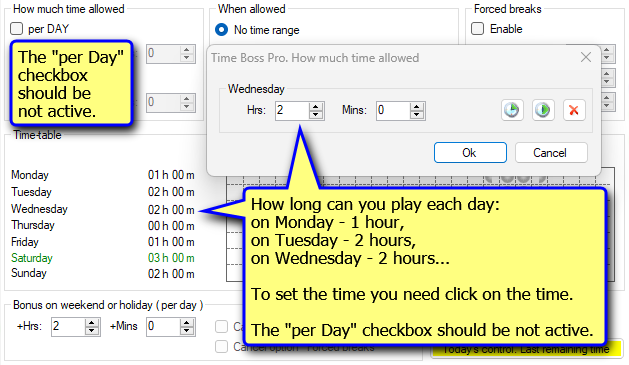
- How to set different time limit for different days of the week?
- How to set fractions of an hour in a time-table?
- How to change the warning text and picture?
- Is the password case sensitive (capital and small letters are different)?
- Is it possible to block a session after the allowed time has elapsed without interrupting executable programs?
- What's the difference between 'Log off' and 'Disconnect session' (and others) types of PC termination?
- Why isn't the countdown counter visible?
- How to find out if a child has opened the Control panel?
- How turn off 1 minute of waiting after time is over?
- Time Boss doesn't give the child a minute to wait. Why?
- Where can the child see the remaining time of the week?
- What happens if I make myself a Child? For example, can I become a Parent back? And in general, is it possible to remove all Parents on the child's computer if I have a password set for the Control panel?
Time Boss Pro
Features
⛛
- What is the difference between Time Boss and Time Boss Pro parental controls?
- Time Boss Cloud allows to manage Time Boss Pro over the Internet without special settings (such as port forwarding on the router)? Let's say I'm at work, a child at home?
- How to configure Time Boss Pro for using in your local network?
- How to connect to remote PC?
- If a computer is in sleep mode can Time Boss Pro still connect to it via the NETWORK menu?
- I want to put Time Boss Pro on three computers - actually one will Parent the other two. How do we do this with the one copy I have so far?
- Time Boss Pro uses a direct connection to the protected PC or over a website?
- Is there any way to access this software over the Internet (so I could update/change settings from work)?
- I use the router at home, what can I do to connect to home PC from internet?
- 'Find Remote Computer' does not find all remote computers. Why?
- How to change the remaining time on remote PC?
- How to use Backup Folder for screen shots?
- How to see the event log on a remote PC?
- How to see the screenshots on a remote PC?
- Where the screenshots from remote PC will be saved on your local computer?
- Can I connect if Time Boss Pro is installed on Windows Home computers?
- Can I use TB Pro in a mixed network of Windows 10, Windows 8, Windows 7 and Windows XP computers?
- I am not clear on what needs to be downloaded onto my PC laptop in order to control the other 3 computers. I know I need to download timeboss pro onto my 3 kids’ computers, but what exactly do I download onto mine?
- The syncronization does not work, what can I do?
- If I have 3 PCs in my house and I want to limit access to 2 hours/day (cumulative across all PCs), is that possible?
- Can you explain this more clearly please. In my setup I have 3 computers running Time Boss Pro. These three computers are on a domain controlled by a server running Windows Server 2008R2. All user accounts have a home directory on the server, drive "O". What would I need to change/ configure in order to have those 3 PC's limit access to 2 hours a day (cumulative across all PC's)?
- The description states "TB PRO can *synchronize time limitation and settings of users on multiple computers*. ", but does this mean the limitations are simply the same (i.e. 2 hours/day) on each PC, or does it mean 2 hours/day no matter which PC in the house is used?
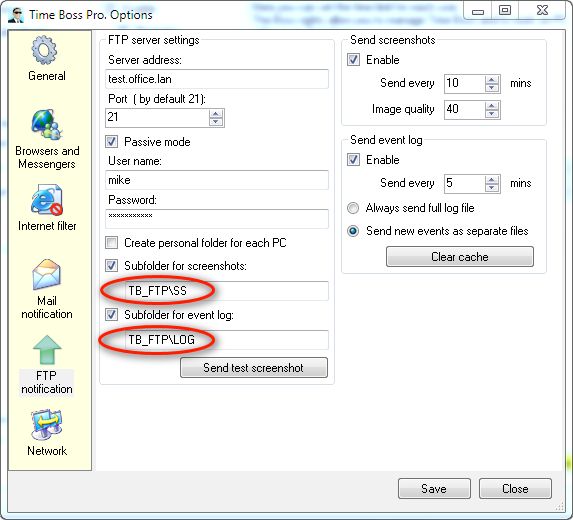
- How to define the folder for screenshots on the FTP server?
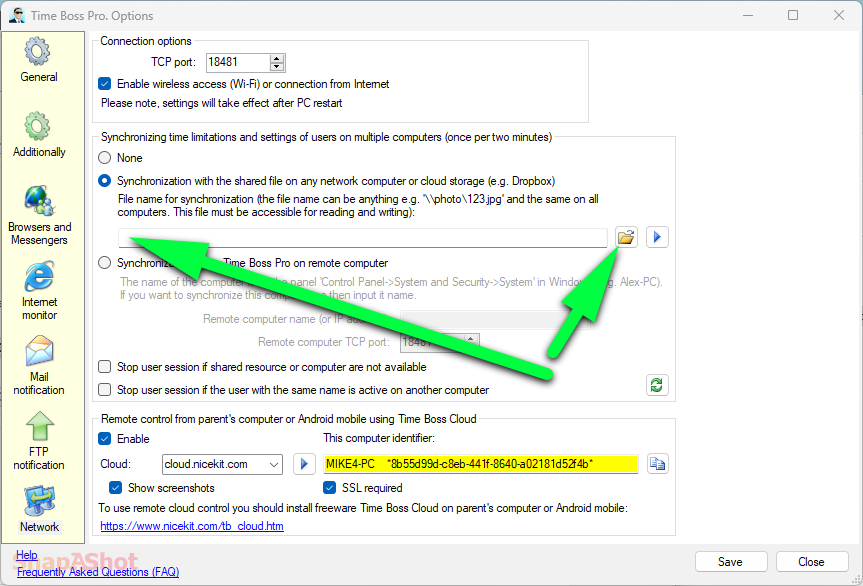
- Can I use cloud storage for synchronizing the remaining time on multiple computers?
- Can I use my google drive to store the screenshots?
- Is there a way to associate the non-local account of the user on a Windows 10 machine with the local account of the Windows 8 machine so that the usage limits/restrictions remain in sync?
- How to change the computer identifier used in Time Boss Cloud?
Answers
General
-
Program installation
Only user with administration rights in Windows can install Time Boss (Pro).
The default password for Time Boss (Pro) is 123.The program will be installed automatically for all Windows users (existing and added later), so there is no need to install this program each user separately.
Installation:
The Control panel (for parents - bosses) or the Remaining time window (for children) can be opened using button Start in Windows: Start -> All Programs-> Time Boss-> Time Boss. You can copy this link (click Mouse + Ctrl key and "drag") on the desktop of any Windows user.
-
Download the file
timeboss(pro).zip and run it.
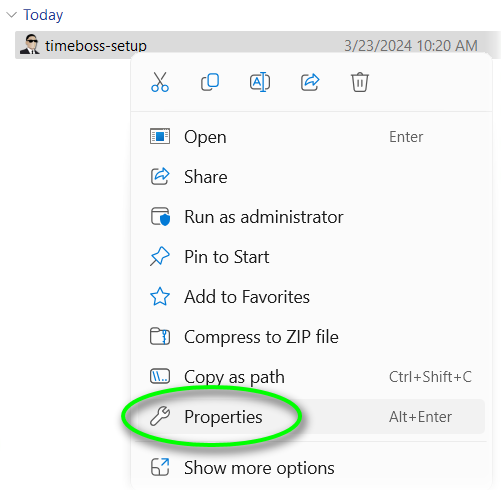
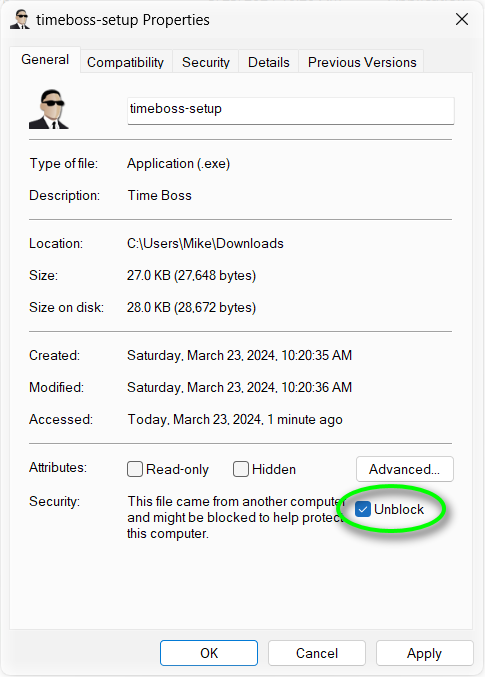
If the timeboss(pro).zip file does not start at all after downloading, then you should activate the Unblock option in its properties. See pictures here and here.
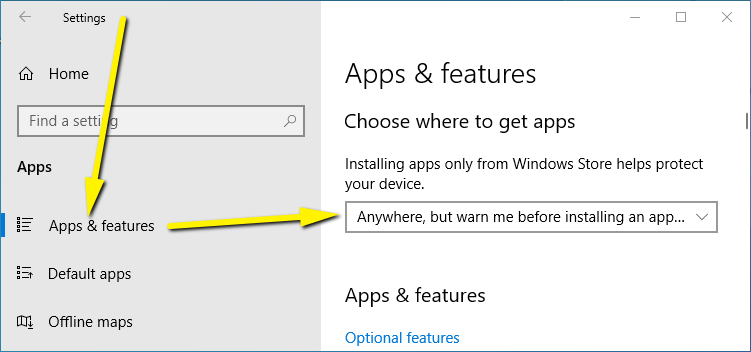
On some Windows systems, enable the installation of Time Boss from our website (not only from the Windows Store: Windows Settings->Apps & features-> Choose where to get apps select "Anywhere..."). See here.
All our programs are digitally signed by NiceKit, however this signature is not certified by Microsoft.
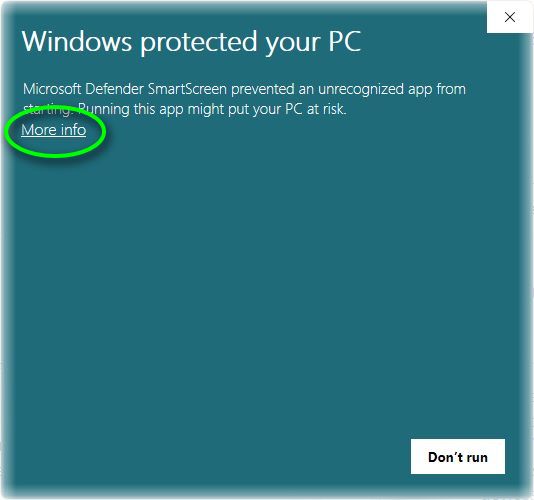
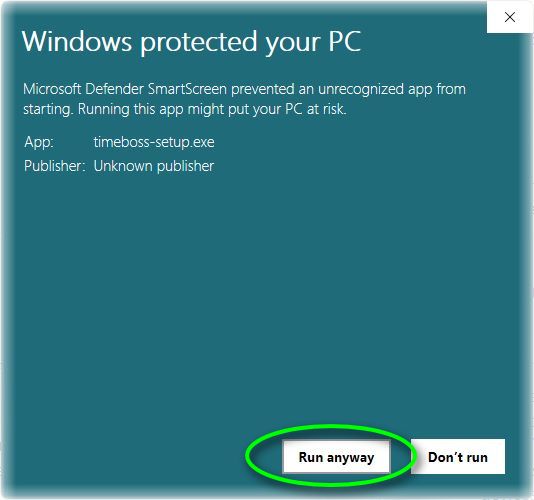
As a consequence, you can see the warning "Unknown Publisher" when the installation of our program starts.
Please press the "More info" and then "Run anyway" buttons on the Windows SmartScreen protection panel, when the panel appears.
We guarantee the absence of malicious code in our programs!
If you want you can check downloaded timeboss(pro)-setup.msi(exe,zip) on website www.virustotal.com. Virustotal is a division of Google. -
Press "Agree","Next","Install" and "Finish"
buttons in Time Boss setup program.
-
After installation, Time Boss icon will be
appears in Windows system tray.
-
Open Time Boss Control panel from Time Boss icon
in system tray (right mouse click on Time Boss
tray icon->Popup menu->Control panel). The
default password is 123.
- Set time limitation for Windows users as you need (use F1 button to launch Time Boss help file if needed).
All Time Boss units are located in Time Boss folder only. Time Boss doesn't have any units in Windows system folders.
If needed, you can install Time Boss while logged in via TeamViewer.If you get the error "This advertised application will not be installed because it might be unsafe ...", save the timeboss(pro)-setup.exe file to a new folder on your desktop and run it directly from that folder.
More info is here.Please email us to if any problem appears. We will help you.
If you have the last version of Norton Antivirus then restore the file time_boss_s.exe from Quarantine if needed and restart the PC again. (Open Norton Security -> Security -> History -> select item time_boss_s.exe (Sonar...) Quarantined -> select 'Options' as Recommended Action -> Select 'Restore & exclude this file' -> select 'Yes' in Quarantine Restore -> Close Norton Security) .
If you have the last version of Avast! Antivirus then stop it for a few minutes, install (repair) Time Boss, then add the Time Boss folder (usually C:\Program Files (x86)\Time Boss) (or files time_boss_s.exe, time_boss.exe, time_boss_v.exe and time_boss_m.exe) to the list of exclusions in Avast! (Avast -> Open Avast! user interface -> Settings -> Antivirus -> Exclusions) and start Avast! again. Pease see the picture. -
Download the file
timeboss(pro).zip and run it.
-
The error 'This advertised application will not be
installed because it might be unsafe...'
How to resolve the 'This advertised application will not be installed because it might be unsafe' issue when trying to install Time Boss (Pro).
If you try to install the timeboss-setup.msi (timebosspro-setup.msi) package for the first time on your computer, and you receive the "This advertised application will not be installed because it might be unsafe ... change the installation user interface option of the package to basic" error, then install the MSI package by using the msiexec.exe command with the /qb switch, in order to set the user interface level to Basic UI.
To do that:
1. Create a new empty folder on the root drive (C:\); call it temp.
2. Copy the timeboss-setup.msi package into the temp folder.
3. Then open an administrative command prompt (cmd.exe).
4. From the command line, navigate to the c:\temp folder: cd \temp.
5. Type the following command and press Enter: msiexec.exe /i timeboss-setup.msi /qb.
6. Follow the prompts to install Time Boss.
Also you can see here. -
Program uninstalling
It should be noted that Time Boss is a highly protected product and it's impossible to deinstall this application by both simple folder deleting and (or) using Windows uninstall wizard.
You can't uninstall program when it works.
Before the uninstallation close all opened sessions in Windows and log in as user with Administrators rights in Windows. For deinstallation open Time Boss->Control panel->Options->General and push the button Prepare for uninstall.
The program will be stopped and then you can uninstall it with Install/Uninstall wizard in Control Panel Windows.
The users with Child rights can't do this. The Time Boss->Control panel window can be opened by users with Parent rights only. Control panel of Time Boss can be protected with Password.
Even if the trial period has finished, the program works during few minutes after PC starting (every time computer starts, until you wouldn't uninstall application correctly or register the program). To uninstall Time Boss, you should wait a few minutes for the program to stop and uninstall Time Boss using the Windows uninstall wizard.
If needed, you can uninstall Time Boss while logged in via TeamViewer.
-
How to update Time Boss parental control to a newer
version (to Time Boss Pro)?
If your version of the program is outdated and you want to update it then you need to click the Prepare for uninstallation button (Time Boss->Options->General). After that uninstall Time Boss using the Windows uninstall wizard.
Please answer "No" to "Full uninstall ..." if you want to keep the old settings, screenshots and log (a dialog box with this question will appear during uninstallation).
Run the new version timeboss(pro)-setup.msi file and install program to the old Time Boss folder.
If you want to do a full update, please uninstall the old version as described above, but answer the question "Yes" and then install the new version. In this case, user settings, statistics and all screenshots will be lost. The password will be 123 by default. For registered users it is necessary to enter the registration information (name and key) again (About the program-> Registration).
After a full update of Time Boss Pro, the computer identifier will change, this must be taken into account if you are using Time Boss Cloud.
If needed, you can also save the settings of Time Boss to some file (Time Boss->Control panel->Menu->File->Save configuration to file) and then load it. -
After installing the "big" Windows 10 update, the
program stopped launching. What to do?
The program may stop working after some "big" Windows 10 updates (Microsoft releases these updates infrequently, usually once a year. For example, the November 2015 update to Windows 10 version 1511).
This is due to the protection of the main program modules from deleting and renaming files.
In this case, the program must be uninstalled using the usual uninstall wizard from the Windows Control Panel (with saving the settings) before installing the update and reinstalling it after installing the update (you can download the latest version).
If the update was installed while the program is running and after the update the program does not start, then you must also uninstall it and reinstall it. If a Windows message about the error "Error 1001" appears, you should try to restore the program using the "Restore" button for the program in Windows->Settings->Applications and Features->Time Boss. However you can lost all the settings ... If there is registration data, then you need to enter them into the program again and restart the computer completely.
If you turn off the Time Boss (Pro) self protection (TB->Control panel->Options->General->Protection), the Time Boss (Pro) should "survive" a "big" Windows 10 update.
You can save all your TB settings to file (TB->Control panel->Menu->File->Save settings) and load them in future if needed.
If you have any problems, email to us at support, we will definitely help. -
How to open the Control panel of Time Boss?
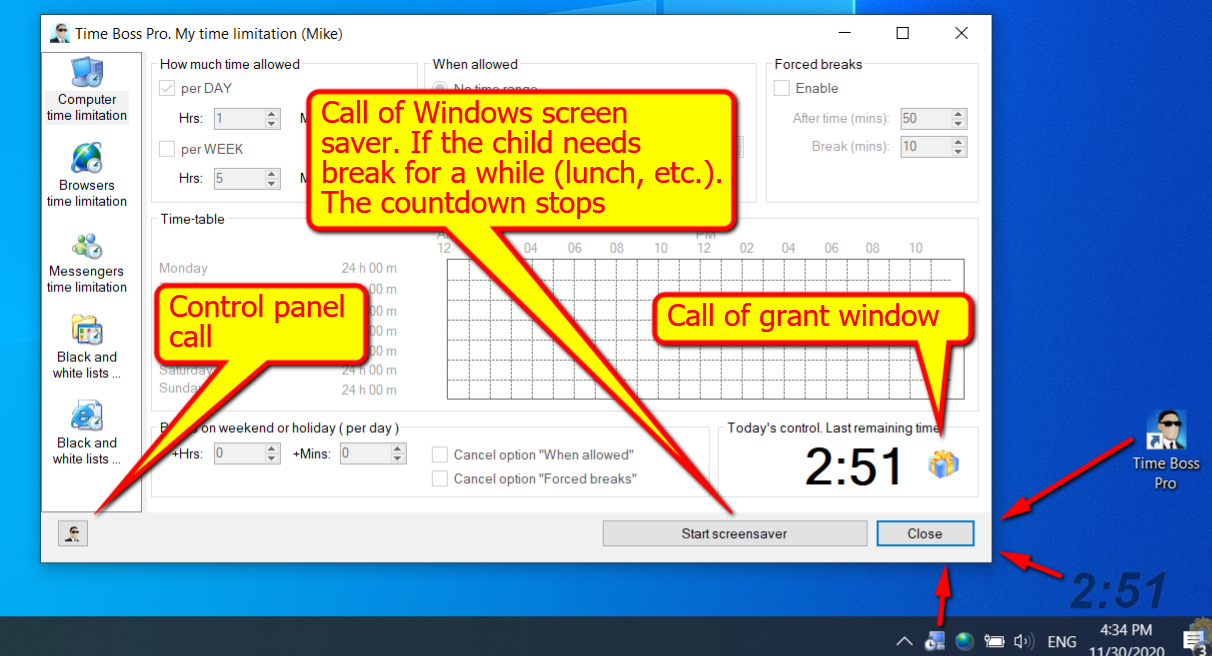
You can open Control panel only if you know the password (123 by default).
This can be done in different ways:-
Click on the Time Boss icon on the desktop.
Control panel will open in the parent's
session.
In the child's session in the window that opens My time limitation click the button with the TB icon in the lower left corner. See picture. - Click on the countdown indicator and the My time limitation window will appear, see above.
- Click on the TB icon in the system tray, the My time limitation window will appear, see above.
- Select the Time Boss item from the list of Windows -> Start -> Time Boss -> Time Boss, the My time limitation window will appear, see above.
- Right-click on the TB icon in the system tray (or on the countdown indicator), and select the menu item Control panel (only for Parent).
-
Click on the Time Boss icon on the desktop.
Control panel will open in the parent's
session.
-
How to set time limits?
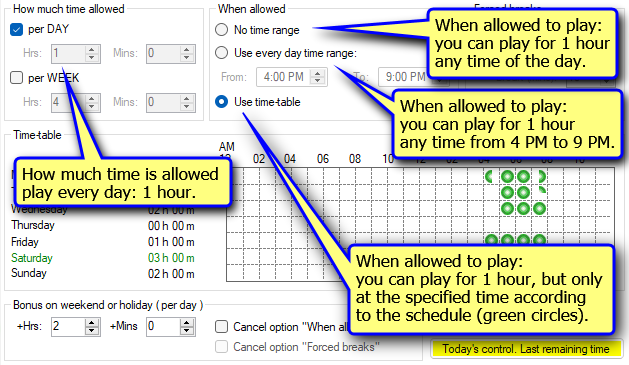
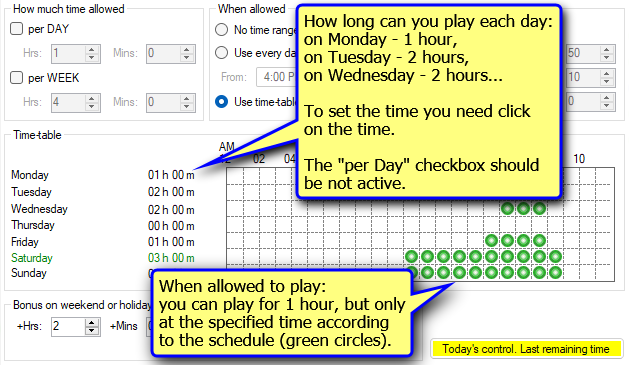
It is necessary to set how much time can be used (How much time allowed) and when (When allowed) this time can be used.
You can set different amounts of time for different days of the week, for this you need to uncheck the box per DAY and mouse click on the time of day of week.
See pictures: here, here and here. -
How to change the interface language?
The Time Boss->Control panel->Options->General->Language panel defines the language of the program interface. You can choose a language from the list. The program will change the language after selection. Some parameters will be changed when the Control panel window is closed. The list contains files from the Time Boss/Lng folder with the *.lng extension. If you put a new .lng file in the Time Boss/Lng folder, you can select it from the list.
-
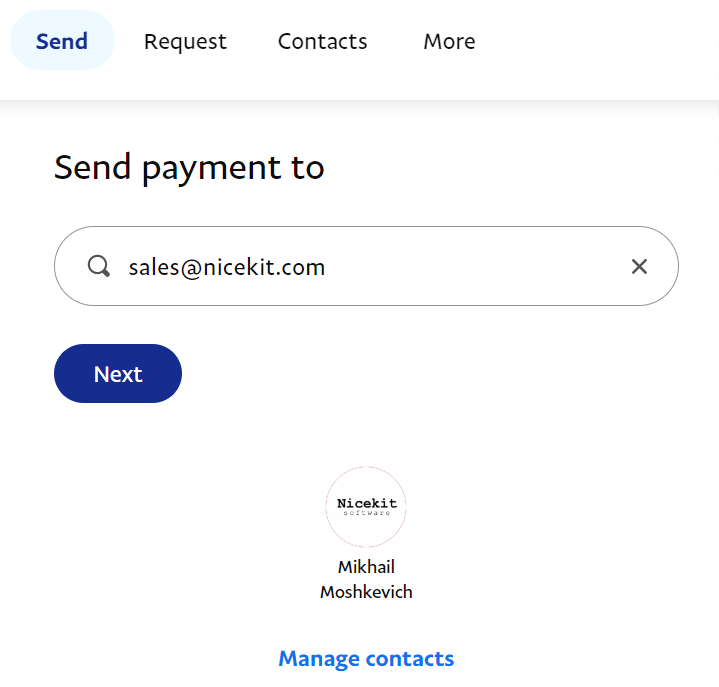
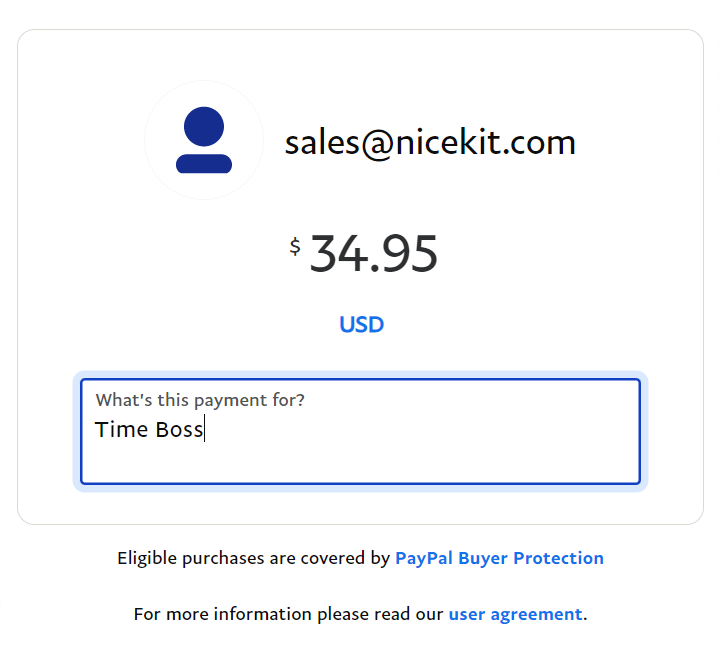
Can I pay for the license via PayPal?
Yes. Please send payment to on PayPal. See here.
Also set the valid price and the name of needed program in the "What's this payment for?" field in your order. See here. -
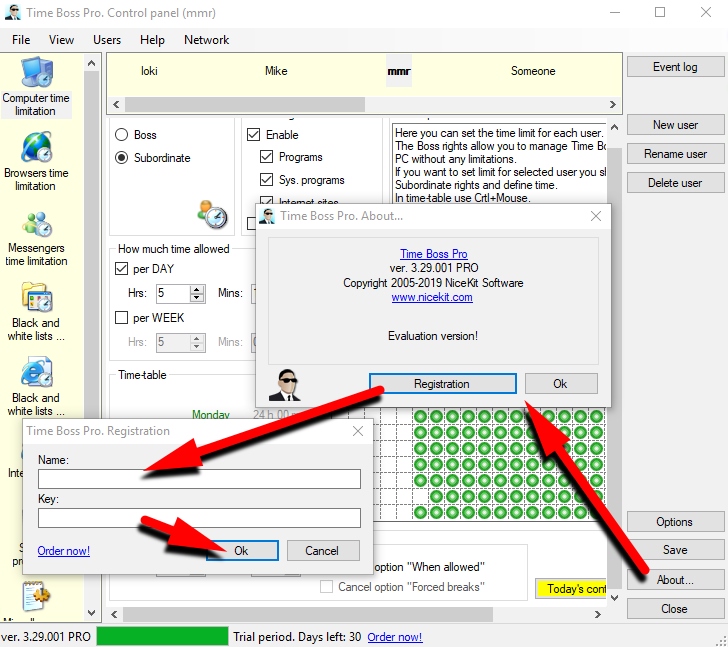
How to register a program?
1.Reboot the PC (power off/on, not wake up!).
2.Open Time Boss->Control panel->About->Registration and input name and key (use copy / paste).
3.Close Registration and About windows.
4.Close Control panel window.
5.Reboot the PC (power off/on, not wake up!).
Even if the trial period has finished, the program works during few minutes after PC starting (every time computer power on, not wake up) until you wouldn't input your register key and name.
Please note the registrations info for Time Boss and Time Boss PRO are different! -
Does the registration key have an expiration
date?
The license is valid for 2 years from the date of purchase.
Having received the license, you become a registered user. -
Does the registration key apply to program updates
or after updating parental control software need to
purchase a new key?
All version updates are free for all users.

-
Who is Parent (aka Boss, aka Master)?
Parent rights allow you to manage the program by launching the Control panel and view the event log.
A user with Parent rights has no time limit.
The countdown indicator does not work.
Lists of allowed and prohibited programs, websites for the Parent are valid.
The bad word filter for Parent has no effect.
The settings from the Time Boss->Control panel->Options panel work for the Parent.
The Parent user may not have Administrator rights in Windows.
The Parent user may have "read-only" access to Time Boss folder. -
Who is Child?
Child rights are used for users who require a time limit.
All restrictions are configured on the user panel in the Time Boss->Control panel. -
Who is Someone?
This is a built-in user under whose name the program controls of computer users, not specified in the Time Boss->Control panel.
If a new user has been added to Windows, and you want to set his personal time limits, then add him to Time Boss by using the New user button. Or click the Refresh users button - the program will find and add new Windows users by itself.
If a new user appears in Windows, then the program perceives him as Someone. This happens until the user is explicitly added to the program. Thus, if you want to restrict all newly created users (when, for example, the child creates them himself) - just limit his time to Someone, make them a Child and set zero boundaries on the Computer time limitation tab. -
Who are the users, do they need to be created
somehow or are they Windows users?
These are Windows users.
During installation, the program automatically detects them. Each user can be given personal restrictions and settings.
If necessary, user settings can be saved to a file (Time Boss->Control panel->Menu->File) and then loaded them for (any other) user.
You can refresh the list of users by clicking the Refresh users button (Time Boss->Control panel). -
Does the program control new users created in
Windows?
Sure. All users who are not explicitly listed in the program work according to the settings of the user Someone.
-
The program does not recognize the user under his
name, but perceives as Someone, why?
Perhaps you misspelled the user name in the program. Solution: try to rename the user in the Control panel (Rename user button) or update the list of users (Refresh users button).
Windows itself and the program treat the user as the Owner, despite the fact that he is entered into the Windows system under a different name. This happens if the user himself installed Windows under this name. You can verify this if the "Owner" folder exists in the "Documents and Settings" folder on the drive where Windows is located. Solution: in the program you need to create this user as the Owner.
The name by which the program recognizes the user can be seen in the Event Log about the beginning of the user session. -
Can a user who does not have administrator rights
on the computer manage the program?
Yes, he can.
To do this, user must know the password for the Control panel or have the Parent rights in Time Boss.
User can only have read access to the folder where Time Boss is installed. If the user does not have access to the folder with the program at all, user will not be able to start the Control panel, although the main module of the program will continue to work. -
There is one user on the computer (Administrator),
how can he restrict the Internet and games?
Do this:
- Set a password for the Control panel (TB->Options->General->Password)
- Set the Child rights for the Administrator user
- If you do not need restrictions on computer time - set a limit of 24 hours
- Set the necessary time limits for the Internet (Browsers time limitation), programs (Black and white lists), etc.
Now TB will restrict the Administrator user, however, if necessary, it will be possible to open the TB Control panel using a password directly from the Administrator session. Please note that Child rights impose restrictions on Windows administration (restricting the use of the registry editor, changing the time, etc.) and enable Internet filtering. If necessary, restrictions can be disabled on the tabs System protection and Internet filter.
If TB does not allow assigning the Child rights for the Administrator for the reason that at least one of the TB users must have the Parent rights - create a new (dummy) user in TB with the Parent rights and only then give the Child rights to the Administrator. -
How to set up parental control if there is one
Windows user on the computer (one child account)?
First, set a password for the parental control Control panel (TB->Control panel->Options->General->Password). Knowing the password, you can open the parental control Control panel from the child's session (you can also quickly add the child additional time for the current day).
Then, in the parental control Control panel, set the Child rights to the child and set the necessary time limits.
If TB warns that there are no more users with Parent rights left, then first add a new dummy user to TB (which is not in Windows) and give him Parent rights.
If the child is a computer geek, then set the Child rights with zero computer use time to all other users (Guest, Administrator, Someone) in the parental control Time Boss. -
The child creates new users in Windows and plays in
their sessions. What to do?
If a new user appears in Windows, then the program perceives him as Someone. Thus, if you want to restrict all newly created users (when, for example, the child creates them himself) - just limit the time for Someone, make him a Child and set zero restrictions on the Computer time limitation tab.
-
What happens when a child runs out of time and
there is only one account (child) on the computer?
Does the computer just shut down? And if you need to
urgently add time, how to do it? It turns out that
the computer just turns on and then turns off?
If time is up, Time Boss gives 1 minute delay before shutting down (session, computer) to enter bonus time or to open Control panel (add time) using a password.
The default is 6 attempts of one minute for every 30 minutes (this is configured on the tab Time Boss->Control panel->User->Miscellaneous->Extended). -
Does Time Boss understand domain users?
Yes.
To do this, add a new user to Time Boss (Time Boss->Control panel->New user button) and specify the username as the name without the domain prefix (i.e. if in the LAN domain the username LAN\Mike must be entered in Time Boss as Mike). -
What should be the name of the domain user in Time
Boss?
The username must be without specifying the domain name, for example, for the domain\dad user, the name in Time Boss will be "dad".
-
On a children's computer, there are three users
(Windows accounts) - each of the children has its
own, can you do something so that the program
settings for one account can be applied to
others?
It is possible, TB has a function for copying user settings, see Control panel->Menu->File.
Set the settings for one child, select Copy in the menu, open another child's panel, choose Paste from the menu. -
Can parental control limit me? To always display
the remaining computer time?
Yes.
Activate a password in Time Boss, make yourself a Child, set the time limits you need for Forced breaks, turn off the Internet filter, turn off System Protection, turn off Control panel->Options->Internet monitor and work.
We do it ourselves. :)
You can also disable the ability to use a pause in monitoring and control: Control panel->Options->Additionally->Miscellaneous. -
Can I turn off computer tracking completely? I
control the children's computer remotely and there
is no need to write any logs on my personal
computer.
Yes, you can.
You can use a pause in monitoring and control on your computer.
Or give all users on your computer the Parent rights and disable logging (uncheck TB->Control panel->User->Event log->Enable) and screenshots (uncheck TB->Control panel->User->Event log->Screenshots). We also recommend disabling the Time Boss Internet monitor (uncheck the TB->Control panel->Options->Internet Monitor->Enable). -
Why do you need the amount of time and boundaries,
are there not enough boundaries or timetable?
Time limit limits how much time is available in total within the specified boundaries or timetable.
For example 2 hours at any time from 15.00 to 21.00.
If you want to use only the timetable or boundaries - set the amount of time per day as 23 hours 59 minutes.
See pictures: here, here and here. -
Is the total computer time a global limit? For
example, if the limit is set to 2 hours a day work
on the Internet and work on Skype for 2 hours a day,
and the total time of a PC is 3 hours, how will it
work?
Yes, computer time is a global limit.
Those. The computer can be turned on for 3 hours, during these 3 hours the Internet can be used for 2 hours, Skype for 2 hours. -
In Windows 10, after the child's time expires, the
program starts endlessly lock computer and unlock.
What's happening?
It is necessary to set the type of computer termination (and Forced breaks) in Time Boss how to Log Off rather than Disconnect session (TB->Control panel->Options->General->Termination type).
Or give the child a Windows password (it can be very simple, you need the very fact of the password) to enter Windows. -
How to copy user settings from one user to another,
or from one PC to another PC?
Time Boss and Time Boss Pro save all settings in the main Time Boss folder personally on each computer.
When you want to copy settings from one PC to another then use .cfg or .cfu files please.
You can save Time Boss settings on one PC to shared folder or flash card (Menu->File->Save configuration to file) then load this settings to Time Boss on another PC (Menu->File->Load configuration from file).
Please use Time Boss Control panel menu File.
When you want to copy setting from one user to another - use Copy and Paste commands in Time Boss Control panel menu (select needed user - press Copy, select another user - press Paste).
If you copy TB Pro settings from one computer to another and TB Pro will work on both computers, then you need to change the computer identifier in TB Pro on one of the computers. To do this, use the menu File->Set new computer identifier.
Child learns over the Internet
-
The child can learn via the Internet at any time,
and he should not use other programs (games) and
websites at all.
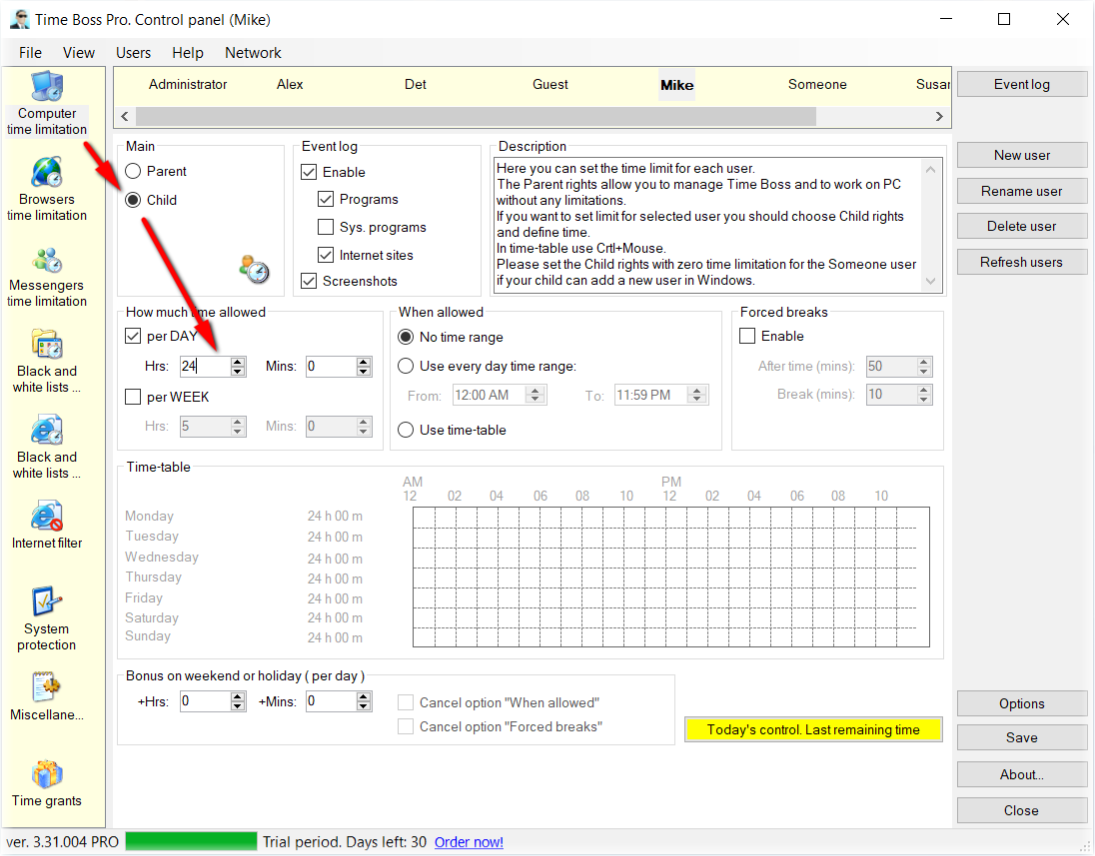
Since a child has to study at any time, then he can use a computer 24 hours a day. Therefore, on the tab Computer time limitation for the child, we set 24 hours a day. Time boundaries (When allowed) - no time range. The same time limits should be on the tabs Browser time limitation and Messengers time limitation. See picture.
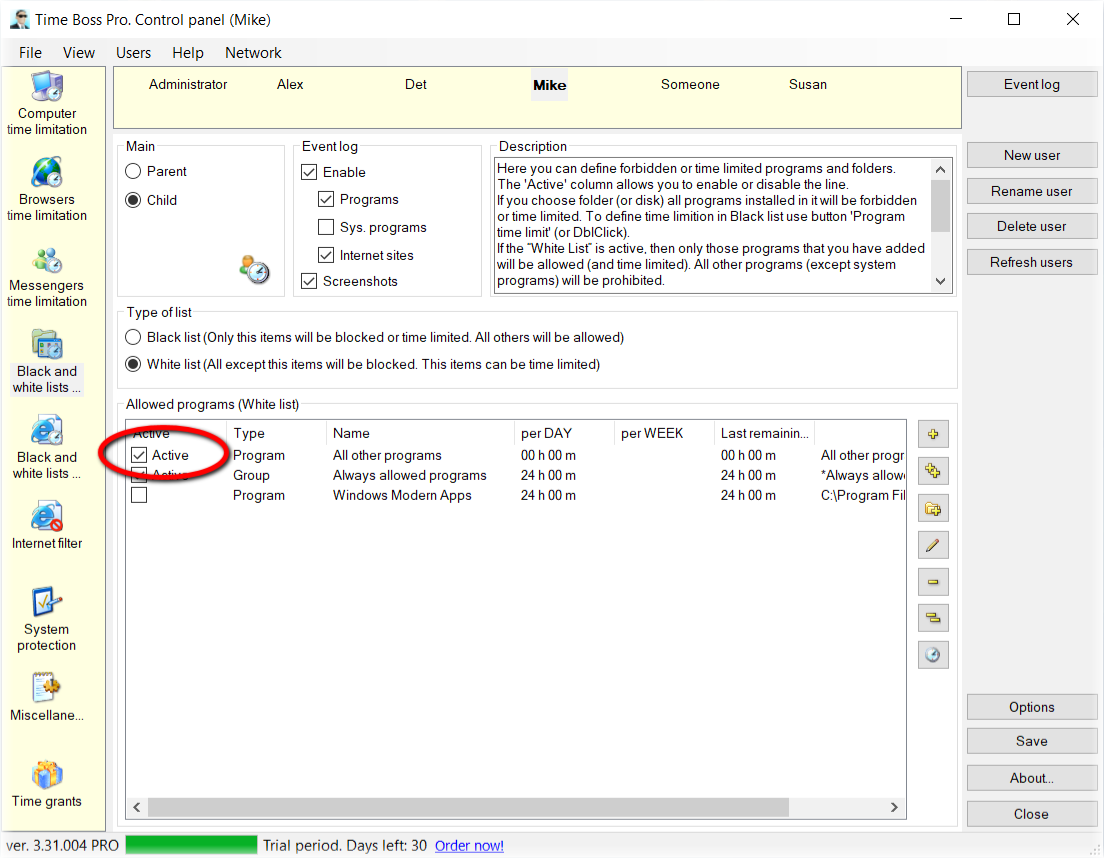
The child should not use other programs (games) at all, therefore, on the Black and white lists of programs tab, select the White list list type, in which all programs are forbidden except for the system and explicitly added to the list.
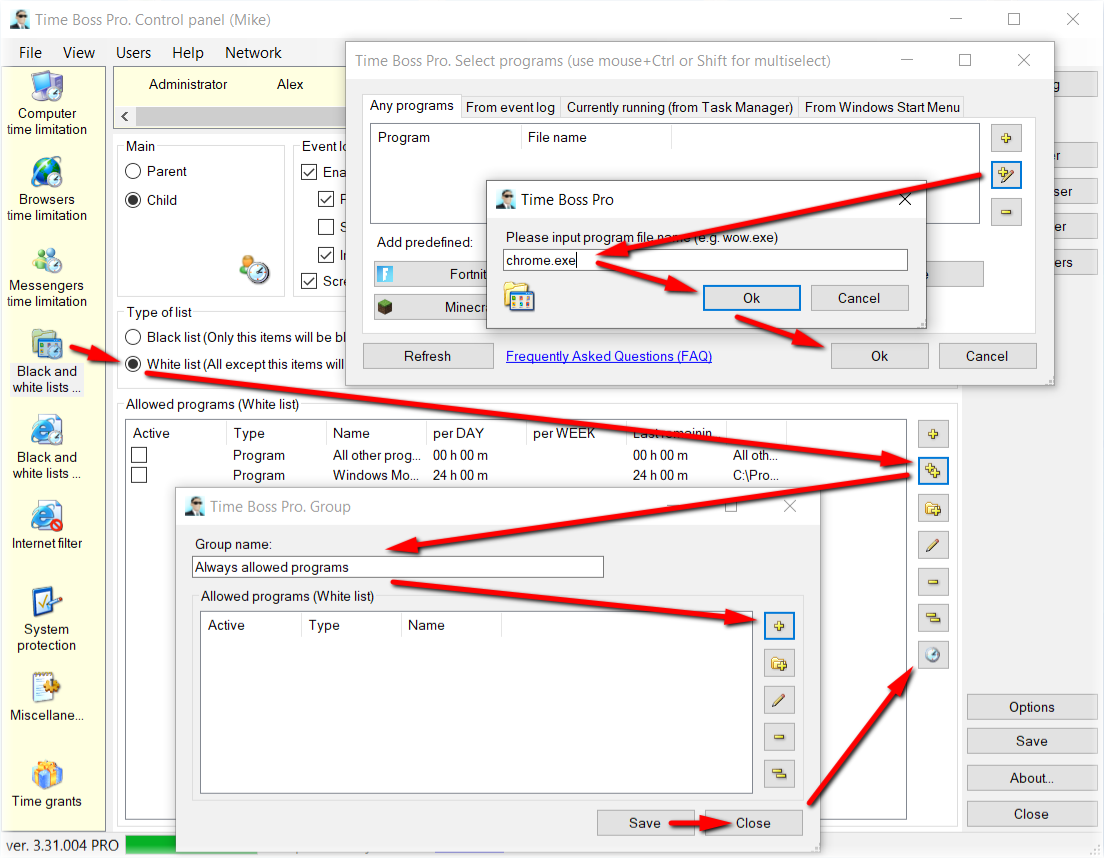
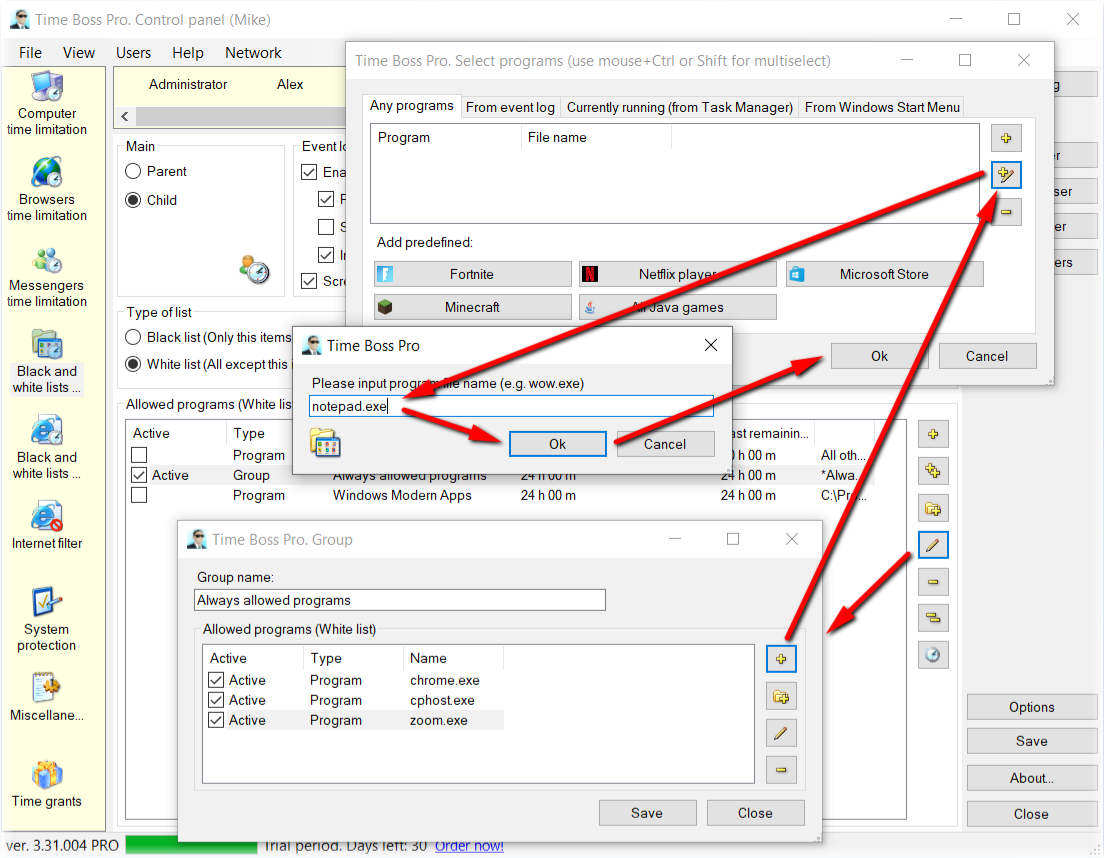
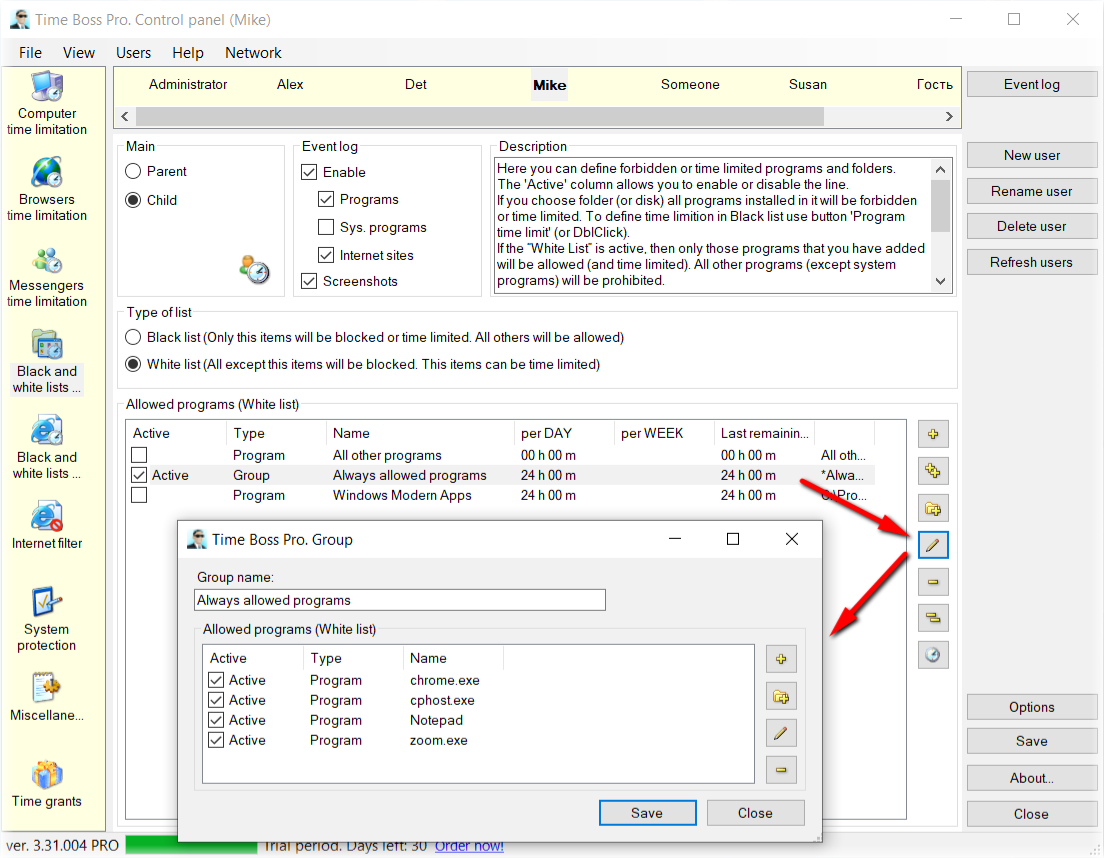
Since the child will use a web browser to visit educational sites, the web browser program must always be allowed to be used. To do this, create (the button with two plus signs on the right) a new group "Always allowed programs" (the name can be any), add the browser used by the child Firefox (firefox.exe), Chrome (chrome.exe) or Edge (msedge.exe and microsoftedge.exe) and set (the clock button on the right) a time limit for the group at 24 hours a day. See picture .
If necessary, you can add programs needed for the child to study in the same group. For example, notepad (notepad.exe), Zoom (zoom.exe, cpthost.exe), mail (hxtsr.exe, commsapps.exe), etc. See pictures: here and here.
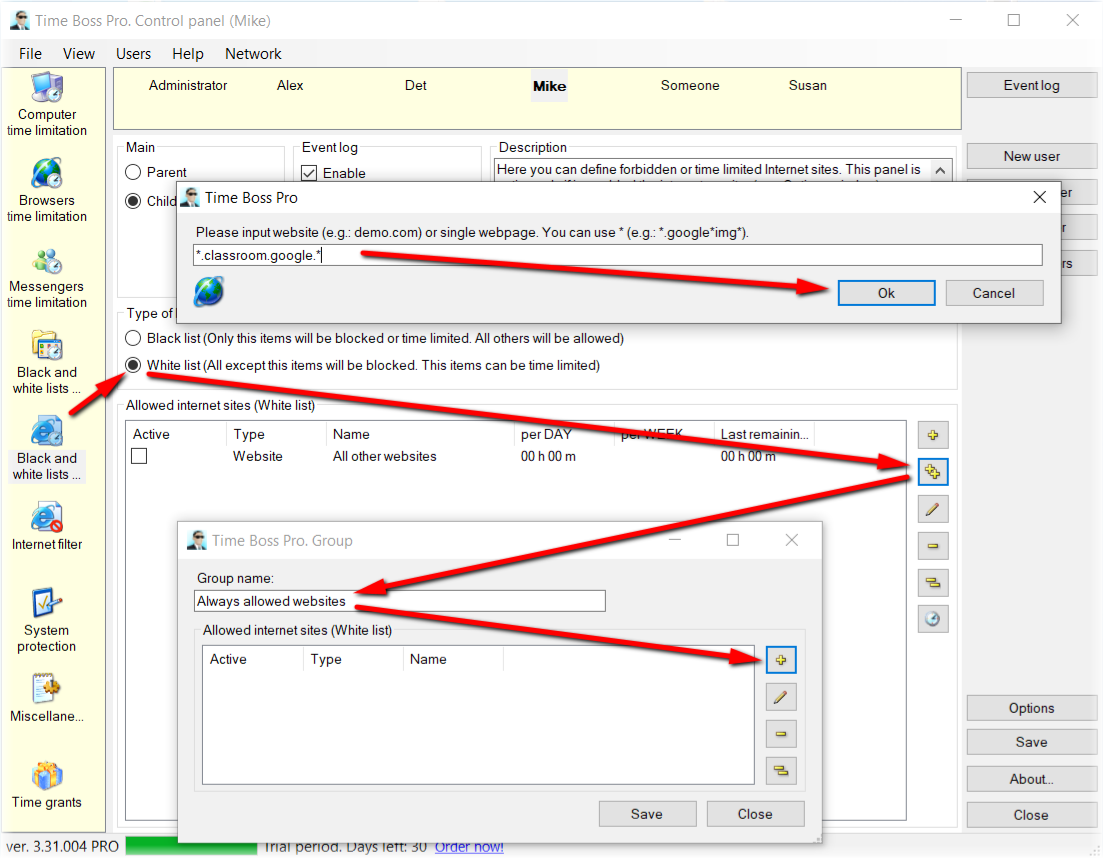
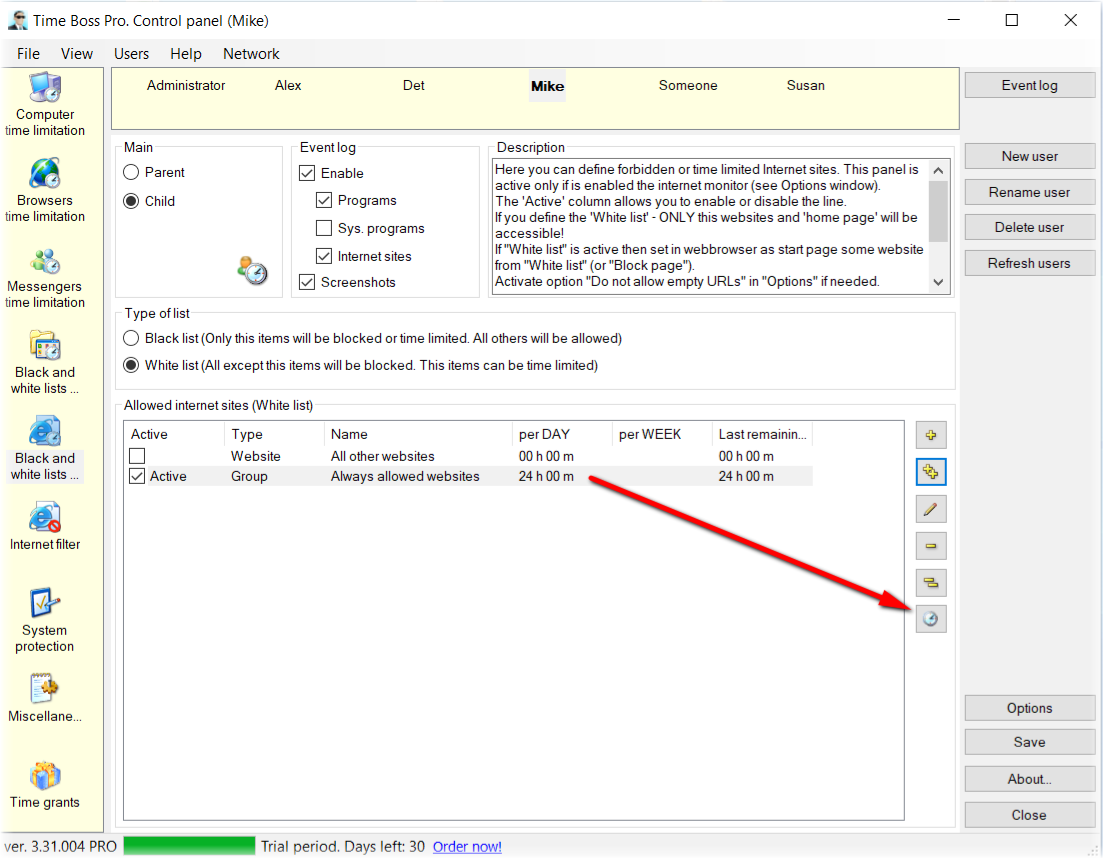
The final step is to allow the child sites intended for study, and prohibit all other sites. To do this, on the Black and white lists of internet sites tab, select the White list list type when all sites are prohibited except explicitly listed and the block page (wikipedia by default).
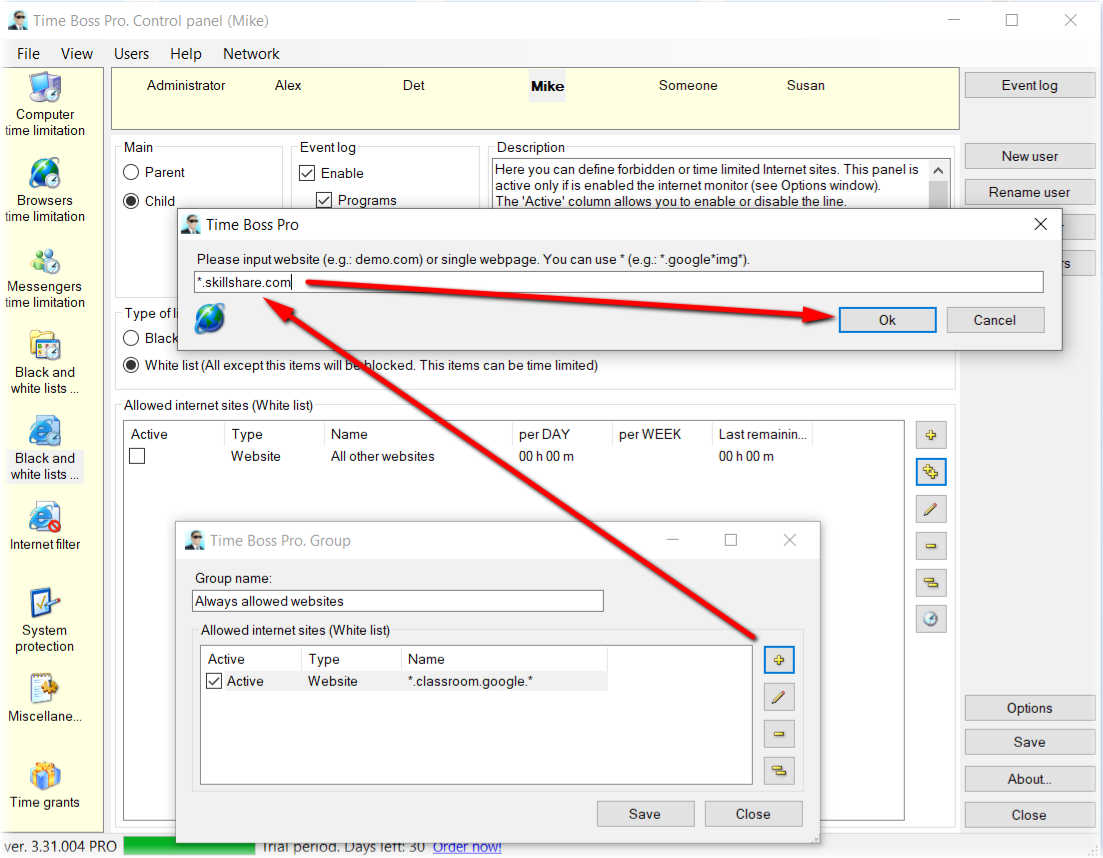
To do this, create (the button with two plus signs on the right) a new group "Always allowed websites" (the name can be any), add there the websites used for study, for example *.classroom.google.* and *.skillshare.com, and set (the clock button on the right) a time limit for the group at 24 hours a day. See pictures: here , here and here .
Changes will take effect after saving and closing the Control panel.
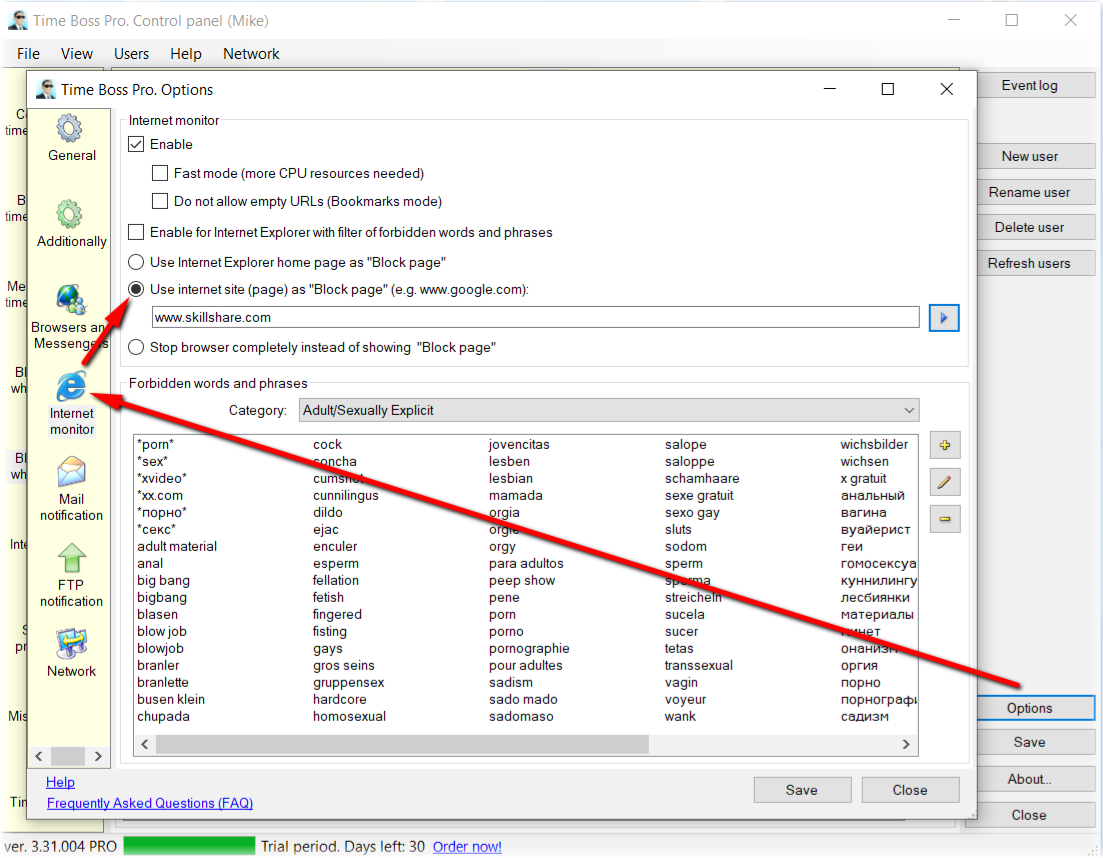
If necessary, you can change the block page (wikipedia by default, used for bad words) to some site for study (Control panel->Options->Internet monitor->Use internet site as "Block page"). See picture .
The countdown indicator will appear 10 hours before midnight (default). It can be turned off altogether: Show countdown window ... (Control panel->Child->Miscellaneous->Extended). -
The child can learn via the Internet and also use
any programs, but no more than 2 hours a day.
First, we perform the settings of point 1.
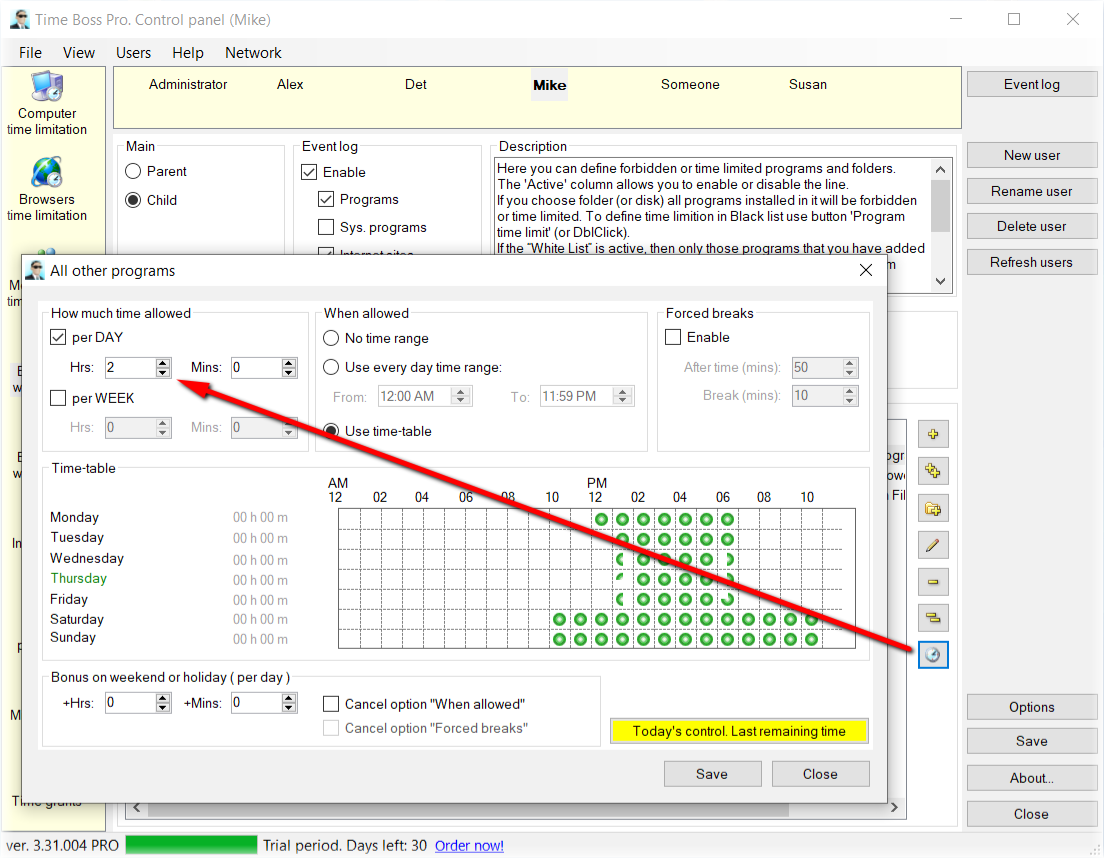
Then, for the child, on the Black and white lists of programs tab in the White list, turn on the All other programs group. This is a group for all programs on the computer, except for system programs and programs that fall into other groups.
Then we set the required time limits (2 hours) for this group. To do this, press the button with the clock on the right.
See pictures: here and here. -
The child can learn via the Internet and
additionally open any websites, but no more than 2
hours a day
First, we do the settings in point 1 (2).
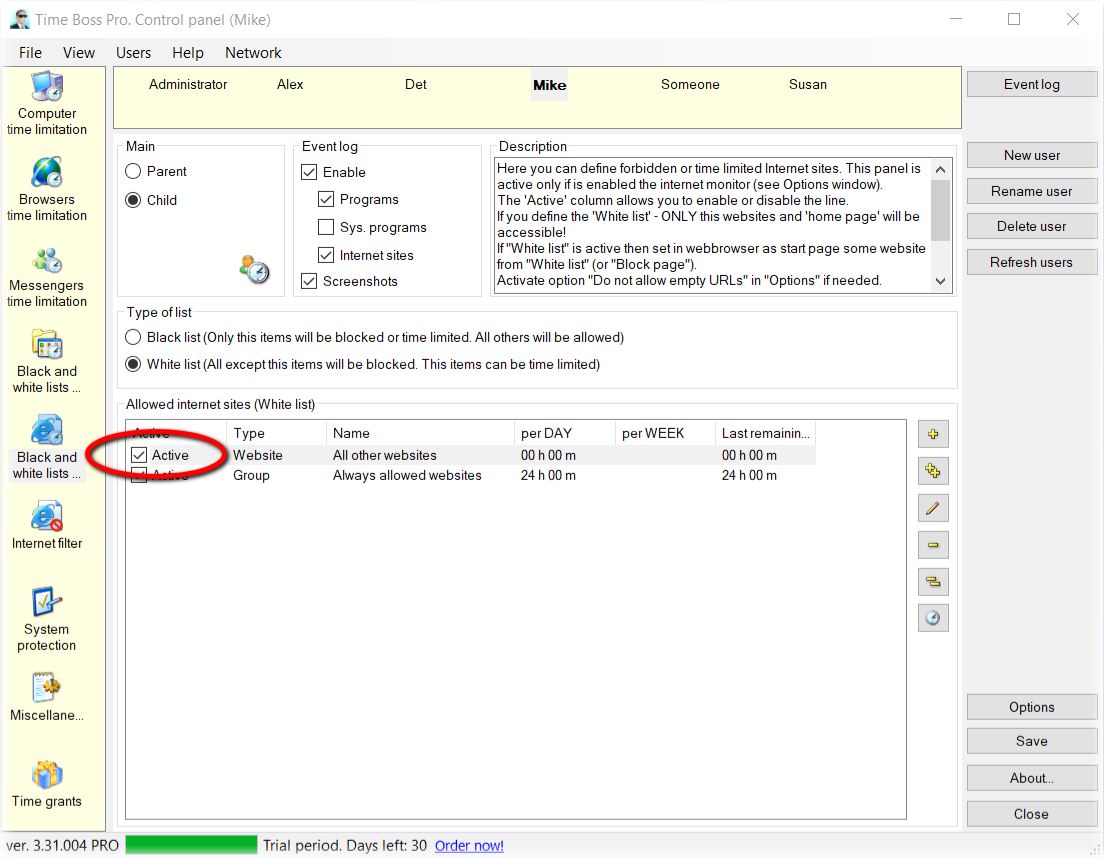
Then, for the child, on the Black and white lists of internet sites tab in the White list, enable the All other websites group. This is the group for all websites except for sites that fall into other groups.
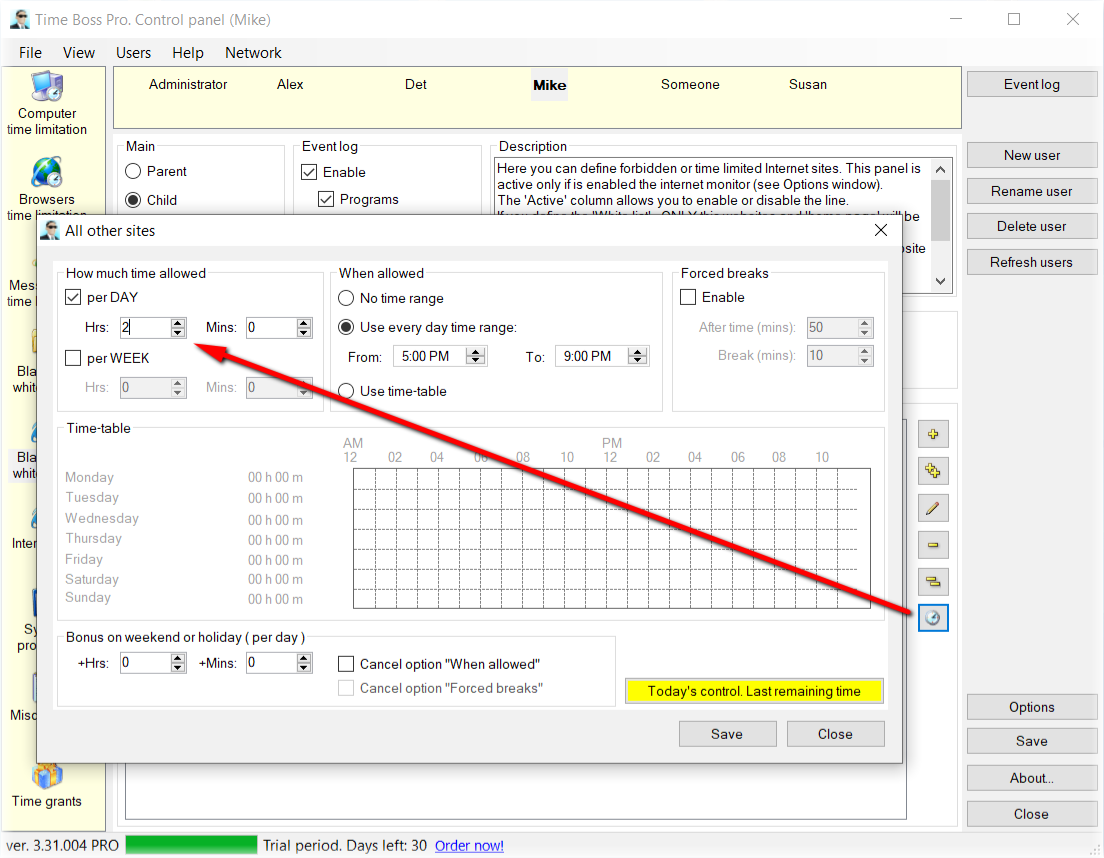
Then we set the required time limits (2 hours) for this group. To do this, press the button with the clock on the right.
See pictures: here and here. -
The child can learn via the Internet and
additionally play games, but only with those that I
allow and no more than 2 hours a day.
First, we perform the settings of point 1 (3).
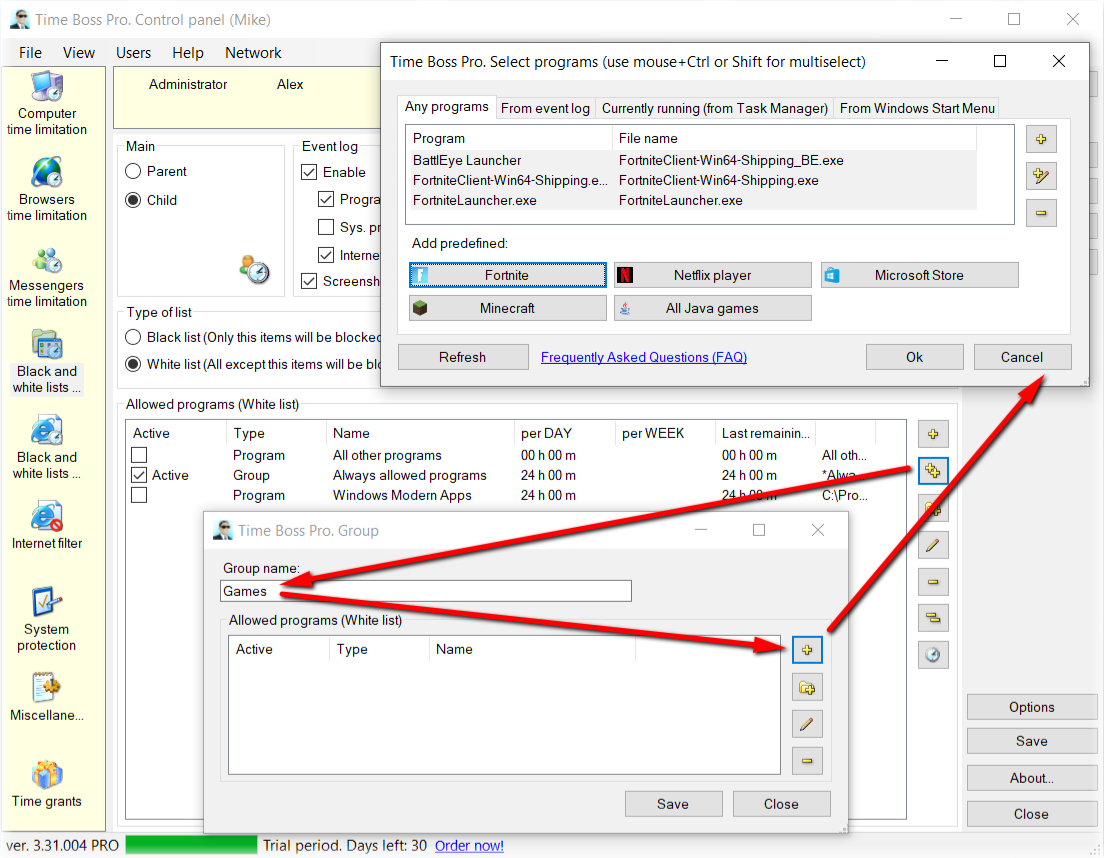
Then for the child on the tab Black and white lists of programs in the White list add a new group "Games" (the name can be any). We add games allowed by us to this group (executable files and/or folders where games are installed). When adding, you can select games directly from the event log.
Then we set the required time limits (2 hours) for this group. To do this, press the button with the clock on the right.
See pictures: here, here and here.
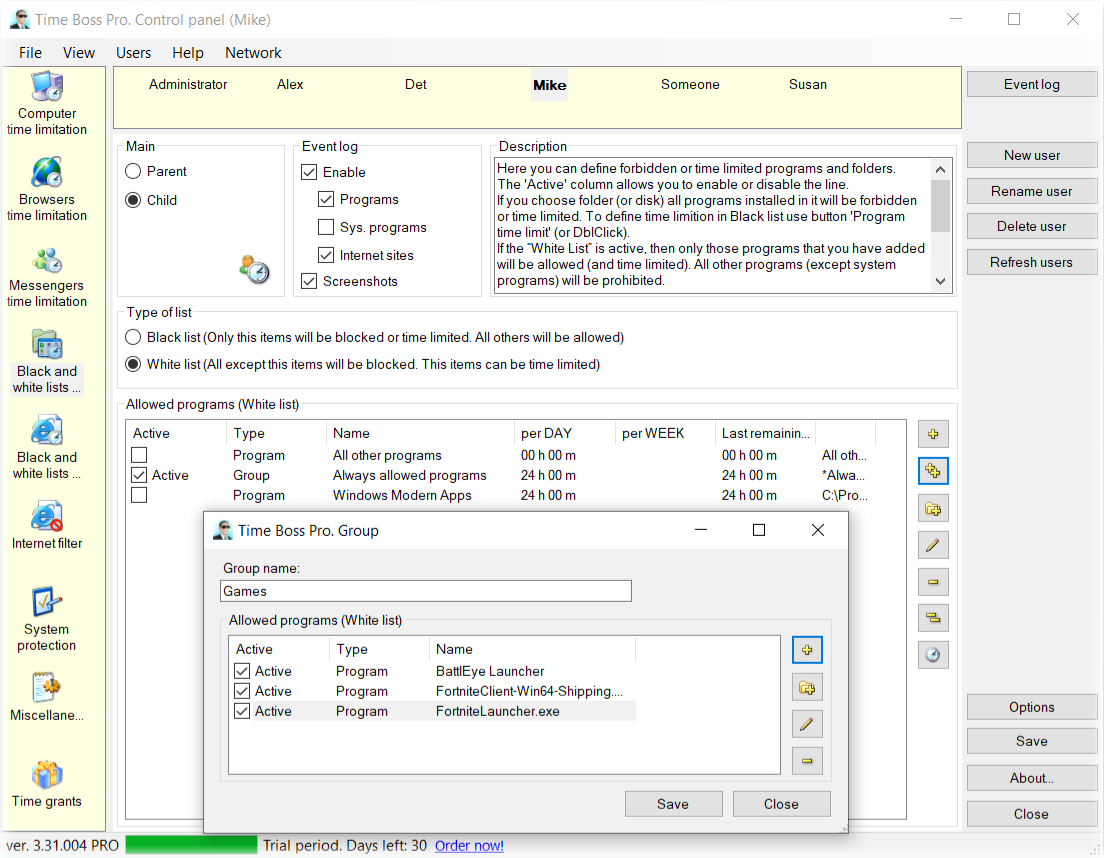
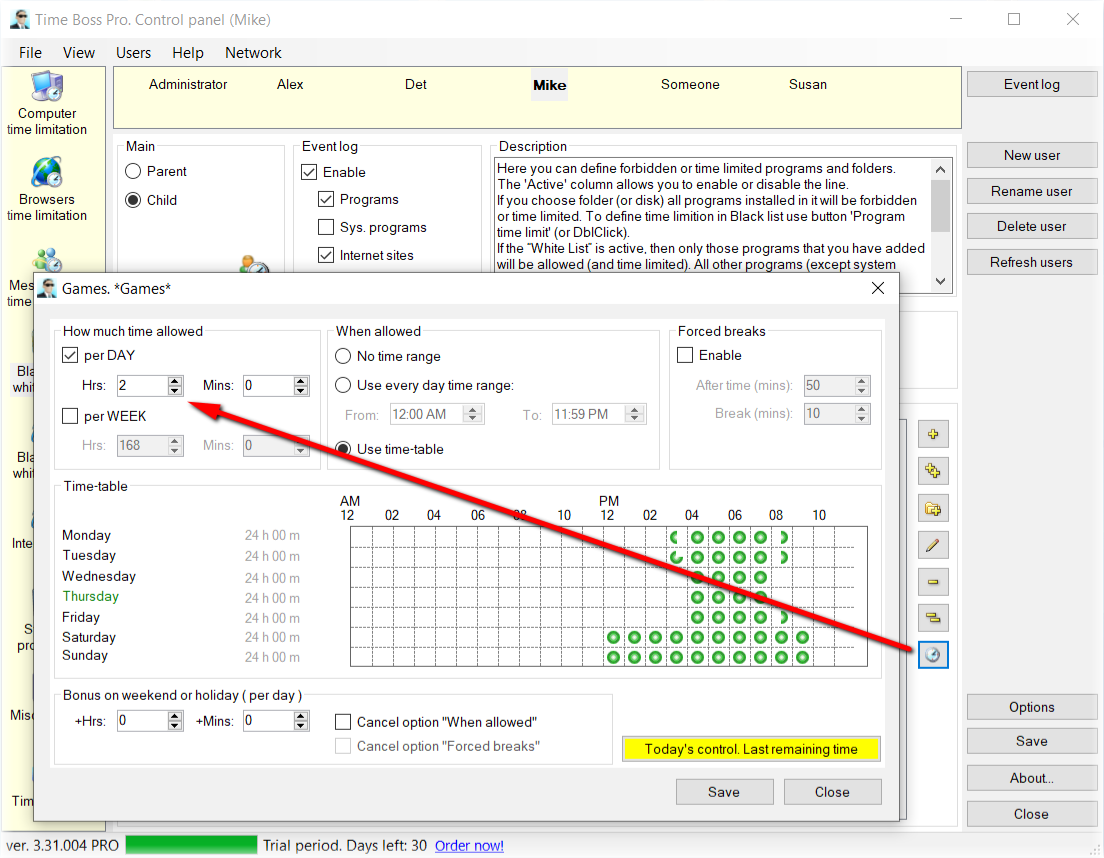
Change the remaining time for the current day. Grants (Prizes)
-
How to quickly add time to the child for today (the
child wants to play more)?
There are several ways.
-
The main way to add time is with Grants.
Learn more here.
Grant consists of a key unknown to the
child and extra time. The grants are created by
the parent in advance.
At the child's request, the parent informs the child (by phone) of the grant key, the child enters it into the program and gets additional time. See pictures: here and here.
Grants are one-time.
You can also create grants from Time Boss Cloud . -
If the parent is near the child, then he can
time by entering the password. To do this, use
the same window as for entering the
Grant.
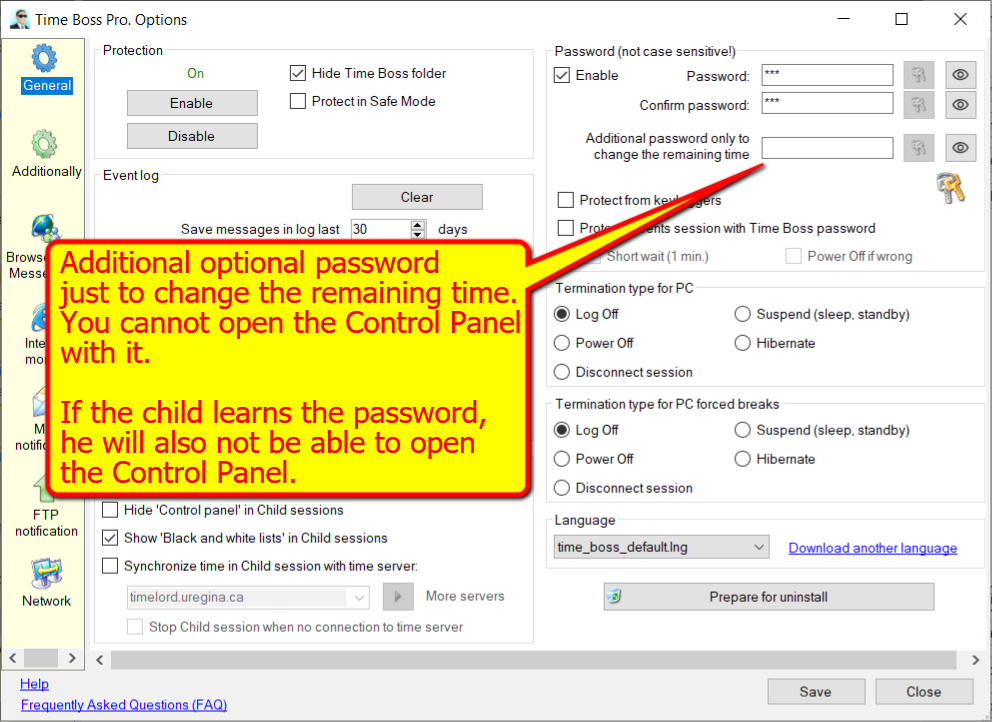
The parent can use an additional password, which will also help to change the remaining time, but with which the Control panel cannot be opened (since ver. 3.32). -
You can also open
Time Boss->Control panel directly.
This can be done either by entering a password (if set), or by logging into Windows as a user, with the Parent rights (the child's session in Windows does not need to be interrupted).
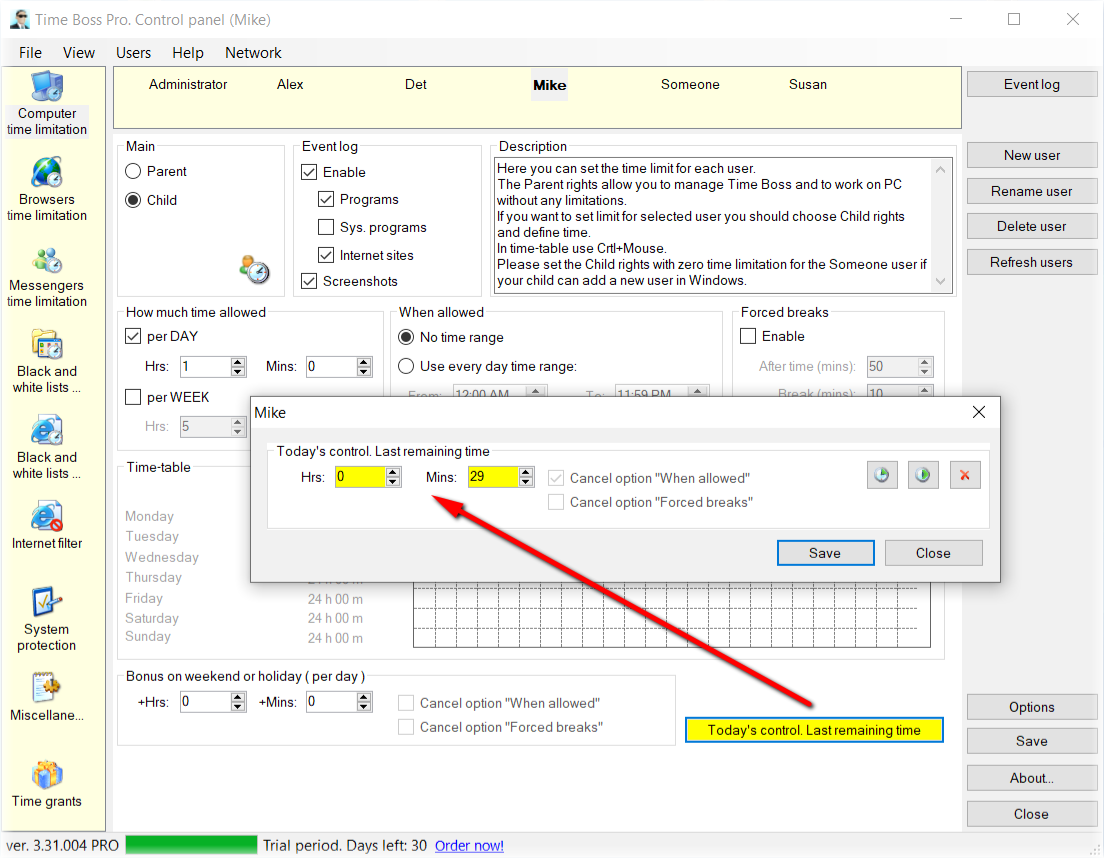
In Control panel, on the tab of this user, you can simply change (increase or decrease) time only for today (yellow button Today's control. Last remaining time). See picture.
And of course, you can change the allowed time settings for each day.
Changes will take effect after saving and closing Control panel. - If Time Boss Pro parental control is installed on the child's computer and on the parent's computer, you can open the Control panel on the child computer from your remote parent computer and use the previous methods. See here for details.
- If Time Boss Pro parental control is installed on the child's computer, then you can change the time directly from your Android phone or a remote computer (from work) using a small free program Time Boss Cloud.
The event log will contain information about all time changes for today. -
The main way to add time is with Grants.
Learn more here.
Grant consists of a key unknown to the
child and extra time. The grants are created by
the parent in advance.
-
How to quickly reduce the child's time for
today?
See previous question (last 3 points).
-
What are grants (prizes) and how to use them?
Imagine a situation when you need to give your child more time to play, over the allotted limit, but you are not around ...
There are Grants (prizes) to solve this problem.
The grant consists of a keyword and overtime.
You in advance in the program on the panel Time grants (or remotely in Time Boss Cloud) set a list of such grants for the child, of course, without telling him about the keywords.
And that's when it is necessary to give the child time to play more, then tell him the keyword of the desired (based on the desired added time) grant.
The child enters a keyword in his session, gets the extra time for that grant, and can continue playing. See pictures: here and here.
Grants are one-off, i.e. after use, the grant cannot be reused (Although re-activating the Enable checkbox in Control panel->Time grants allows you to do this).
Grants are valid only on the day of use.
Grants entered before midnight will expire after midnight.
Please note that grant times are subject to time limits. They can be canceled in the grant settings. You can also cancel breaks for the duration of the grant.
The grants are universal, valid for all users and for all time restrictions (programs, websites, groups ...). In the grant input window, child can additionally specify what the grant is used for (computer, group of games, websites ...)
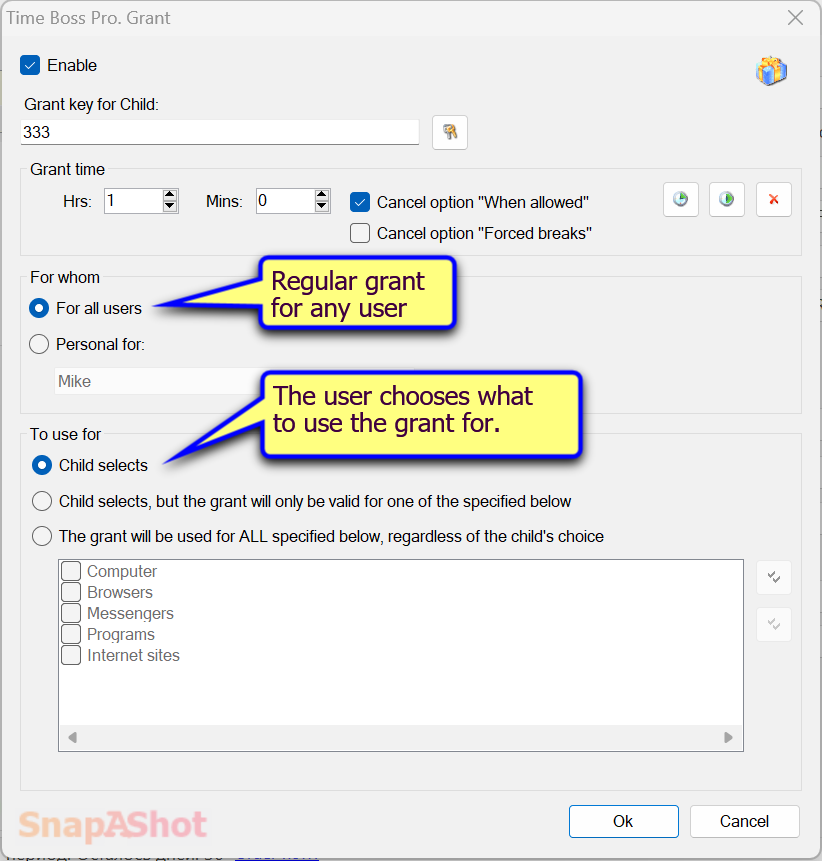
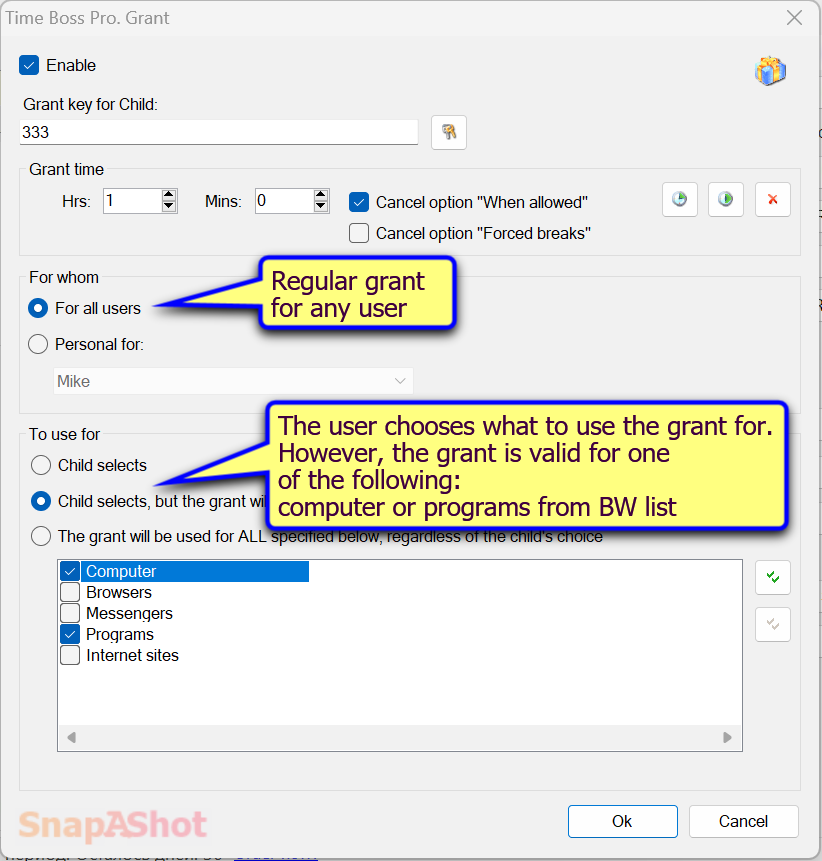
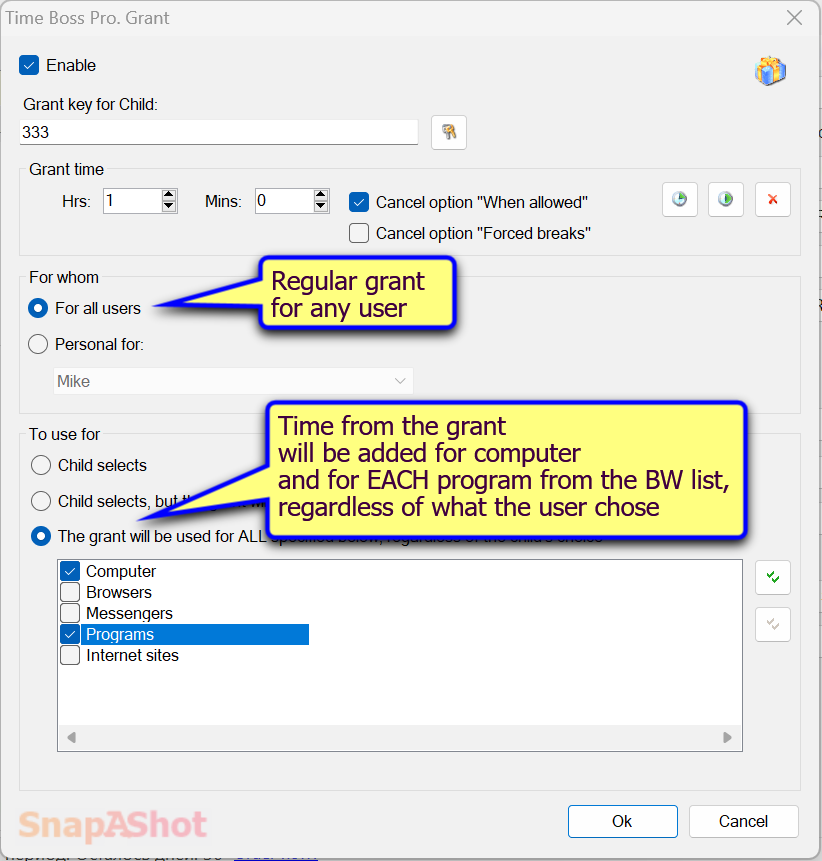
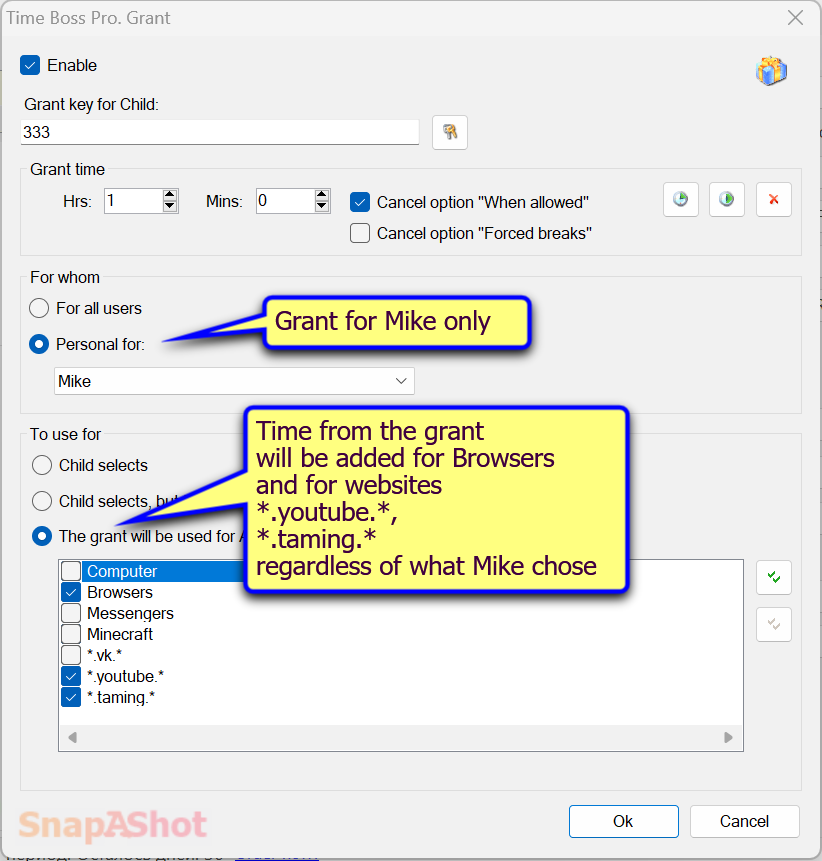
Starting from ver. 3.37.004, you can specify for which user the grant will be valid and determine the purpose of the grant. See pictures: here, here, here and here.
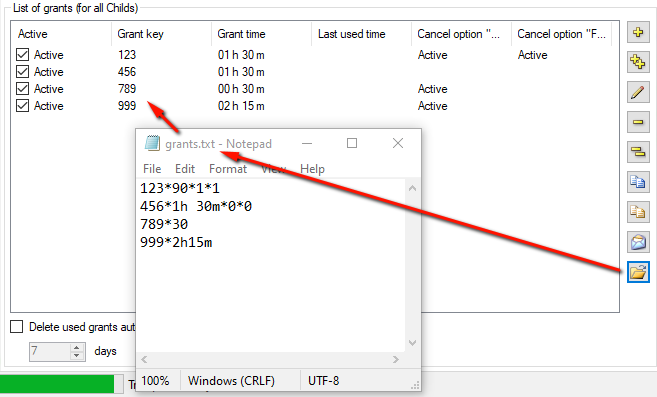
You can load grants to TB from a simple text file.
Each grant must appear on a new line in this file.
Each grant contains "Key", "Time" (required) and "Cance option when allowed", "Cancel option Forsed breaks" (optional) with "*" as a separator.
For example: for line 123*90 a new grant will be added with key 123 and time 1 h 30 min.
See picture. -
Why does the program not allow increasing the
remaining time in the window 'Today's control. Last
remaining time'?
This can be if the time range is enabled and the extra time falls within these limits. In this case, you need to activate the Cancel option "When allowed" checkbox. Otherwise, this is possible if the time limit mode is set to per Week and the time used by the user for a week has expired. In this case you can either disable per Week or just directly increase the time allowed for a week in the How much time allowed panel.
-
The remaining time was changed for the child in the
Control panel, but still does the computer keep
shutting down at other times?
Perhaps:
- Did you change the settings for that user?
-
Maybe the user has time range, or is there an
active time-table that limits the time?
If you changed the time for today through the additional time window from the child's session (or remotely), then check the box Cancel option "When allowed". - Perhaps TB defines the user as Someone, then the real name the user can be recognized in the log in the user start event in the comments column. If so, then add this new user (or change the name for an existing one, you can also use the Refresh users button).
-
Why does Time Boss give the child one more minute
after the time is up?
The point is that when the user runs out of time, every time the user logs on to Windows Time Boss gives 1 more minute for a possible entry of the grant, to increase the time (opening Control panel) with a password, etc.
Additional 1 minute can be disabled by activating the checkbox for the user Don't wait 1 min after logon when time is over (Control panel->User->Miscellaneous->Extended). Here you can also limit the number of consecutive login attempts with a one minute delay (so that the child does not abuse this minute for games).
As an additional option, you can at the end of the time force TB turn off the computer and not end the session (Control panel->Options->General->Termination type for PC). -
When I try to add time to the child, the computer
turns off, those i just physically do not have time
to do anything. What to do?
You have to wait half an hour or change the time for the child from user session with Parent rights or using a password.
The fact is that when the child's time is over, TB gives a child only 6 attempts every half hour (you can change Control panel->User->Miscellaneous->Extended) to enter the session with a minute delay so that the child can use the grants, etc.
After 6 attempts, TB stops letting in the session (so that the child does not abuse this minute for games).
After half an hour, TB will again give 6 attempts with a one minute delay. -
Question: There is a user account. Time limit is
18.00-22.00 daily. I entered a prize time of 15
minutes for the test. Activated the prize at 10.00.
I tested for 3 minutes, then put the computer into
sleep mode. Then the user turned on the computer at
18.00. The remaining 12 minutes of prize money
ended, and the computer was blocked at 18.12.
Why?
At the time of using the grant, taking into account the time range, the time was 0 minutes, after the grant it became 0 + 15 minutes, the time range was disabled.
This "simple" logic is used, since time range can be complex (with an active time-table).
The grant has an option - to cancel the time range (Cancel option "When allowed") - by default it is on! Those, after using the grant, the time range are not valid until the end of the day (or until the next grant with the option disabled). -
Warnings appear frequently, why?
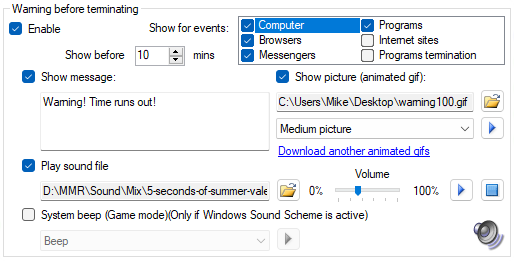
Warning is shown separately for each set time limit (those for a computer, for a browser, for programs, etc.).
The warning is shown once before the end (termination) for the time set on the panel TB->Control panel->USER->Miscellaneous->Warning before termination->Show before or at the end of (termination) if the warning has not yet been shown. See picture.
If the time limit have been changed from the TB->Control panel, Time Boss Cloud or via Grants then the warning will be shown again.
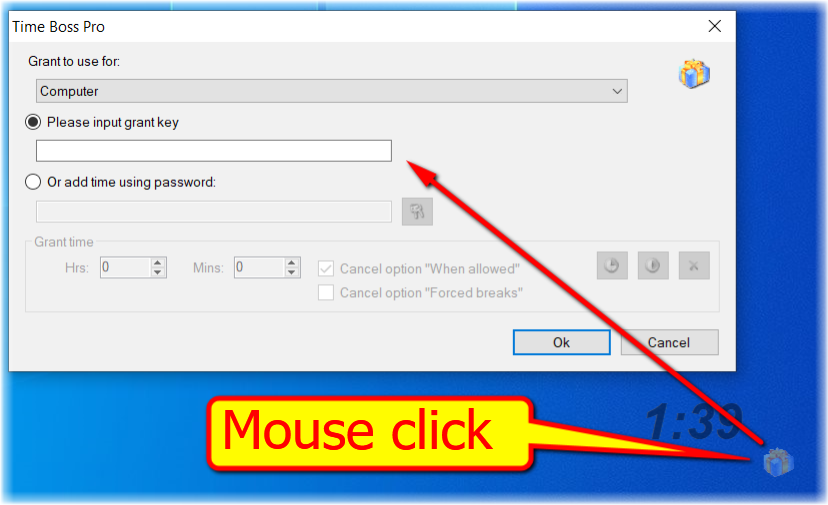
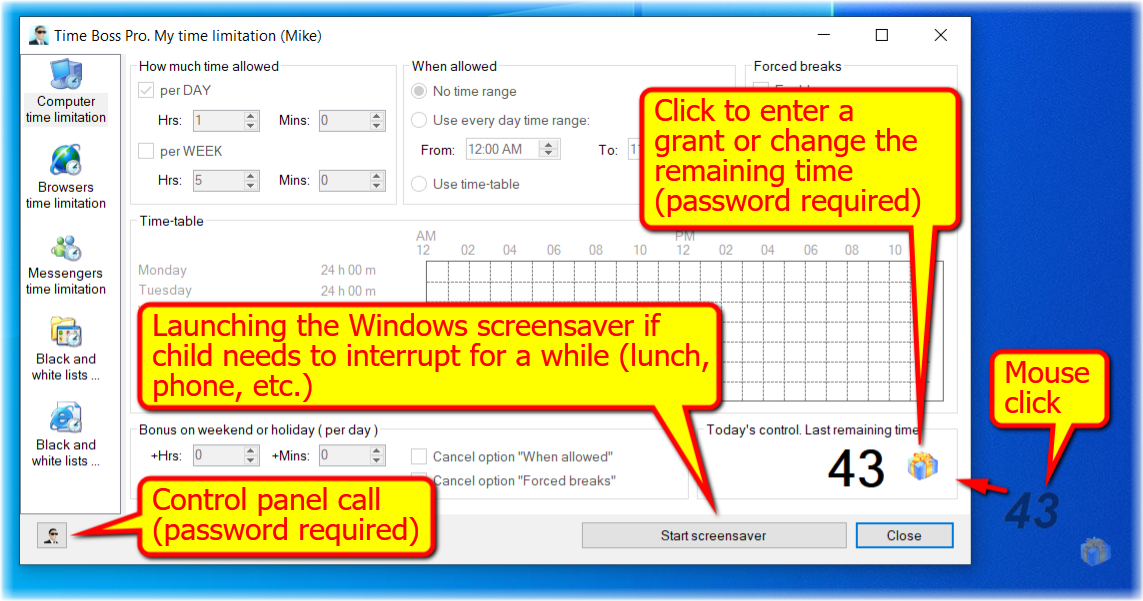
Breaks
-
How to get child to take breaks while sitting at
the computer?
In the Control panel, for a child, on the Computer time limitation tab there is a section Forced breaks. They must be turned on and set the time of continuous work at the computer and the obligatory break time. In this case, Time Boss will not allow the child to be continuously at the computer for more than the specified time and will oblige him to take a mandatory break.
For a computer, you can define the type of end of continuous work during a break: Control panel->Options->General->Termination type for PC forced breaks->Disconnect session. In this case, all programs started before the break will not be interrupted. -
Can the child postpone the forced break for
himself?
The child himself can postpone the forced break for a few minutes if the option is enabled Postpone forced breaks (Control panel->Options->Additionally).
-
How can a child interrupt their computer time
(distracted by a phone call, lunch, etc.)?
To stop the timer, the child can:
- start a Windows screensaver. This can be done either directly from the menu of the Time Boss in the system tray or from remaining time window. See here.
- the screensaver can start itself automatically after the time specified in the Windows screen saver settings (right mouse button on the desktop: Personalize->Lock screen->Screen saver settings->Screen saver).
- put the computer into hibernation, sleep or standby mode.
- switch to another user or lock computer.
-
How to make it so that when the computer is not
used, the program itself is paused and the time
limit was not spent? The child forgets to pause and
his entire limit flies away in vain.
It is necessary to activate the screen saver in Windows. The screen saver will turn on automatically through, for example, 5 minutes (can be changed) of inactivity.
Time Boss does not count the time when the screen saver is active.
It is easy to activate the screen saver (right mouse button on the desktop: Personalize->Lock screen->Screen saver settings->Screen saver) or google.
Or, you can configure Windows to automatically go to sleep after, for example, 5 minutes (can be changed) of inactivity. Right mouse button on the desktop: Personalize->Lock screen->Screen timeout settings. -
Why does the time continue to count down when the
screensaver is running?
It is necessary to uncheck the Screensaver does not stop the timer (Control panel->Options->General->Miscellaneous). The option is valid for all users.
-
How to make it so that the time does not stop
(continues to decrease) with an active
screensaver?
It is necessary to activate the Screensaver does not stop the timer (Control panel->Options->General->Miscellaneous). The option is valid for all users.
-
What if a child uses the screensaver as an always
active desktop screensaver?
It is necessary to activate the Screensaver does not stop the timer (Control panel->Options->General->Miscellaneous). The option is valid for all users.
-
How to stop programs in break time? My son has been
locking the screen before his time is up and still
able to listen to music...
If termination type is Log Off, Power Off, Suspend or Hibernate (Control panel->Options->General->Termination type...) than all programs will be stopped in break.
If the option Disconnect session is active then add needed programs (music player, browser) to the list Programs that will be stopped if the child locks the session (Control panel->Options->Additionally).
Restricting Internet access
-
How to restrict access to the Internet?
For all programs using the Internet, you can set time limits in parental control. This can be done on the Browsers time limitation and Messengers time limitation tabs. Naturally, computer time limitation has a higher priority.
The list of programs that are recognized as browsers and messengers can be specified in the Control panel->Options->Browsers and Messengers window. This list is active for all users.
You can also add to this list any program that you want to restrict along with programs, using the internet. However, remember that for these purposes (limiting specific programs in time for concrete user) there is a tab Black and white lists of programs. -
How to restrict the content viewed on the
Internet?
The program supports all major browsers (Chrome, FireFox, Edge, Opera, Brave).
They work with site time limits, black and white lists and keep a log of visited sites.
Internet filter of bad words and phrases works in the URLs of the visited sites, for site content, the filter works only in Internet Explorer. -
Internet monitor stopped restricting websites, what
happened?
Most likely browsers have been updated, the Time Boss Internet monitor should also be updated to the latest version: TB->Control panel->Options->Internet monitor->"Check for updates" button. See the picture please.
Or Time Boss can also be updated to the latest version.
Updating Time Boss is not difficult, the settings will be saved. How to update see here. -
How to restrict the content viewed in Internet
Explorer (IE)?
You can restrict the content of site pages only for Internet Explorer (all versions) installed in Windows.
This filter is disabled by default. You can enable it here: TB->Control panel->Options->Internet Monitor->Enable for Internet Explorer with filter.
If you need to prohibit the use of other browsers (Edge, Chrome, Firefox, Opera ...) except Internet Explorer - activate a checkbox TB->Control panel->USER->Internet filter->Allow only Internet Explorer (IE) using for the desired user.
On the same tab Internet filter you can enable a custom Internet filter. Website content filtering is based on the list of forbidden words divided into six categories.
Banned word lists can be changed. This can be done in TB->Control panel->Options->Internet Monitor->Forbidden words and phrases.
The forbidden word must be more than 3 characters and can begin and/or end with *, which means any letters before and/or after a word.
There you can also set a "Block" page (by default www.wikipedia.org), which will appear instead of the forbidden site.
Please note that the filter does not work for sites listed in TB->Control panel->USER->Internet filter-> Internet sites without filter, "Block" page and for the home page installed in IE.
Changes will take effect after restarting IE.
We also recommend using the standard protection conditions for viewed content that exist in browsers.
For Internet Explorer, open the main menu Tools-> Internet Options-> Contents-> Access Restriction and set the required protection.
If website filtering does not work in IE, then make sure that the Time Boss Internet monitor is turned on in (TB->Control panel->Options->Internet Monitor->Enable for Internet Explorer with filter) and in IE (Tools-> Configure Add-ons-> Time Boss IE Monitor. NiceKit Software-> Enabled). -
Where and how is the list of visited sites
saved?
The list of visited sites can be viewed in the same place and where all events are - in the event log.
If there are no visited sites in the event log:
- Make sure the internet monitor is turned on: Control panel->Options->Internet Monitor->Enable checkbox is checked.
- Perhaps you are using a more recent version of the browser and TB does not support it yet.
- Perhaps the antivirus is blocking the Internet monitor (time_boss_v.exe). Add this file to the list of trusted programs in antivirus.
- Make sure that the Events filter->Internet checkbox is enabled in the event log.
- Make sure that the user is enabled to record events Event log->Enable.
-
Is it possible to limit the time of visiting a
specific website, for example Facebook?
Yes, of course.
In the TB->Control panel->USER->Black and white lists of internet sites tab, add the necessary sites (for example, for Facebook, specify the site *.facebook.*) to this list and set for them necessary time restrictions (how much time allowed and when this time limit can be used per each day of week) using button with a clock on the right.
If one site opens at several addresses (domain names), then create a group in the list (the button with two plus signs on the right) and set time limits for it.
And then add the sites you need to the group.
Also see here. -
How do I allow my child to visit only certain
websites?
On the Black and white lists of internet sites tab, select the type of list - White list. All websites except websites from the list and except for the "Block page" (TB->Control panel->Options->Internet Monitor) will be prohibited.
Add the necessary websites to the list (for example *.classroom.google.*) and give them the necessary time limits (the button with the clock).
If you need to limit the total time spent visiting websites, then first add a group to the list, for example, with the name "Always allowed websites". Add the websites you want to this group, see picture. Give time limits to the entire "Always allowed websites" group.
With the White list active, set any website from the White list (or "Block page") as the start page in browser.
Enable the option Do not allow empty URLs (TB->Control panel->Options->Internet Monitor) if necessary. We also recommend that you bookmark all websites from the white list in your browser.
Additional websites required for study, add to a new separate group with a time limit of 24 hours (i.e. no limit). -
How to change the time a child visits Facebook with
grants?
Add *.facebook.* to the Black list (TB->Control panel->USER->Black and white lists of internet sites) of websites and set for the site minimum required time, for example 30 minutes.
The rest of the time you can adjust by giving the child grants (they are universal for computer, sites and programs). See pictures: here and here.
In order for the child to see a warning about the end of the working time with the site (and enter a grant) - activate the checkbox of warnings for the Internet sites for the child: TB->Control panel->USER->Miscellaneous->Warnings before terminating->Show for events->Internet sites. We also recommend that you allow your child to watch the remaining time for sites (and apply grants to them) TB->Control panel->Options->General->Miscellaneous->Show "Black and white lists" in Child session.
If the child uses URL mirrors, create here a group (the button with two plus signs on the right) of sites with similar time restrictions and add mirror sites to it. -
Does TB control https websites and browser
incognito mode?
Yes.
-
How to increase Time Boss reaction speed to "bad"
words?
To "speed up" the work of the TB Internet monitor, activate the checkbox Fast mode (TB->Control panel->Options->Internet monitor) and limit the number of open pages in browser The maximum number of active pages in the browser (since ver. 3.34.002).
-
Can TB completely turn off the browser instead of
switching to the "Block page" (the child is
"cheating" something with the URLs)?
Yes. Enable option TB->Control panel->Options->Internet monitor->Stop browser completely instead of showing of "Block page".
-
Can Time Boss be used when using another program to
restrict the viewing of content on the Internet?
Yes, you can. In this case, if necessary, uncheck the checkbox TB->Control panel->Options->Internet monitor->Enable.
-
How does the program calculate the time spent on
the Internet? Firefox, Opera, ICQ (quip) work with
the Internet ... perhaps some other programs. I
would like the total running time of all programs on
the Internet to not exceed, for example, 3 hours a
day. What need to do?
In the list of Black and white lists of programs for entered programs (or folders, or groups of folders and programs), you can specify the time regardless of the settings on the Browsers time limitation and Messengers time limitation tabs.
Therefore, there are two ways to go:
- Do not add the required programs to the list of Black and white lists of programs, and set the necessary restrictions on the Browsers time limitation and Messengers time limitation tabs. This will restrict the programs specified in the TB->Control panel->Options->Browsers and Messengers window. Thus, the total running time of these programs will be limited. This list can be changed by yourself. This list is active for all users.
-
Do not impose restrictions on the
Browsers time limitation and
Messengers time limitation tabs, but
create a new group in the
Black and white lists of programs list.
To this group add programs that use the Internet
that you want to restrict to needed user.
Then this group will be set the necessary time limits.
Activate the checkbox TB->Control panel->Options->General->Miscellaneous->Show 'Black and white lists' in Child session.
In this case, the child will be able to see the remaining time for programs and sites.
In the future, the group, like the Browsers and Messengers list, can be changed. -
I would like to understand how the Internet is
blocked, it is the prohibition of launching certain
programs or blocking specific/all ports for this
user. For example, for me it is necessary that after
the time expires, Internet access is terminated and
only Skype worked, is it possible?
Internet browsing is blocked for specific programs.
They are listed in TB->Control panel->Options->Browsers and Messengers.
Accordingly, they work for restrictions from the tabs Browsers time limitation and Messengers time limitation for this user.
In your case, for Browsers time limitation you need to set the required time.
And for Messengers time limitation (which includes Skype by default), set a limit for how much is required for Skype.
If you want to separately limit Skype time, add it to the list Black and white lists of programs and set the necessary time limitation. Also remove Skype from the TB->Control panel->Options->Browsers and Messengers list. -
I add the domain *giraffe* to the White list, but
the site still won't load! Why?
Try adding a domain zone, for example: *.giraffe.com or *.giraffe.*
If content filtering is enabled for the White list - take a look - the domain may be banned due to content. -
How to block access to a specific site, for
example, Google videos or Google pictures?
To block pictures, add the site to the black list of banned sites like this: *.google.*isch*
If necessary, you can enter time limits for it - for example, allow to watch the site for 1 hour a day. Access to other Google services will be available.
To limit Google video, add *.google.*vid* to the blacklist. -
Is it possible to ban a specific channel on
YouTube?
Each video in a channel has its own unique URL, so you won't be able to block a specific channel...
You can block (restrict) all videos in youtube by adding restrictions for *.youtube.*watch* to the black list of sites. -
Sometimes the time counts down incorrectly when
watching a video in full screen mode on YouTube or
playing an online game. Why?
It is necessary to enable the option Fast mode in TB->Control panel->Options->Internet monitor.
You can also completely disable full screen mode in browsers TB->Control panel->Options->Internet monitor->Disable fullscreen mode in browsers for child (since ver. 3.34.02). -
There is a time limit for an online game (for
example, Tanks online, tankionline.com). When
switching to full screen game mode, the time limit
stops working. What to do?
It is necessary to enable the option Fast mode in TB->Control panel->Options->Internet monitor.
You can also completely disable full screen mode in browsers TB->Control panel->Options->Internet monitor->Disable fullscreen mode in browsers for child (since ver. 3.34.02). -
How to restrict access to certain sites by the
amount of time spent on them? For example, a list of
sites: disney.com, fb.com. The child can visit them
at any time of the day, but if at some point he
spent 18 minutes on disney.com, 12 minutes on
fb.com, which the sum gives 30 minutes, then access
to these sites is closed until the end of the
day?
Yes. Create a group in the Black and white lists of internet sites (the button with two plus signs on the right), include the necessary sites in it and give the group the needed time limits.
-
We want to prohibit the child from accessing any
sites of the *.com domain zone except *site1.com and
*abc.com. How?
If other domain zones are allowed, then in Black and white lists of internet sites activate the Black list mode, add to the list:
*.com with zero time,
*site1.com with an allowed time of 24 hours (or any other),
*abc.com with an allowed time of 24 hours (or any other).
All.
For allowed sites, you can make a group with a name longer than *.com (prohibit in your case) and with an allowed time of 24 hours (or any other). Then add allowed sites to the group.
If other domains are prohibited, activate the White list mode. -
For my daughter, i use the White list of websites.
She started teach HTML at school, thus local files
(created on disk) should be allowed. How to allow
local directory for all browsers?
You need to add the desired directory to the White list (for example for folder d:/TEST) twice (in two forms - for IE and for other browsers):
http://d:/TEST
http://file:///d:/TEST
See picture. -
How to restrict Internet browsing (for example, two
hours) and not restrict HTML files on a computer at
all (my daughter started learning HTML at
school)?
It is necessary to completely remove browser restrictions (Browser time limitation), activate the White list mode in Black and white list of internet sites and add the required directory with HTML files on your computer to the White list (for example d:/TEST), see above.
For all other sites need to set a limit of 2 hours ("All other websites" -> button with a clock on the right). See picture. -
Child uses the WQQ browser (or any other). How to
limit it?
You need to add the name of the browser file (for WQQ browser it is the file wqqbrowser.exe) to the list of browsers.
To do this, open the TB->Control panel->Options->Browsers and Messengers window and add the required file to the list of browsers.
To add a file name without a full path, use the Add manually button in the program selection window. -
Are there any plans to implement content filtering
for other browsers?
Unfortunately, we do not plan to make filtering for other browsers yet.
It is quite problematic to do it technically correctly.
We ourselves use different browsers, all of them have filtering extensions.
The latest versions of IE are not that bad, other browsers can be disabled using TB. -
The child, after the end of the allowed time, loads
Windows in SafeMode with Networking and quietly
"hangs" on the Internet. The "Safe Mode Protection"
checkbox is enabled. What do you advise?
In Safe Mode, TB does not work, this is normal, because this mode is needed for debugging Windows and they work there Windows system services only. Moreover, antiviruses do not "like" programs running in Safe Mode.
Checkbox TB->Control panel->Options->General->Protection->Protect in Safe Mode - it was necessary so that the child does not delete TB in this mode at all.
Therefore, there are some tips:-
You can try adding in MSDOS.SYS lines:
[Options]
NetWork = 0
In theory, this should hide the menu item "Download with network drivers" in Safe mode. But it often doesn't work ... :(
Edit MSDOS.SYS located at the root of the C drive: can be done using Notepad, after removing the "read-only" attribute (then put it back). - Also you can google: disable internet in Safe Mode
-
In fact, TB (Pro) can work fine in Windows Safe
Mode.
Write to us to support - we will send a small utility that activates TB (Pro) in Windows Safe Mode.
-
You can try adding in MSDOS.SYS lines:
-
How can a child see his remaining time on the
Internet and his list of prohibited sites and
programs?
The child can view the remaining time for the Internet, programs, sites, etc. only in the window My time limitation.
It is invoked by double clicking on the large numbers of the remaining time (countdown), or from the Windows->Time Boss menu, or from the Time Boss parental control icon menu in the tray. In order for there to be information on Black and white lists of internet sites you need to enable the checkbox Control panel->Options->General->Miscellaneous->Show 'Black and white lists' in Child session. -
How to enter a password and give extra time to a
site? There is such a thing for programs, but for
sites?
You can add additional time for sites like this:
- Call up the grant window and select there for what (site, group, program ...) to apply the grant or extra time.
- You can also give the child the opportunity to view the list of limited sites. To do this, enable the checkbox Control panel->Options->General->Miscellaneous->Show 'Black and white lists' in Child session. See picture.
- Activate the warning for sites (TB->Control panel->USER->Miscellaneous->Warning before terminating->Internet sites). After that, in the warning that appears, you can also change the time using a grant or password.
-
Google Chrome browser won't launch after
installation, where did I click the extra ones?
Check for the user:
- Restrictions on Browser time limitation
- Maybe browsers are in Black and white lists of programs
- Option Allow to use IE only on the Internet filter tab is active.
-
After installing version 3.15, I notice noticeable
CPU consumption by the time_boss_v.exe process. The
computer works only in parent mode, all control is
turned off. How do I disable this process?
This module (Internet Monitor) monitors activity in browsers.
You can disable it for all users by unchecking the TB->Control panel->Options->Internet Monitor->Enable checkbox.
You can disable it for user by unchecking the TB->Control panel->USER->Main->Event log->Internet sites checkbox (since ver. 3.32). -
The child's profile has White lists of programs and
sites. Internet monitor is turned on. After opening
the child's session, any browser may freeze. Why?
The problem is this:
The White list blocks all sites except those allowed.
If you specify (or go to it) a site not from the white list in the browser, then TB will block this site and if TB is impossible to block (or if there are no other open tabs in the browser), TB will close the browser.
However, by default, the browser remembers the last site and opens it when the browser is restarted. TB recognizes a non-whitelisted site and turns off the browser ...
Try to specify in the browser settings that at startup you must use not the last open page but a certain site, and this site must be allowed in TB (from the white list).
Or this site should be the "Block page" in TB (TB->Control panel->Options->Internet monitor->"Block page", wikipedia.com by default). -
Every time Windows has an update, for some reason
it is hard to block www.bing.com. Why?
Please set the other website (not www.bing.com) as start and home page in your browsers.
TB does not block home page.
Also change the "Block page" in TB (Control panel->Options->Internet monitor).
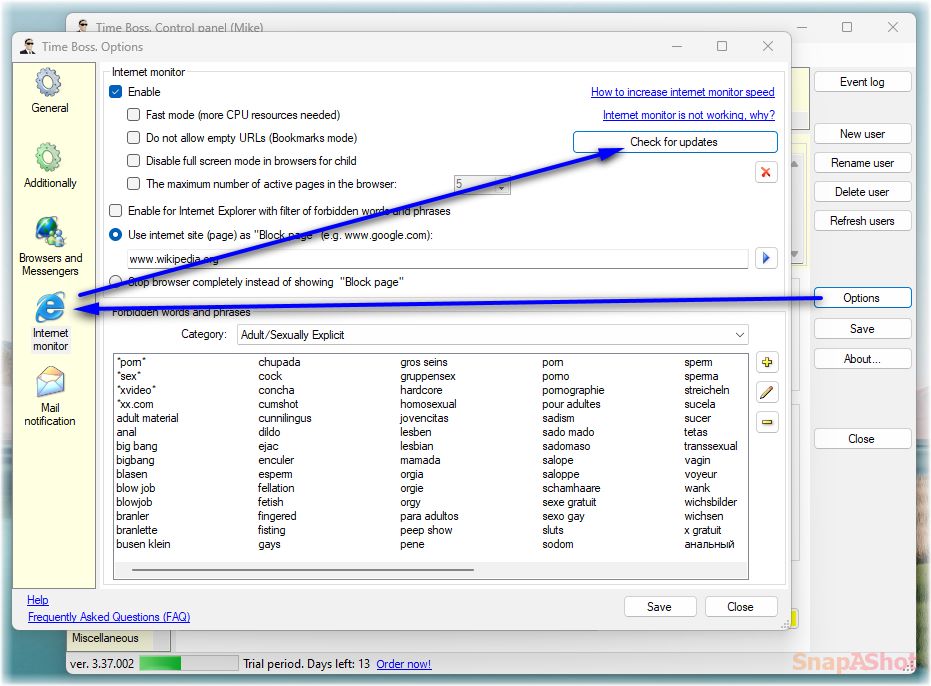
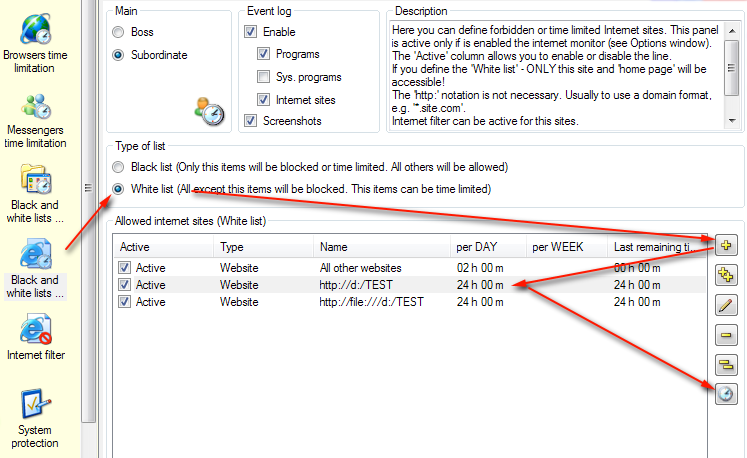
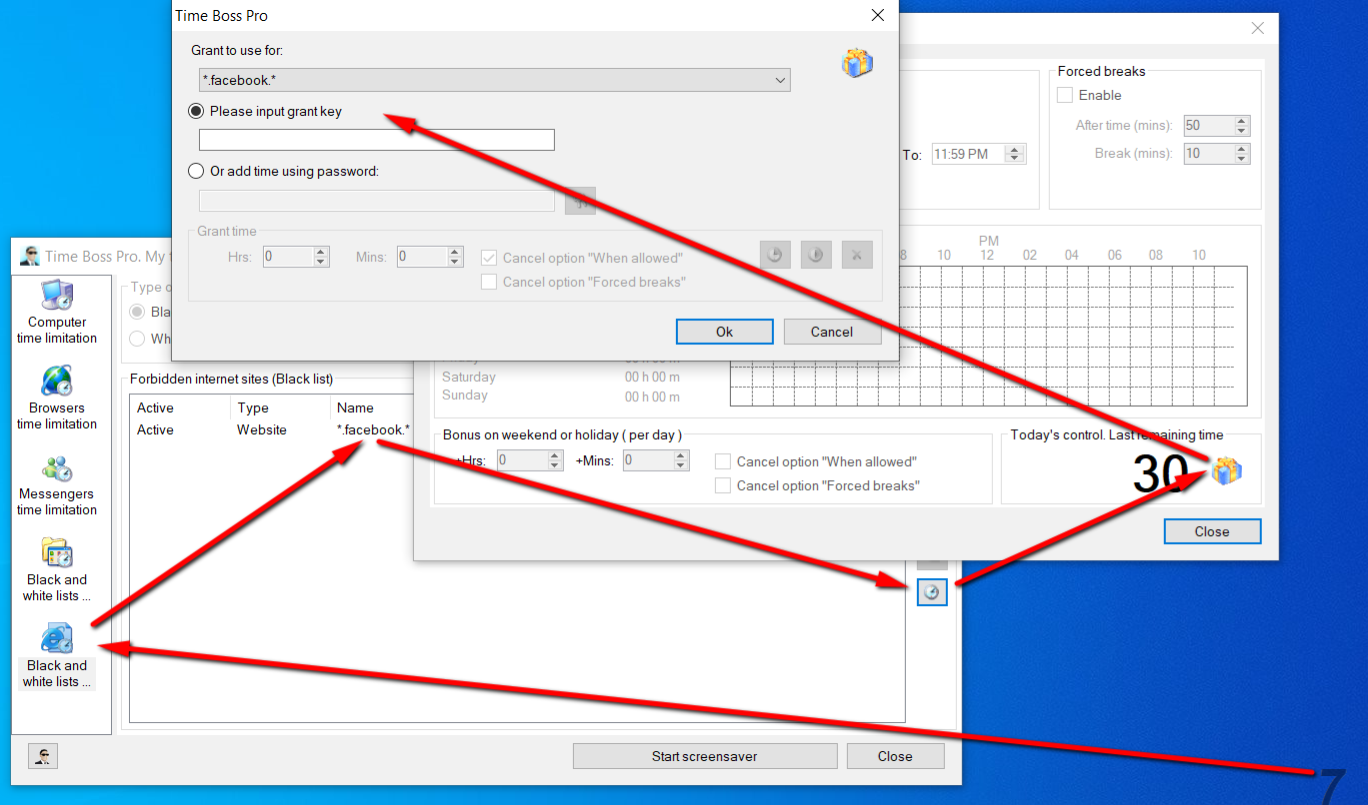
Restricting access to programs, games and folders
-
How to limit the program (game) by time?
Open Black and white lists of programs page. Then add needed program or program folder. Push the button with clock Program time limit and set the time limits.
You can have short names of programs (without full path) in Black and white lists of programs. So all programs with the same names will be restricted, without folder dependence.
See here. -
How do I allow my child to only play certain
games?
On the Black and white lists of programs tab, select the type of list - White list. All programs except programs from the list and system programs will be prohibited.
Add the necessary games to the list (executable files of games or folders where games are installed) and give them the necessary time limits (button with a clock).
If you need to limit the total time of games, then first add a group to the list, for example, with the name "Games". Add executables files or game folders to this group, see picture. Give needed time limit to the whole "Games" group.
Add additional programs that are necessary for the operation of the computer to a new separate group with a time limit of 24 hours (i.e., no limit). -
Does the program have the ability to restrict games
only and give grants for games only?
Games can be restricted if you know them (you know which programs, or program folders, are games). In this case, create a group in the Black and white lists of programs list and give the group the necessary time limits. Add all game programs to the group.
All other programs on the computer will be allowed.
Grants will be needed only for the group with games.
If the child can install games by himself or you do not know about games on the computer, then for the list Black and white lists of programs set to White list type. All programs except system programs and explicitly specified in this list will be prohibited (limited).
In the White list add a group for learning applications, give the group 24 hours a day, add the programs (folders) of learning applications to it. These applications will always be allowed. For the built-in program group All other programs, set time limits which you want to act for the games. These restrictions will apply to all other programs, including games. If some program is not a game and the child always needs it, add it to the group of educational applications (or to a new group with 24 hours restrictions). See also here.
Grants will be needed only for the program group All other programs.
Grants have no purpose - they are universal. -
I need to allow access to applications on different
days and accordingly, close access to applications
on different days of the week. How to do it?
Give different time limitation to programs (sites) by days of the week possible if in the window of time limitation for the program (group, site) (list Black and white lists of programs -> select the program-> press the button with the clock on the right) uncheck per Day and per Week checkboxes.
In this case, for each day of the week, it will be possible to set the necessary time limit by clicking on the time after the day of the week. See here.
Additionally, by activating the Use time-table checkbox, you can specify the time of day when allowed use the selected program. -
I was wondering if there is an easy to way to do a
report of all of the applications used that counted
against the user on a particular day? For example,
it would be good to be able to say/see, you had 2
hours of usage and you used 90 minutes on Minecraft
and the other 30 minutes on League of Legends.
There are two ways.
- You can use the diagram of day in the event log (the check box at the left bottom corner). The hint of each program contains the info about total used time.
- You can use the page Statistics in the event log. Please select the type of statistics: Text and program stat(istics) .
-
Why can't I block games from a folder named in my
national language (Chinese)?
Please set valid additional national settings in Windows: Open the "Current system locale" window (Windows Start menu-> Settings-> Time & Language-> Language-> Administrative language settings-> Language for non-Unicode programs->Change system locale->Current system locale) and set your locale, then restart computer completely.
See here. -
How can I block Java games?
Java games use javaw.exe or java.exe files.
So you should block or limit this files - javaw.exe and java.exe.
We recommend to add the short files names: javaw.exe and java.exe manually (TB-> Control panel-> USER-> Black and white lists of programs->Add program-> Any programs->Add program manually) without full path (c:\Program files...).
Then give needed time limitation for this files.
If that do not take effect then activate the option Sys.programs on the Event log panel for needed user in TB Control panel.
In this case you will see the real used exe file (java) when game is active in the event log. -
How to enable Java when white list is active
(OpenOffice does not print)?
When the white list is active, TB blocks all apps except system apps.
Java is not a system app (Windows).
Please add
java.exe
javaw.exe
in the white list with 24-hour time limit. -
How block Minecraft game?
The new version of Minecraft game uses Minecraft.Windows.exe file.
The old version of Minecraft game is java game and uses file javaw.exe (or java.exe).
So you should block or limit this files - Minecraft.Windows.exe or javaw.exe (or java.exe).
We recommend to add the short file name: Minecraft.Windows.exe (or javaw.exe or java.exe) manually (TB-> Control panel-> USER-> Black and white lists of programs->Add program-> Any programs->Add program manually) without full path (c:\Program files...).
Then give needed time limitation for this file(s). -
Why did the Lunar client (Minecraft client) stop
working for the child?
The Lunar client uses powershell.exe (Windows Command Shell). This file is disabled by default for children with TB.
Uncheck the option Disable run, cmd, powershell ... in TB (TB-> Control Panel-> USER-> System protection). -
How block Fortnite games?
The Fortnite games uses file FortniteClient-Win64-Ship
ping_BE.exe or(and) FortniteClient-Win64-Ship ping.exe.
We recommend to add the short file name: FortniteClient-Win64-Shipping_BE.exe or FortniteClient-Win64-Ship ping.exe manually (TB->Control panel->USER->Black and white lists of programs-> Add program-> Any programs-> Add program manually) without full path (c:\Program files...).
Then give needed time limitation for this file(s).
Or you can add new group with this both files and set time limitation for group.
See here. -
How block War Thunder games?
To limit War Thunder you need to limit War Thunder Client as aces.exe file from the folder C:\Users\
USER_NAME\AppData \Local\WarThunder.
(TB->Control panel->USER->Black and white lists of programs-> Add program-> Any programs-> Add program manually input aces.exe)
Or you can limit the folder where War Thunder is installed. Usually this C:\Users\USER_NAME\AppData \Local\WarThunder -
How can I block online games e.g. Runeescape?
The game like Runeescape uses the client program on kids PC - JagexLauncher.exe.
So you can add this program to Time Boss programs Black/White list and set for this program needed time limitation. (TB-> Control panel-> USER-> Black and white lists of programs->Add program select this program - JagexLauncher.exe - on the panel "From Windows start menu")
See picture. -
How can I block Steam games?
Usually it is necessary to add to the Black and white lists of programs the file steam.exe (Steam Client Bootstrapper) from folder C:\Program Files\Steam or from folder C:\Program Files (x86)\Steam.
But sometimes that's not enough, the fact that this file run sometimes only a few seconds before the game, then it can stop and get control to the game.
Therefore, if necessary, add to the Black and white lists of programs needed "steam" games. Usually they are in the folder C:\Program Files\Steam\steamapps\common. The easy way to do that - to add this games to the Black and white lists of programs from the Event log: open the Event log of the child for the day, select needed executable files of games, click right Mouse button and choose Add to Black list.
You can set needed time limitation for games in the Black and white lists of programs. In this case disable or delete the file steam.exe (Steam Client Bootstrapper) from the Black and white lists of programs. -
How can I block old Roblox games?
The website "roblox.com" is needed for starting of games only.
The last version of Windows 10 uses the file Win10Universal.exe as the main part of this game. You can add this file to B/W list of programs from Event log (see here) or manually using the Add button (see here).
The previous Windows 10 versions use the file RobloxPlayerBeta.exe located in the Roblox folder as main part on Roblox gamess. We recommend to add the Roblox folder (by default it is "C:\Users\ YOUR_KID_USERNAME \AppData\Local\Roblox") to Black and white lists of programs and get it needed time limitation:
1.Please check that you can see hidden folders in Windows.
How to see hidden folders: here or here
2.Open TB Control panel
3.Select needed user (kid)
4.Open B/W list of programs panel
5.Press button Add folder at right
6.Select folder: YOUR_KID_USERNAME -> AppData -> Local -> Roblox and press Ok
7.Press button with Clock at right and set needed time limitation (may be zero) for this folder
8.Close TB Control panel with saving settings
Or you should add RobloxPlayerBeta.exe to Black and white lists of programs and get it needed time limitation.
When this game is active you can add this file to Black and white lists of programs in TB using Currently running panel in Select programs dialog.
-
How can I block BlueStacks games?
Usually it is necessary to add to the Black and white lists of programs the folders with BlueStacks engine. By default the folders are C:\ProgramData \Bluestacks and(or) C:\Program Files (x86)\Bluestacks.
Also you can add this games to the Black and white lists of programs from the Event log: open the Event log of the child for the day, select BlueStacks engine exe file (C:\ProgramData\Bluestacks\Client\BlueStacks.exe or C:\Program Files (x86)\Bluestacks\HD-Frontend.exe), click right Mouse button and choose Add to Black list.
You can set needed time limitation for games in the Black and white lists of programs. In this case disable or delete the folders with BlueStacks engine from the Black and white lists of programs. -
How can I block old DOS games?
Old DOS games use the program ntvdm.exe in Windows 7 (8).
So you can add this program С:/Windows/System32/ntvdm.exe
to the Black and white lists of programs and set for this program needed time limitation. -
How to limit online browsers games, e.g. Legend:
Legacy of the Dragons?
This game is browsers game.
So you should add the internet site of this game to Black and white lists of internet sites and limit it by time (button with clock at right).
If you use Time Boss version <3.15 then additionally activate the option Allow only Internet Explorer using on the panel Internet filter. This prevent to use all browsers except Internet Explorer.
If you want to time limit the game "Legend: Legacy of the Dragons" so add the internet site *.warofdragons.com to Black and white lists of internet sites and limit it by time. -
How to add all Windows Metro Applications to a
group?
Please open the Time Boss Event log after using any of Windows Metro applications and check the folder that use this applications - C:\Program Files\MetroApps by default.
Add this folder to needed group. -
How to block applications from Microsoft Store
(e.g. Book Bazaar Reader)?
Please open Time Boss event log after using any of applications from Microsoft Store and find the start (or stop) events of these applications.
These are applications located in the C:\Program Files\WindowsApps folder by default. Then add it to the Black and white lists of programs using the pop-up menu (right-click by mouse).
Or add this application from panel 'Currently running (from Task Manager)' in add program dialog box. Application should be running at this time. -
How to set restrictions on online games in the
program? I would like to install this limitation,
only for games, not to the detriment of his time on
the computer for study.
In TB->Control panel->USER->Black and white lists of programs tab, you need to add the executable file of the game (has the extension .exe) or folder of game to the list of prohibited programs and install the necessary time restrictions (button with a clock on the right).
Some online games (such as older versions of Minecraft) use the java.exe and javaw.exe programs. To restrict such games, you need to add java.exe and javaw.exe to the list of prohibited programs and give the necessary time limits. See picture .
See also here and here. -
How to set a time limit for 2 programs, so that
later the child within 1 hour or started one program
or the second. Those the total time of using the
programs was no more than an hour?
Create a group (button with two plus signs on the right) in the list TB->Control panel->USER->Black and white lists of programs, give it the necessary restrictions (1 hour), add the necessary programs (games) to it (button with a clock on the right).
-
My child copies or renames a folder with a game
that has restrictions, what should I do?
Time Boss will automatically detect a game from the list Black and white lists of programs, even if the games filename or directory has changed.
When you add a specific program with its full path to the list Black and white lists of programs Time Boss remembers the settings of the program and in the future, moving or renaming the program will not save it from Time Boss control.
Try adding Notepad to the banned list, and then rename it, or move it - Time Boss will still be it block.
If only the name of the executable file of the program is added, then the restrictions apply to this program, regardless of whether from which disk folder it was launched. For example, for World of Warcraft, just specify wow.exe (plus button, then plus button with a pencil).
To prevent unauthorized launch of a prohibited program by renaming the executable file (exe) use a ban on the entire program folder (i.e. add the entire program folder to the list Black and white lists of programs, not an executable file). Of course, moving the program out of the added folder will take it out of Time Boss's supervision.
The name of the program in the prohibited list can be changed manually using the Edit button with a pencil. -
Can I enter the name of a folder (directory)
manually?
Yes. Click on the button for adding (editing) a folder (plus sign with a folder, pencil) while pressing the Ctrl button on the keyboard.
-
How to block the Windows Microsoft Store?
To ban Microsoft Store, activate Disable 'Microsoft Store' checkbox (TB->Control panel->USER->System protection) for a child.
Or, you can add WinStore.App.exe to the Black and white lists of programs.
This can be done by clicking the plus button, and then the plus and pencil button, and add WinStore.App.exe. Or choose a program from those presented in the Windows "Start" menu - there is a Windows Store (Microsoft Store). -
How to install a game under the account of a
child?
- Make your child a Parent,
- go to his session,
- install the game,
- make sure game works,
- give a child a Child rights in TB,
- go to his session and check the game.
If White list is active and the game does not start - you need to look in the TB event log what files TB blocks and add them to the list of allowed (in White list). Possibly the entire folder with the game. -
How can I hide my folders (with subfolders and
files)?
Open the TB->Control panel->USER->System protection tab for needed user. Add the required folders to the Protected folders list.
-
I cannot set a ban on entering the folder, I check,
and the program still starts up! Why?
If we are talking about folders from the list of Black and white lists of programs, then the ban applies not to open these folders, but to launch programs from these folders and their subfolders.
If folders are listed on the TB->Control panel->USER->System protection panel, then the ban applies to open and view these folders in Windows for this user.
If the ban does not work, then make sure that you set the ban specifically for the desired user (how does TB recognize this user can be viewed in the event log) and that other specialized programs do not change the access level to the specified folders. -
Is there a way for the child to see how much does
he have time for each group of prohibited
programs?
Activate the checkbox TB->Control panel->Options
->General ->Miscellaneous->Show 'Black and white lists' in Child session. -
How can a child choose (enter) a prize (grant) for
programs in advance, before they are blocked?
Child can open grant input window and specify what the grant is used for.
Or you can activate the checkbox TB->Control panel->Options->General->Miscellaneous-> Show 'Black and white lists' in Child session.
In this case, when opening the TB window, the child will see a list of restricted games and sites.
Highlighting the desired game and clicking on the button with the clock will appear a window with the schedule of this game (group, site), where child can always enter a grant (a picture with a gift). -
A child uses Skype on a locked PC and this time is
not counted, how to prevent this?
Add the file skypehost.exe to the list TB->Control panel->Options->
Additionally->Programs that will be stopped if the child locks session. -
Skype audio is disabled if Skype is in White list.
Why?
You need to add a program that works with sound in Skype to the White list (Black and white lists of programs -> White list mode). To determine it, look at the TB event log. You will see the programs that TB has stopped. One of them is this program. Add it to the White list.
-
How to enable LibreOffice when White list is
active?
It is necessary to add to the White list the folder where LibreOffice is installed (the plus button with the folder). All programs from this folder will be allowed.
-
How to prevent the launch of programs from a flash
drive?
The flash drive connects to Windows as another disk. The disc name is given by the system automatically according to the next letter of the alphabet. Those if Windows had one C drive, then the flash drive will connect as drive D. If Windows had two drives C and D, then the flash drive will connect as drive E, etc.
Thus, in Time Boss, you should enter the folder with the name of this drive D:\ (or E:\) into the Black and white list of programs (click the Plus button with the folder while holding down the Ctrl button on keyboard). After that, all programs starting from this disk (flash drive) will be stopped.
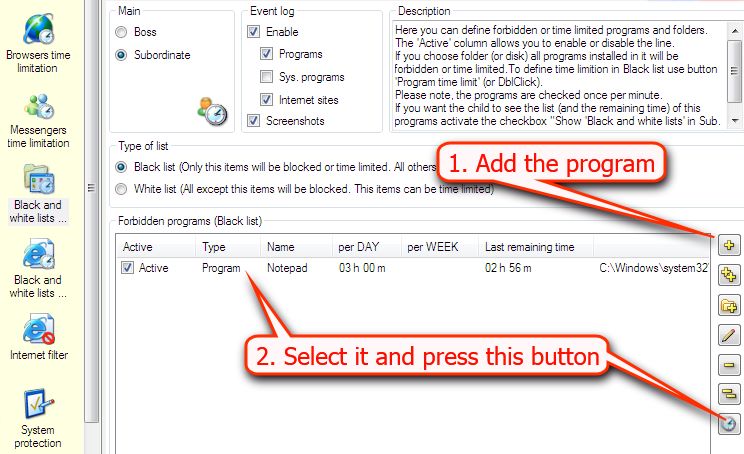
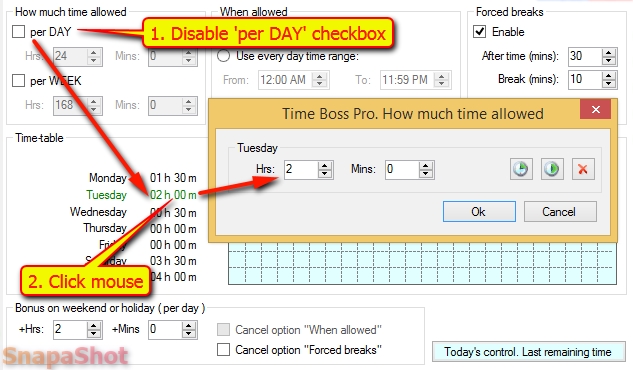
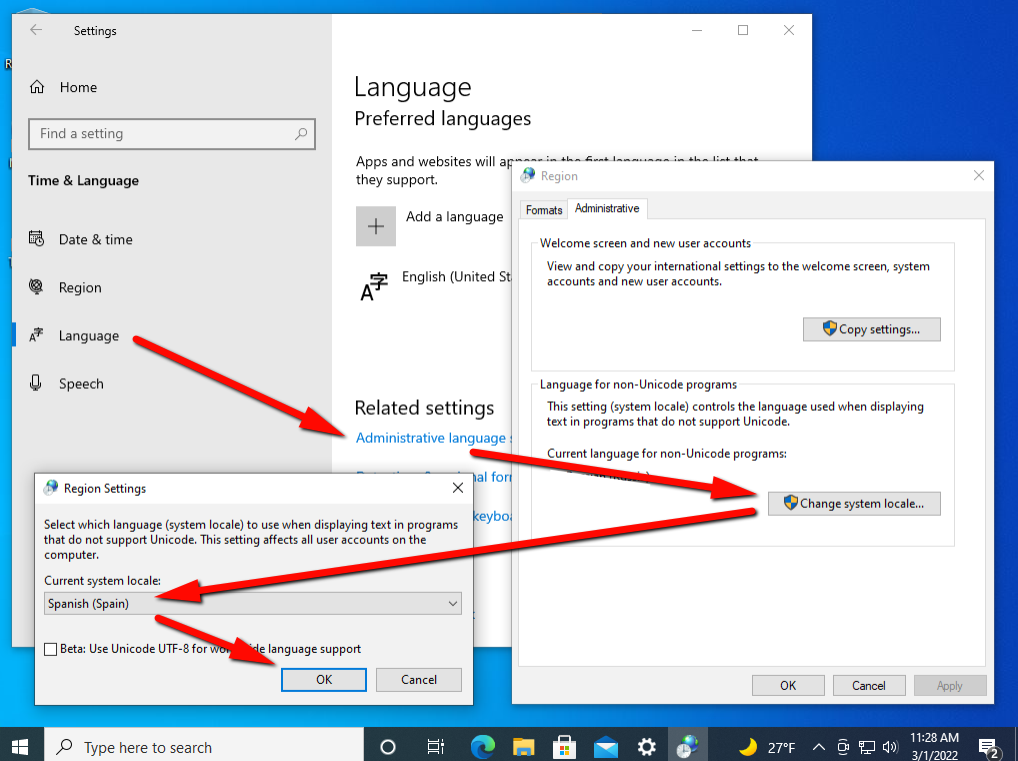
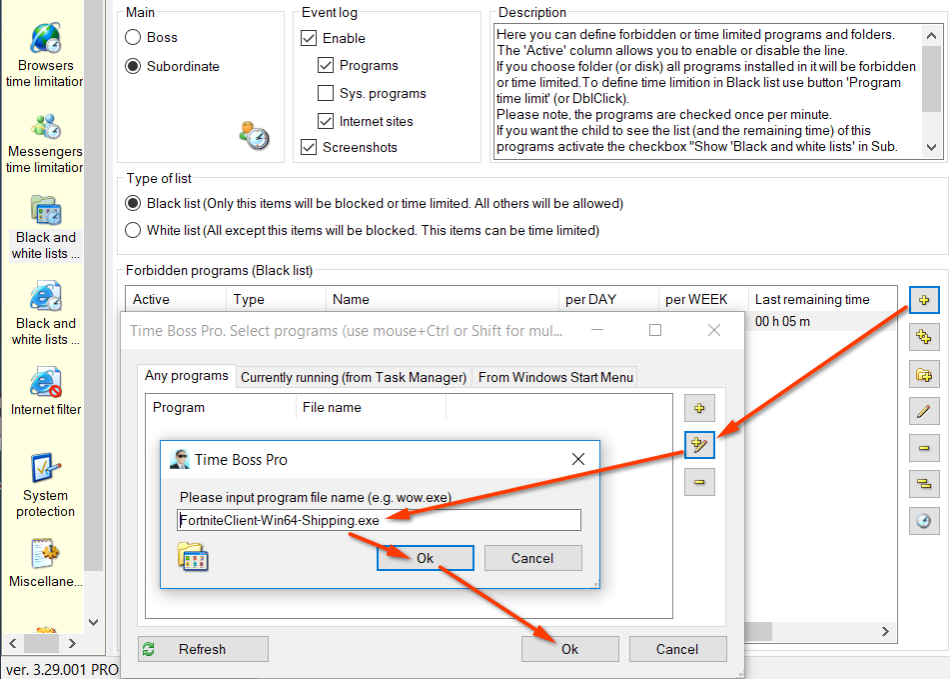
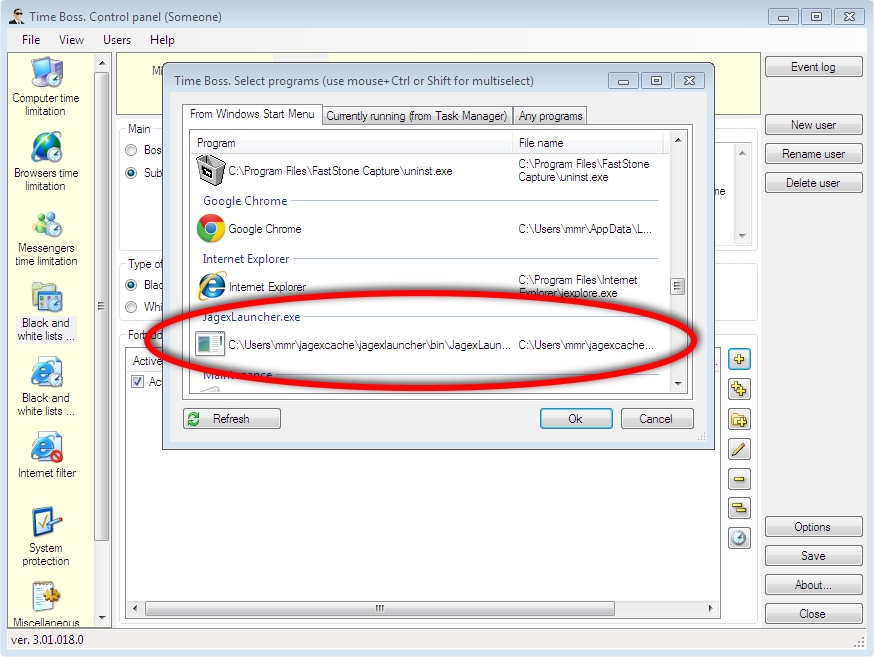
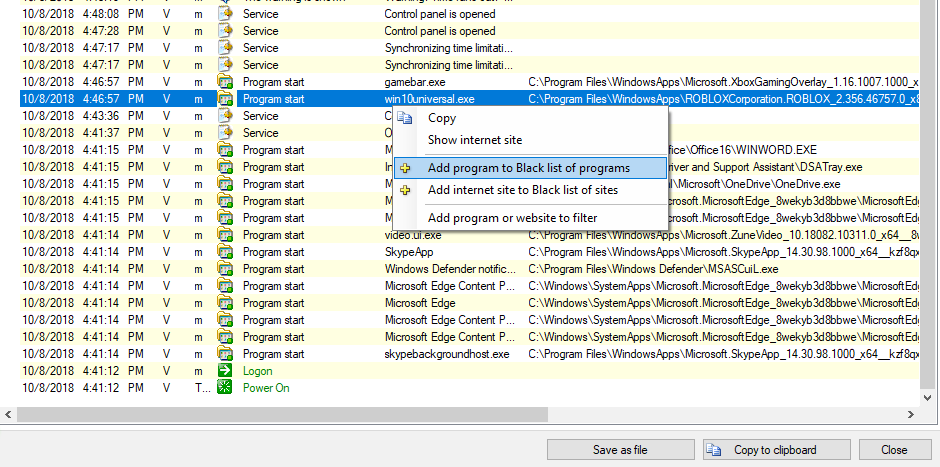
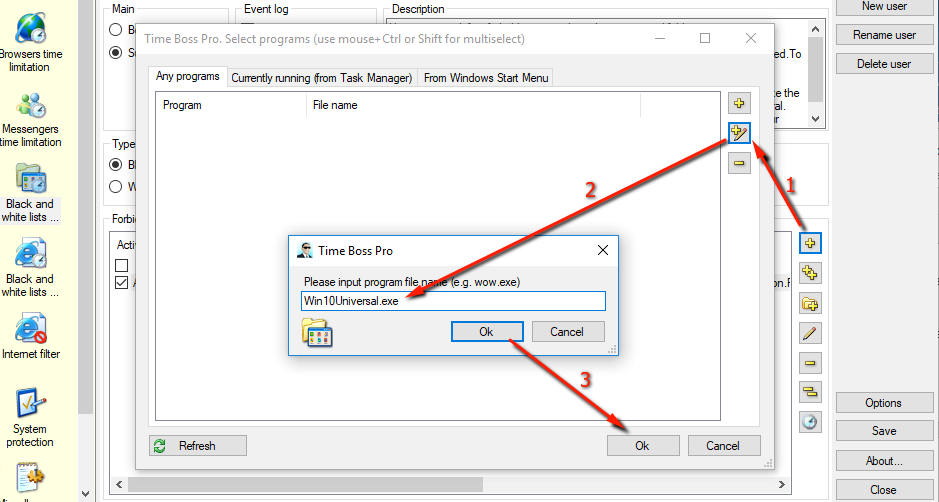
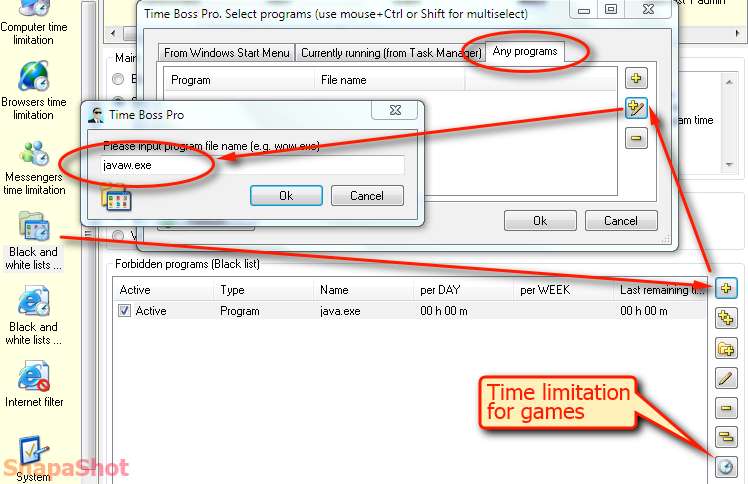
Event log, statistics, screenshots
-
How can I view the event log?
To view the events, press the TB->Control panel->Event log button.
Events are presented in the form of a table in order of time. The display order can be changed by clicking on the time column header.
Attention, events are saved provided that you have activate the checkbox TB-> Control panel-> USER-> Event log-> Log-> Enable.
When you open the Event log, you may not see the events due to the fact that either the event filter is turned on (there are no checkmarks opposite the events), or you have selected the wrong user (or day) in the upper left corner. To see all events for all users in the Event log, select the Event log item in the upper left corner, clear the User and Date range fields in the top pane (they must be empty) and click the Refresh button.
You can also open the Event log using Ctrl + click on TB->Control panel->Event log button. In this case, the Event log will appear in the center of the screen.
If the event log is clear and events filter is disabled then, maybe, the Event log is broken. In this case disable temporarily the TB protection (TB-> Control panel-> Options-> Protection) and delete (admin rights needed) the file time_boss.log in the folder C:/Program Files (x86)/Time Boss/Logs.
To display events in a time chart (Gantt chart), activate the As diagram of day option at the bottom left. On the timeline, horizontal bars will represent the programs running on the computer. For clarity, the color of the columns of the desired programs (for example, games) can be changed (by right-clicking on the bar and selecting Color). The vertical bars show important events. -
How can I view screenshots?
Please open the page Screenshots in Event Log.
-
How can I view statistics?
Open the Statistics page in the Event Log .
Statistics based on Event log . If the Event log is cleared, Statistics will be cleared too. -
How to receive screenshots and event log on my
email automatically?
Please open the page TB-> Control panel-> Options-> General-> Mail notification.
Please input the recipients email address (or list of addresses separated by semicolons) in TO field on panel Recipient.
A list of e-mail addresses that receive a carbon copy (CC) you can define in box CC.
On panel Mail server (SMTP) settings specify the settings of your email server.
You can use а public email server (e.g. if you have account on yahoo.com, please use smtp.mail.yahoo.com) or email server in your internal network (e.g. mail.office.lan).
More information about public email servers (SMTP) is on internet sites of these servers.
If you want to send screenshots from this PC - activate the check box Enable on panel Send screenshots.
If you want to send the event log from this PC - activate the check box Enable on panel Send event log.
If the Screenshot option is not active for some users, screenshots will not be sent.
E.g. you want to receive screenshots and event log to your email address 'mike@yahoo.com', so see this image:
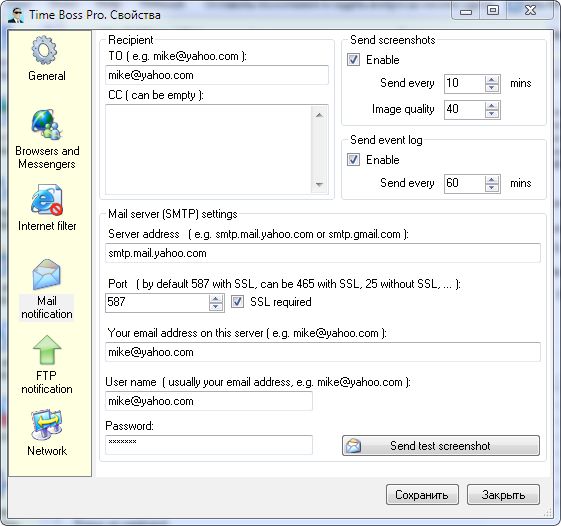
If email is not sent - check installed antivirus and firewall please.
Attention! The computer name should be in English letters only! How to change computer name is here.
Your password is needed to send email using your email server (SMTP) only.
Create a new account on Google (Gmail) and use it if needed. See also here.
If the computer has two monitors, then two letters with monitor pictures will be sent sequentially. -
How to send screenshots to my Outlook email?
You should use the Microsoft email service (www.outlook.com).
Please open TB-> Control panel-> Options-> Mail notification window and set the email of user who should receive the screenshots, reports or(and) logs.
Please see here. The email of user is mike1065@outlook.com on this picture.
As SMTP server use smtp-mail.outlook.com. -
How to send screenshots to Gmail (or other
email)?
Please try to send screenshots using the Google email service (www.gmail.com).
So create new Google account (or use an existing) and set TB settings as here.
You can try to send screenshots using the Yahoo email service too.
So create new Yahoo email and set TB settings as here.
If you encounter any problems, check out the Yahoo settings here please.
Then set in TO: field your real Gmail (or other email) address.
If you use the smtp.gmail.com and receive the error messaage "The SMTP server requires a secure connection or the client was not authenticated..." then create the application password in Google account and use it in Time Boss.
It's simple.
After signing in to your Google account in your browser, enable 2-Step Verification, then go to Google account-> Security-> Signing in to Google->App Passwords-> Select app(Mail) and device(Windows computer) and press Generate.
Copy the generated 16-digit code from the yellow bar and paste it as a password in your Time Boss email settings.
Please see here, here, here, here.
More info is here. -
How to disable the taking of screenshots?
Please open Time Boss Control panel, select needed user and disable option Screenshots in Event log group.
-
Screenshots do not saved in kids session. Why?
May be the Windows TEMP folder is full. Please delete all files from it.
By default TEMP folder is:
C:\Users \Kid \AppData \Local \Temp.
Select all files and folder from this folder and press Delete. If Windows can not delete some files - skip them.
This folder can be hidden in Windows. In this case
- Open Explorer (Start-> All programs-> Accessories- >Windows Explorer)
- Open menu item Menu-> Organize-> Folder and search options
- Open panel View, set Show hidden files in Advanced settings list
-
I want to copy all the screenshots, where can I
find them?
In Time Boss you can start Pause, after that you can open the Time Boss screenshots folder (by default): "C:\Program Files (x86)\Time Boss\ Screenshots"
Or you can activate the Backup option and specify the needed folder for screenshots (Control panel-> Options-> Screenshots). All new screenshots will also be saved in this folder. -
Sometimes when I check the screen captures, they
are black. Why?
Some games (media players) has internal protection to avoid taken screenshots. In this case screenshots will be black...
-
Where can I view summary time statistics for day,
week, month?
Open the Total statistics page in the Event Log .
Total statistics based on Event log . If the Event log is cleared, Total statistics will be cleared too. -
Are there statistics that show the total running
time of any program during the day?
Yes, of course. Please open Event log->Statistics tab and activate the options Text and Programs stat. at the right.
-
Why I view incorrect summary time on statistics
page?
It seems that this user (kid) changed the Windows system time during work on PC or abnormality shutdown PC. You can check that in Event Log.
-
Can I see statistics for a previous month?
If you want the program to log events (and save statistics) more than one month, then increase the number of days for event log saving (TB-> Control panel-> Options-> Log file-> Save messages in log last ... days).
-
Why is it that my “Save messages in log lasts 30
days”, but the Event History only shows 6 or 7 days?
Can I view the 30 day logs some other way?
Please, open TB Event log window and select item "Event log" on left panel.
On right panel on top clear "User","From date" and "To date" text boxes and click button "Refresh".
So you can see all events in your log.
All events are in the simple text file time_boss.log (it is read-only). You can open this file with Notepad.
30 days is default length for the Event log.
You can change this setting here: TB Control panel-> Options window-> Log file panel. -
How to reset time statistics?
If you delete all messages from event log (TB-> Control panel-> Options-> General-> Event log-> Clear) - all statistics will be lost.
-
How can I save data from Event log or Statistics
pages?
Select the needed data and copy it (Crtl+C). Open any text editor (Notepad, MS Word, MS Excel...) and paste data (Ctrl-V). Save the file.
-
How to copy data from Event log or Statistics
pages?
Select needed lines using Ctrl, Shift button and Mouse. Push Ctrl-C (Ctrl-Insert).
If the pasted text contains the wrong chars then switch the language to national language in Time Boss before copying.
-
Why Notepad and others systems programs are absent
in Event log?
Time Boss doesn't trace the programs from Windows system folders (Notepad is a system program) if toggle Log sys. programs in Log panel is disabled (by default).
-
How to save screenshot to my file?
Select the needed screenshot and press right button of mouse on picture - the Save Picture ... popup menu will be opened, or use button Save as file.
-
How can I see screenshots of the second monitor?
You can see screenshots of the second monitor in the same screenshots log. This screenshots have the time by one second longer than screenshots of the first monitor. See here.
If the computer has two monitors and and email notification of screenshots is active, then two emails with monitor screenshots will be sent sequentially. -
Where located the screenshots files?
The folder Screenshots contains the folders with screenshots files. The everyday has the folder with name like '01-01-2005'.
Each screenshots is the JPG image file with name like '14-30-34.jpg'. The size of file is about 150KB for the screen with resolution 1280*1024 (32b colors). So the folder for one day can has size about 10MB... The program automatically delete old screenshots, please see Screenshots panel in Options.
You can manually delete don't needed or old screenshots files.
-
Where user with Child rights can view his
time-table and statistics?
The user can see this data from popup menu on Time Boss icon in system tray. Menu->My time limitation.
-
How to use Backup Folder for screen shots?
If you define a folder, the program will write screenshots to this folder as well.
This will allow you to view on the one (parental) computer all screenshots that are taken on the other PCs. Of course you 'll have to install TB on all computers you are using..
To do it, you have
1. To give full access (make share) to the screenshot folder on the parental PC (Time Boss/Screenshots) for other computers.
2. Then to choose this folder as a Backup folder on the other computers.
-
I'd like to save screenshots to a different
folder/drive than the one used by TimeBoss; is that
possible?
Yes.
Open Time Boss-> Control panel-> Options-> General panel and select options Backup and Screenshots only to backup. Select needed folder. See here.
Please note, this folder will be not protected by TB, you can not see screenshots from Time Boss Event log window. -
If I uninstall TimeBoss from c: drive and then
reinstall on a different drive (eg. e:), will the
screenshots save to the e: drive?
Yes.
Time Boss saves all screenshots in folder Screenshots in Time Boss folder by default. This folder will be protected by TB. You can see this screenshots in the Time Boss Event log window.
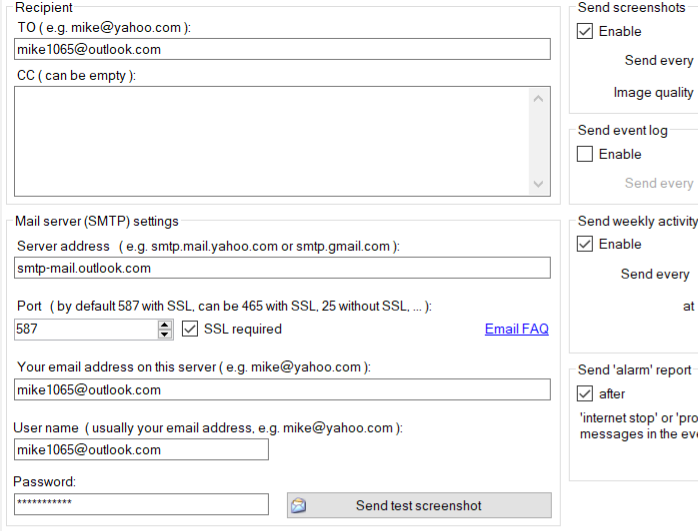
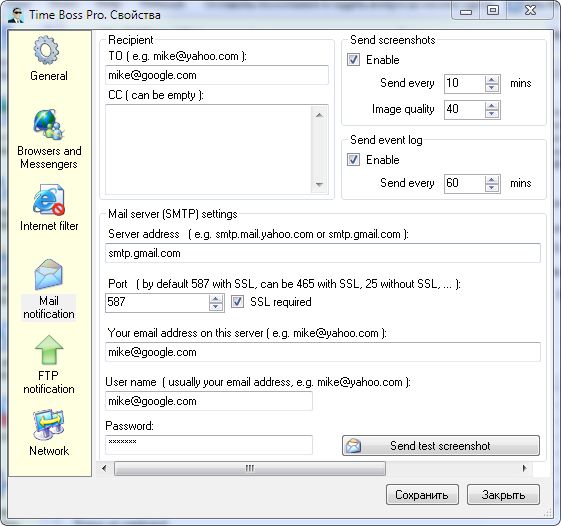
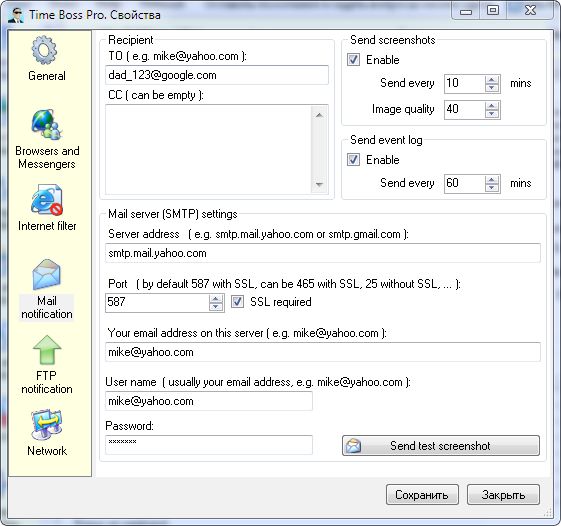
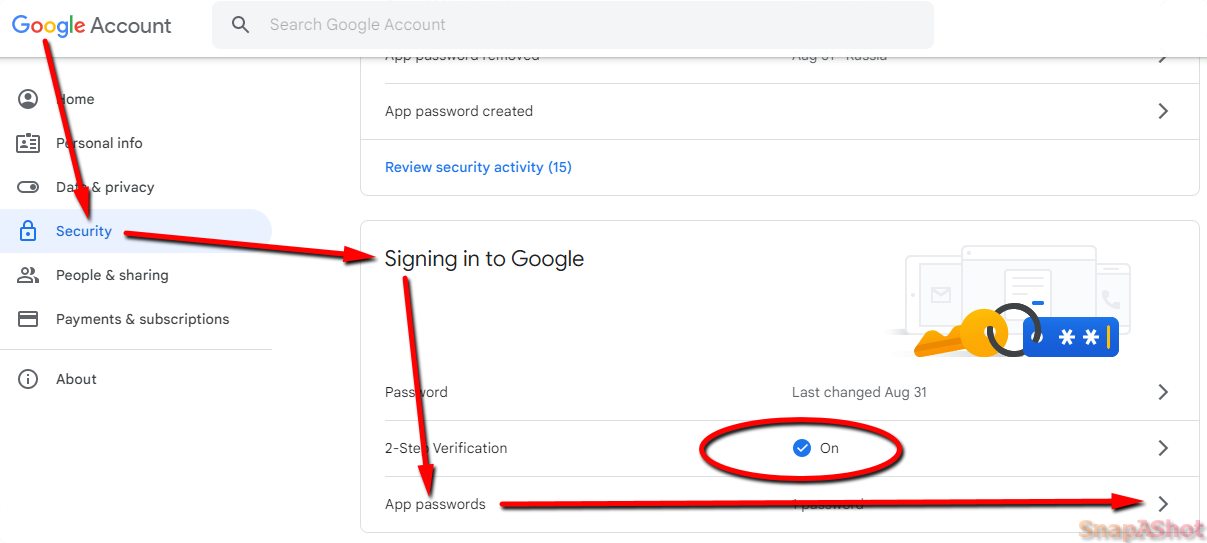
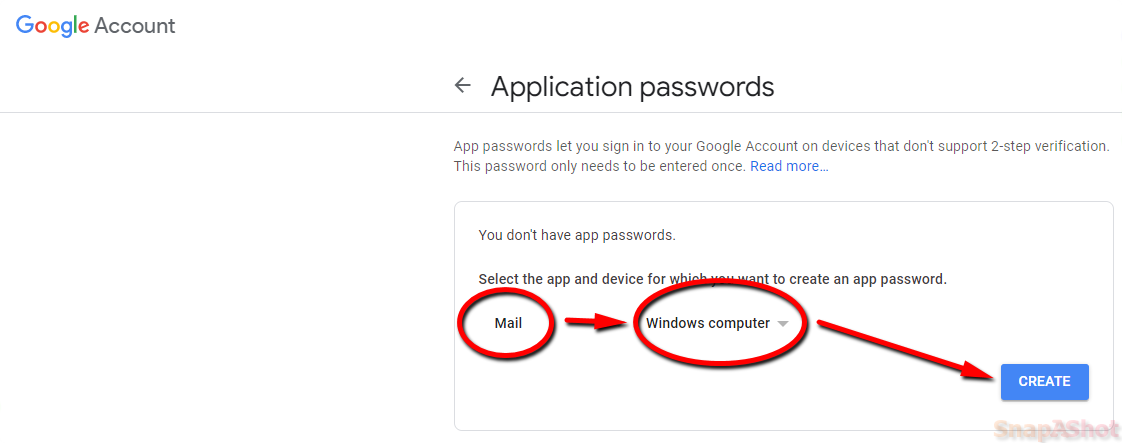
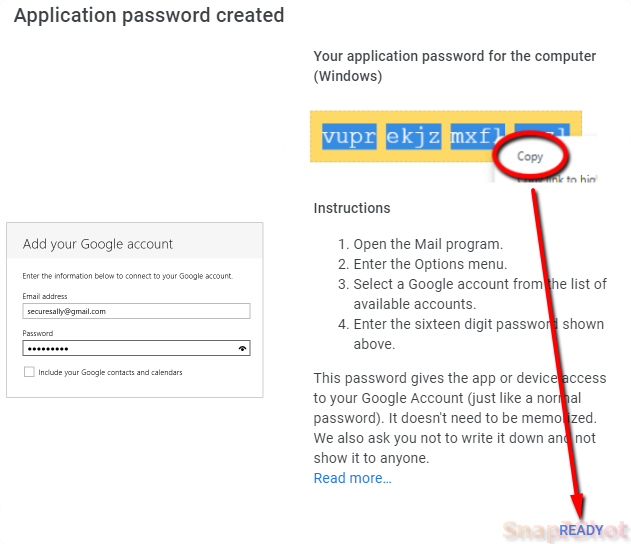
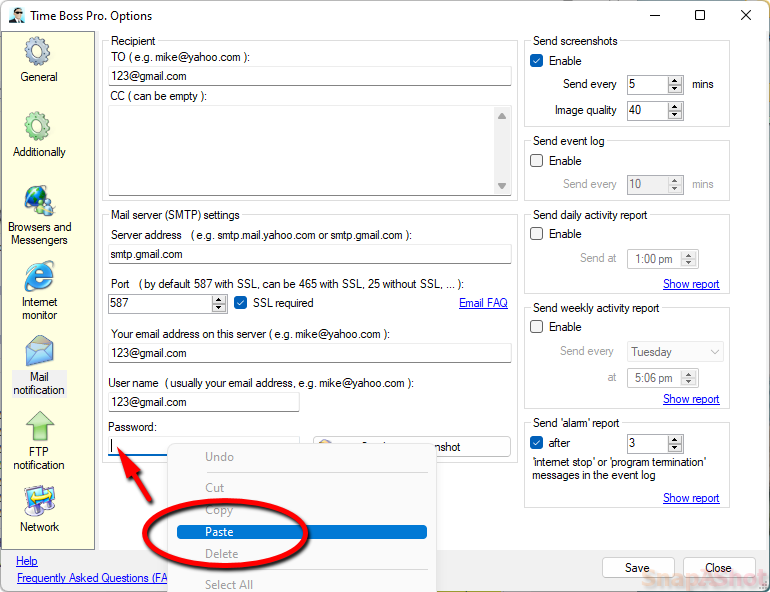
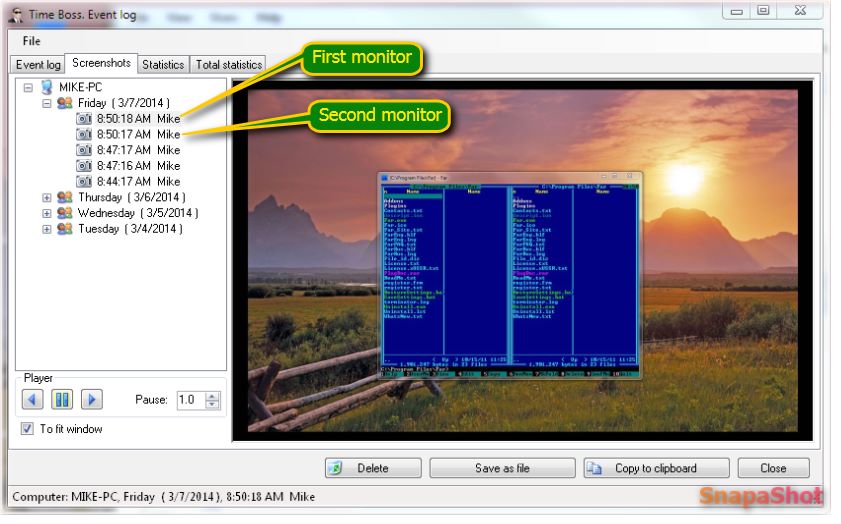
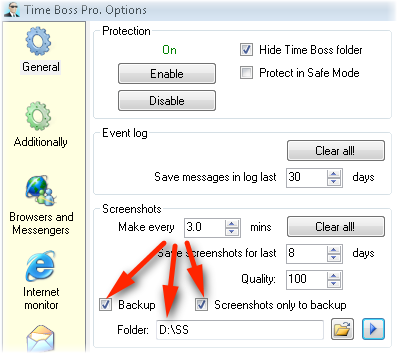
Time Boss protection, antivirus settings
-
Can I stop Time Boss?
You should open Time Boss->Control panel->Options and push the button Prepare for uninstall. The Time Boss will be stopped. But after full restart of PC Time Boss will run again.
-
The users with Child rights can stop time_boss.exe
from Task Manager, is it normal?
The all limitations functions are provided by the service time_boss_s.exe. It is protected and nobody can stop it (except users with Parent rights). The time_boss.exe is only small part of Time Boss which indicates remaining time for Child users. So, users can stop time_boss.exe with no expected effect.
-
Can a user with Child rights be allowed to use Task
Manager?
Yes, you can, see above.
To allow access to the Task Manager, it is necessary for the child to uncheck the Disable Task Manager (TB->Control panel->USER->System protection) checkbox.
You may need to Log off / Log on the child's Windows session again. -
How secure is Time Boss?
Time Boss uses the official protections service of Windows system.
Time Boss has internal protection against: uninstalling, time changing by kind, process killers programs, removing in Windows Safe mode and others.
You can use Time Boss in case if kind has Administrators rights in Windows.
Time Boss doesn't create espionage modules masking in components of Windows.
Time Boss doesn't litter system folders, register, doesn't reduce the working speed of other programs. -
My son is geek in Windows, what options should I
activate to additionally protect Time Boss?
By default, TB is configured for a child with normal Windows knowledge. If your child is good at Windows, that's great! But TB needs to be better protected :)
So:- We recommend using the latest TB (Pro) version.
- BIOS must be configured so that it is not possible to boot from an external device (FLASH) and from DVD (CD). Those loading should be only from the hard disk drive (HDD). Put a password on the BIOS. If necessary, you can change the settings and boot from DVD (CD).
- In the TB->Control panel->Options->General->Password activate the checkboxes Protect from Keyloggers and Protect Parent's session with Time Boss password. Then (after activating the checkboxes!!!) enter the new "hard" password for the TB Control panel.
- Activate option Synchronize time in child's session with time server (TB->Control panel->Options->General->Miscellaneous) panel. We also recommend activating the option Stop Child session when no connection to time server.
- Activate the Time Boss protection in Windows Safe Mode (TB->Control panel->Options->General->Protection). If you need Time Boss to work in Safe Mode (TB can works in Safe Mode), then look here.
- If the child knows what Windows services are, then it MAY be necessary to activate option Hide in Windows Services (TB->Control panel->Options->General->Protection). Please note that large Windows updates may stop the program from working. Write to us, we will help.
- To prevent the child from uninstalling Time Boss using the Windows command line utilities, disable access to these utilities. To do this, for the child, activate the checkbox Disable run, cmd, powershell (TB->Configurator->CHILD->System protection).
- To prevent the child from reinstalling Windows from the Windows Settings, disable access to Windows Settings. To do this, for the child, activate the checkbox Disable Windows Settings (TB->Configurator->CHILD->System protection).
- To prevent the child from reinstalling Windows from a USB flash drive, disable the launch of programs from a flash drive - see here.
- If antivirus is installed, protect the change of its settings with a antivirus password.
Time Boss (Pro) can be easily removed by opening the TB->Control panel, or after the program has been stopped after the end of the trial period or sometimes after a "large" Windows update. -
Is it possible to prevent Time Boss from
deinstalling (or deleting its components) in Safe
Mode?
Yes, it is.
Please open TB->Control panel->Options->General->Protection tab and activate Protect in Safe Mode. Setting the protection can take few minutes.
Notice, that the user with Administrator rights has a possibility to remove the protection.
If the Protect in Safe Mode is active, the program can be stopped after installation of the new "big" Windows 10 updates (Microsoft releases the "big" update once per year usally. E.g. Windows 10 version 1511 build 10586 November 2015 update or 1607 August 2016). The "big" Windows 10 update can not reinstall it correctly and stops it.
In this case uninstall the program before Windows 10 update and install the program (you can download the setup file from our site) again in the old folder.
All Time Boss (Pro) settings, screenshots and logs will be saved. If the program was not uninstalled before Windows 10 update and the program do not work after Windows 10 update then uninstall the program using the Windows uninstalling wizard and install the program (you can download the setup file from our site) again in the old folder.Please email us to us if any problem appears. We will help.
-
Is it possible to use Time Boss (Pro) in Safe
Mode?
May be the best way is to forrbid the Safe Mode for users. You can google how to do that.
We do not recommend to use Time Boss in Safe Mode.
Your antivirus can block Time Boss.
But Time Boss (Pro) can work in Safe Mode.
At first add Time Boss folder to list of trusted folder in your antivirus if needed.
Then download this simple text file (or copy the content from it to any empty text file) and change the file extention of this file from 'txt' to 'reg', then start (dbl-click) it.
The Administrator rights will be needed.
The current user should have (temporarily) Parental rights in TB or the Registry Editor should be enabled (System Protection panel).
This file adds to Windows register two keys needed to start Time Boss (Pro) in Safe Mode. You should delete this keys manually if needed.
Or email us to support - we will send you the small utility to activate (disactivate) TB (Pro) in Windows Safe Mode. -
How to prevent "reset Windows 11 (10)" or
"reinstall Windows 11 (10)"?
Activate the option Disable Windows 'Settings' (Time Boss->Control panel->USER->System protection) for your child.
-
Is there a way to block access to the Time Boss
Screenshots windows folder?
Time Boss Screenshots and Logs folders are protected in kids session.
If kid try to open this folders (directly, or by typing Url in Explorer) appears 'Access is denied' message.
The main TB folder is not protected by default. It is only hidden in Explorer.
But all important files are protected in main TB folder. So kid can not delete or rename this files.
You can put the main TB folder in Protected folders list (Time Boss->Control panel->USER->System protection) for kid.
But in this case TB indication window can be not opened by kid (from Window menu), with remainig time willbe all OK.
Screenshots and events will be saved in any case. You can put any folders in Protected folders list for kid and try open it in kids session (after logoff-login). -
My kid change system time on PC. How can I forbid
that?
Please open the panel Time Boss->Control panel->USER->System protection for this user and check options Protect system Date and Time. These options need LogOn/LogOff to take effect.
Additionally you can activate the option Synchronize time in Child session with time server on panel TB->Control panel->Options->General->Miscellaneous. -
My son changes PC time in BIOS, what can I do?
You can set the password on BIOS.
Additionally you can activate the option Synchronize time in Child session with time server on panel TB->Control panel->Options->General->Miscellaneous.
We also recommend activating option Stop Child session when no connection to time server. -
Sysinternal Process Explorer can stop Time Boss?
Time Boss stops Sysinternal Process Explorer in Child sessions.
You can add any "bad" program in Time Boss->Control panel->USER->Black and white lists of programs for kid if needed. -
Can my antivirus program stop Time Boss (Pro)?
Most popular antiviruses (except Avast!, AVG) are compatible with Time Boss (Pro) and you can use Time Boss (Pro) without problems.
But if TB does not work and you use antivirus program, please add Time Boss (Pro) modules (time_boss.exe, time_boss_s.exe, time_boss_v.exe, time_boss_m.exe) in the list of trusted programs (if it exists) in your anti-virus program.If you use Kaspersky Anti-Virus in "hard" mode then open the window "Trusted zone" in it (Kaspersky -> Settings -> Advanced Settings -> Threats and Exclusions -> button "Settings" on Exclusions panel) and add the folder with Time Boss to the list "Exclusions rules".
Please see the picture. -
Can "Avast!" or Norton Antiviruses stop Time Boss
(Pro)?
If you have the last version of Norton Antivirus then restore the file time_boss_s.exe from Quarantine if needed and restart the PC again. (Open Norton Security -> Security -> History -> select item time_boss_s.exe (Sonar...) Quarantined -> select 'Options' as Recommended Action -> Select 'Restore & exclude this file' -> select 'Yes' in Quarantine Restore -> Close Norton Security)
If you have the last version of Avast! Antivirus then stop it for a few minutes, install (repair) Time Boss, add files time_boss_s.exe, time_boss.exe, time_boss_v.exe and time_boss_m.exe to the list of exclusions in Avast! (Avast -> Open Avast! user interface -> Settings -> Antivirus -> Exclusions) and start Avast! again.By default Avast runs Time Boss modules in the "Sandbox". But Time Boss cannot work in this "Sandbox"...
If you have installed Avast!, then open the window Exclusions in it (Avast User interface -> Settings -> Active Protection -> File System Shield -> Exclusions) and add the folder where Time Boss installed (e.g. c:\Program Files\Time Boss) to the list of Exclusions, press OK and reboot the computer.
Pease see the picture.
If you have installed Avast! Antivirus ver. 8, then open the window Global Exclusions in it (Avast User interface -> Settings (at top-right) -> Global Exclusions) and add the folder where Time Boss installed (e.g. c:\Program Files\Time Boss) to the list of Exclusions, then reboot the computer.
Pease see the picture.
If you have installed Avast! Antivirus ver. 7 ,please open the window AutoSandbox in Avast (Avast -> Real-Time Shields -> File System Shield -> Expert Settings -> Exclusions) and add the folder where Time Boss installed (e.g. c:\Program Files\Time Boss\*) to the list of Exclusions, then reboot the computer.Pease see the picture.
If this does not work, then an additional open the window AutoSandbox in Avast (Avast -> Real-Time Shields -> File System Shield -> Expert Settings -> AutoSandbox) and add files "time_boss_s.exe", "time_boss_m.mik", "time_boss.exe" (from Time Boss folder) to the list Files that will be excluded from automatic sandboxing, then reboot the computer.Pease see the picture.
If this does not work, then an additional open the window Exclusions in Avast (Avast -> Additional protection -> Sandbox -> Expert Settings -> Exclusions) and add the folder where Time Boss installed (e.g. c:\Program Files\Time Boss\*) to the list of Exclusions, then reboot the computer.Pease see the picture.
-
My son stops TB using process blocker program. How
can I fobidd that?
You should add this process blocker program to Time Boss->Control panel->USER->Black and white lists of programs.
You can open the TB Event log, find the start event of this process blocker program and using popup menu (Right Mouse click) add this process blocker program to B/W list on programs for your son. -
Does not Log Off when time expired... When the time
reaches 1 minute, the icon in the system tray and
the desktop notification both blink "1", but the
computer never logs off...
Please check your AntiVirus program and add Time Boss modules (time_boss.exe, time_boss_s.exe, time_boss_m.exe, time_boss_v.exe) in the list of trusted programs in your AntiVirus program.
-
I've noticed that sometimes my son is logged in and
Time Boss will stop running. Rebooting will start it
up again, but could you consider running some type
of agent that would restart it automatically, in
cases where it exits unexpectedly?
The main part of Time Boss (time_boss_s.exe) is the Windows service.
It is hidden process and it restarts automatically himself.
May be your son stops the user interface of this service - time_boss.exe?
So it is "normal". Please see here.
May be your son uses special process killer program (you can see it in the TB event log) - in this case add this programs to Time Boss->Control panel->USER->Black and white lists of programs. Please see here.
May be your son changes PC time in BIOS... Please see here. -
My son has administrator rights in Windows and can
change the administrator password. How can I forbid
that?
Please set the Child rights for Someone and Administrator with zero time limit.
In this case - Administrator and all new added users in Windows will be stopped.
The Time Boss password for access to TB Control panel in this case (Time Boss->Control panel->Options->General->Password).
With this password you can open Time Boss Control panel from any Windows user (in kids session too).
Please notice, TB should have at least one user with Boss rights - so add the new ANY dummy user (not defined in Windows) in TB and set him Parent rights. -
How to disable Windows command line (cmd.exe) for
kid?
Please activate option Disable Run from Start Menu on panel Time Boss->Control panel->USER->System protection for kid.
Or add the file C:\Windows\System32\cmd.exe to Time Boss->Control panel->USER->Black and white lists of programs. -
How to disable Windows Microsoft Management Console
(mmc.exe) for kid?
Please add the file C:\Windows\System32\mmc.exe to Time Boss->Control panel->USER->Black and white lists of programs.
-
How to prevent reinstalling Windows from a USB
flash drive?
Usually, Windows reinstallation starts from a flash drive from within Windows itself. In this case, the flash drive is connected to Windows as another disk. The disc name is given by the system automatically according to the next letter of the alphabet. Those, if Windows had one C drive, then the flash drive will connect as drive D. If Windows had two C and D drives, then the flash drive will connect as E drive, etc.
Thus, in TB, you should add the folder with the name of this drive D:\ or E:\ to Time Boss->Control panel->USER->Black and white lists of programs manually. (click the Plus button with the folder while holding down the Ctrl button).
After that, all programs (and the Windows setup program) starting from this disk will be stopped.
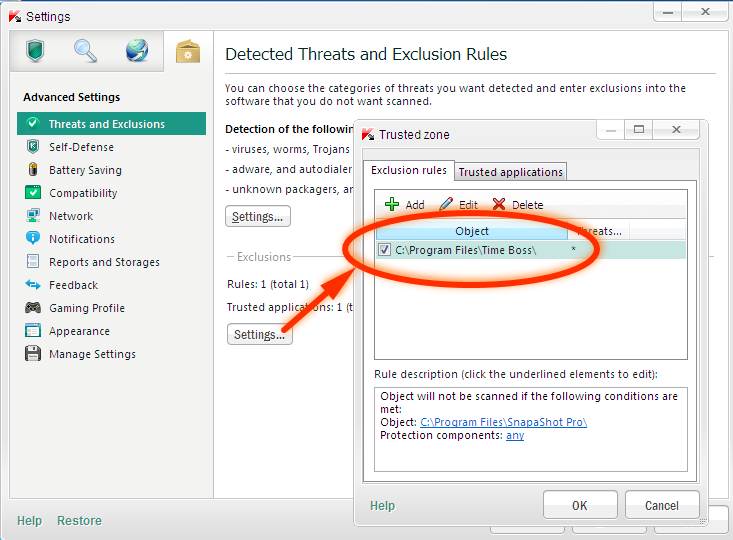
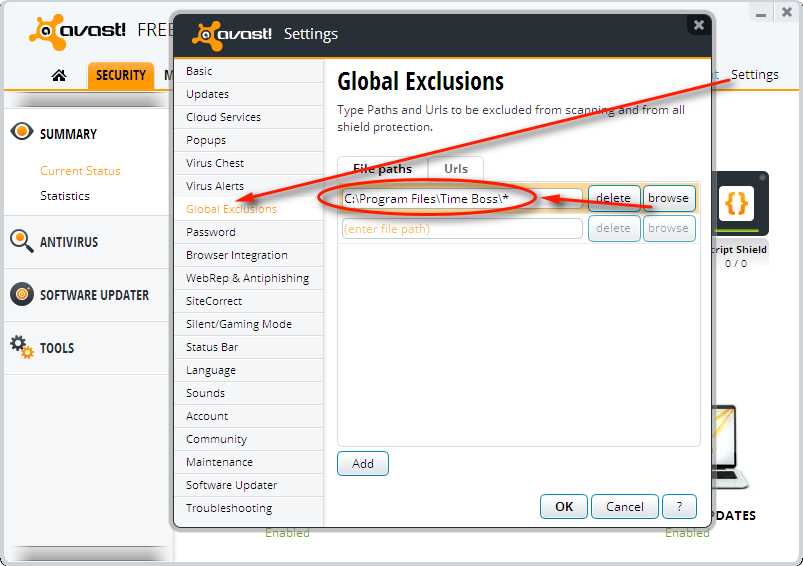
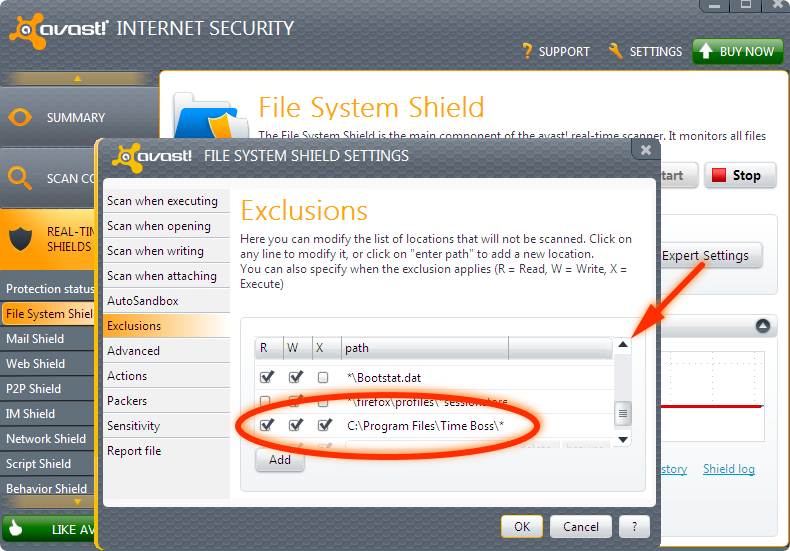
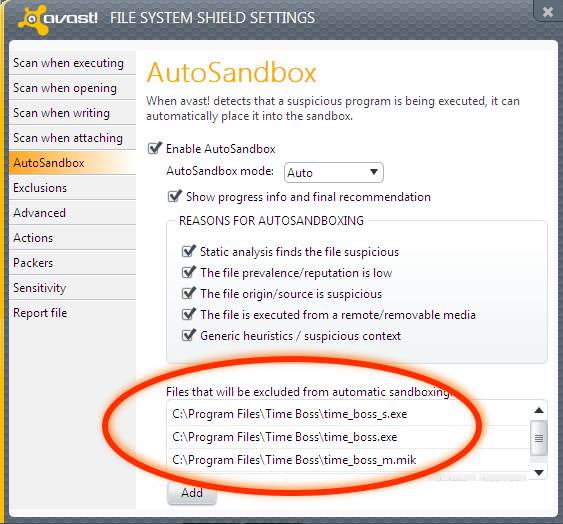
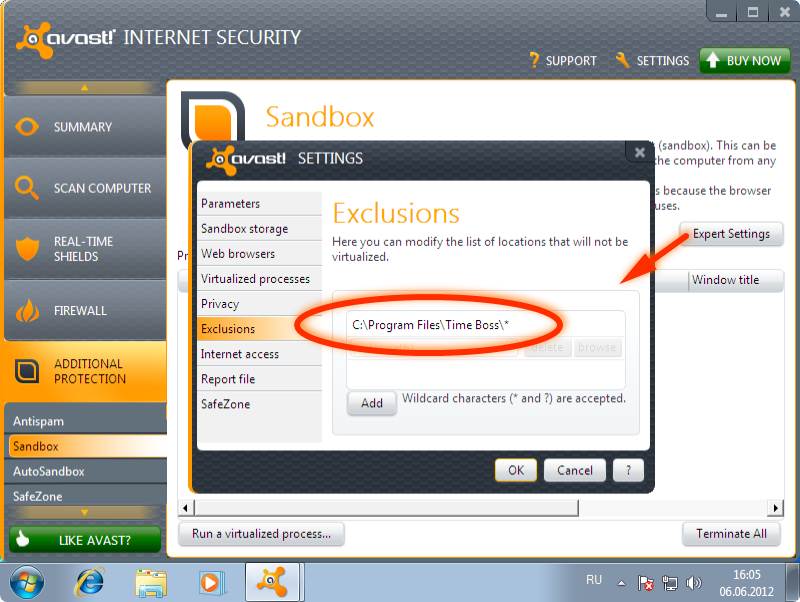
Additional program setting
-
What is Stealth mode?
The Time Boss icon in the taskbar, the warning message and the countdown indicator are disabled in Stealth mode. If necessary, the warning message and indicator can be turned on again.
-
Are there hotkeys for disabling, enabling Stealth
mode?
There are no hotkeys in the program. You can open the program from Windows menu -> Start -> Programs -> Time Boss -> Time Boss (or run time_boss.exe from the program folder).
-
After installing the program and turning on Stealth
mode, I cannot manage the program. How to open the
program?
When the Stealth mode is on, the tray icon is absent for both the Parent and the Child. It should be so.
You can open the program from Windows menu -> Start -> Programs -> Time Boss -> Time Boss (or run time_boss.exe from the program folder).
If you cannot find the Time Boss folder, then most likely at Windows does not show you hidden folders.
In this case, open child session in Windows, run File Explorer (Windows -> Start -> Windows system -> File Explorer) and in the opened window, in the main menu select View -> Options. A window will open with the options of all folders. On the Folder Options -> View tab in the Advanced settings list activate the Show hidden files, folders and drives checkbox. Close the window.
In File Explorer, open the folder where Time Boss was installed (C:\Program Files\Time Boss or C:\Program Files (x86)\Time Boss) and run the time_boss.exe file.
If the Conrtol panel does not occur in the Parent session then you need to make sure that the service (time_boss_s.exe) is running: you can see the process time_boss_s.exe in the Windows task manager (Crtl + Alt + Del) on the Processes tab (when the Show processes of all users checkbox is enabled). If it is not there, then the program is stopped (trial time was ended, or was incorrect registration data, or was the big Windows update).
If you can see the process time_boss.exe in the Windows task manager, then stop it (the End process button at the bottom) and start the file time_boss.exe again. -
How to set different time limit for different days
of the week?
Please disable the option per DAY and click by mouse on the time limit per each day below.
In the opened window you can set the needed time limitation. See here. -
How to set fractions of an hour in a time-table?
Please use Crtl + Mouse Click.
-
How to change the warning text and picture?
You can change the warning text for each user on the Time Boss->Control panel->USER->Miscellaneous tab. To change the warning picture open TB->Control panel->Options->General->Warning image.
-
Is the password case sensitive (capital and small
letters are different)?
No.
Large and small letters do not differ. That is why the Time Boss virtual keyboard has only large letters. -
Is it possible to block a session after the allowed
time has elapsed without interrupting executable
programs?
Yes.
Set on TB->Control panel->Options->General->Termination type for PC the type as Disconnect session. -
What's the difference between 'Log off' and
'Disconnect session' (and others) types of PC
termination?
When the child closes the session, all running programs, games, documents and sites will also be closed.
When the session is disconnected, the running programs, documents and sites remain open and after the session is connected the child can continue to use them. Between sessions for open programs, games, documents and sites, time is not counted (does not change).
Once again :):
Log Off - the user session ends with the closing of all programs running in it.
Disconnect session - the user is disconnected from the session, but all programs in the session are not closed, after the next connection to the session, the user sees them working. The working hours of the session and programs are not counted.
This mode is convenient to use to interrupt the child's continuous play - the game will not be turned off while the child is resting.
Note that in Windows 10, 8, the child must have a password to log into Windows.
Power Off - the session is closed and then the computer is completely shutdown. -
Why isn't the countdown counter visible?
The counter turns on if there are less than 10 hours before the end of work. This can be changed in the field Show countdown window before on (TB->Control panel->USER->Miscellaneous->Extended) tab. The counter can be completely turned off there.
The child can also turn off the TB client (time_boss.exe), the tray icon and the counter indicator will disappear, but time control will go on (TB main module - service will continue to work). -
How to find out if a child has opened the Control
panel?
You can see the event log. Each time you (child) open Control panel, an event appears in the event log - Service - Control panel opened.
-
How turn off 1 minute of waiting after time is
over?
Please activate the checkbox TB->Control panel->USER->Miscellaneous->Extended->Don't wait 1 minute after logon....
-
Time Boss doesn't give the child a minute to wait.
Why?
If the child has run out of time, then the child has 6 (by default, you can change TB->Control panel->USER->Miscellaneous->Extended->Number of logon attempts with 1 min delay) attempts to log in with a one-minute wait to use grants (or enter extra time using a password).
After 6 unsuccessful attempts with a 1 minute wait, the TB turns off the 1 minute wait for 30 minutes. After 30 minutes, the child again has the opportunity to log on with a 1 minute wait. -
Where can the child see the remaining time of the
week?
Please see pic.1, pic.2 and pic.3. This feature was added since version 3.11.
The weekly limit starts and ends at midnight at last day of week (TB->Control panel->Options->Additionally->Fist day of week).
The remaining hours from the current week are not transferred to the next week. When you save the user data in Control panel, the weekly limit for the current week is updated. -
What happens if I make myself a Child? For example,
can I become a Parent back? And in general, is it
possible to remove all Parents on the child's
computer if I have a password set for the Control
panel?
If you are not a Parent, you will still be able to open the Control panel if you know the password (Warning! Do not activate the option Control panel->Options->General->Miscellaneous->Hide 'Control panel' in Child session).
At least one Parent must remain in the Control panel, i.e. add in Control panel a user who does not exist currently on Windows and give it Parent rights. Children, of course, shouldn't know about him. You can add it to Windows later, if necessary.
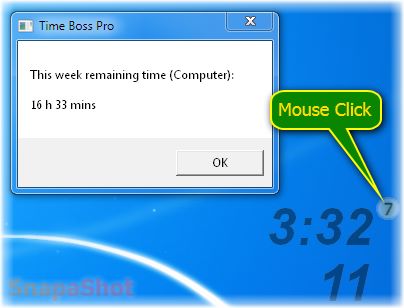
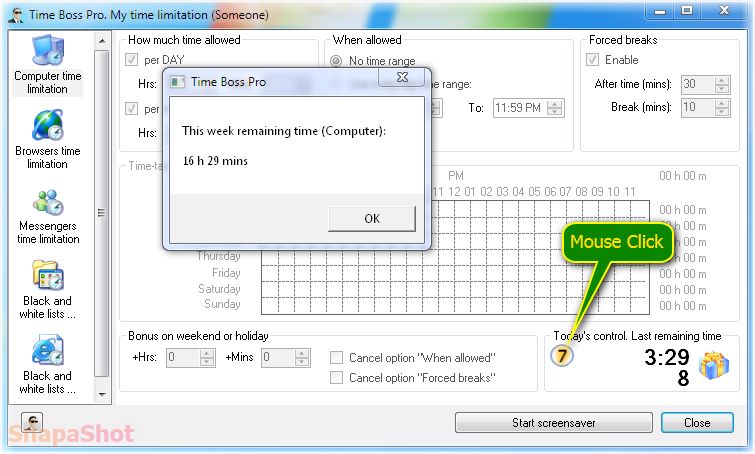
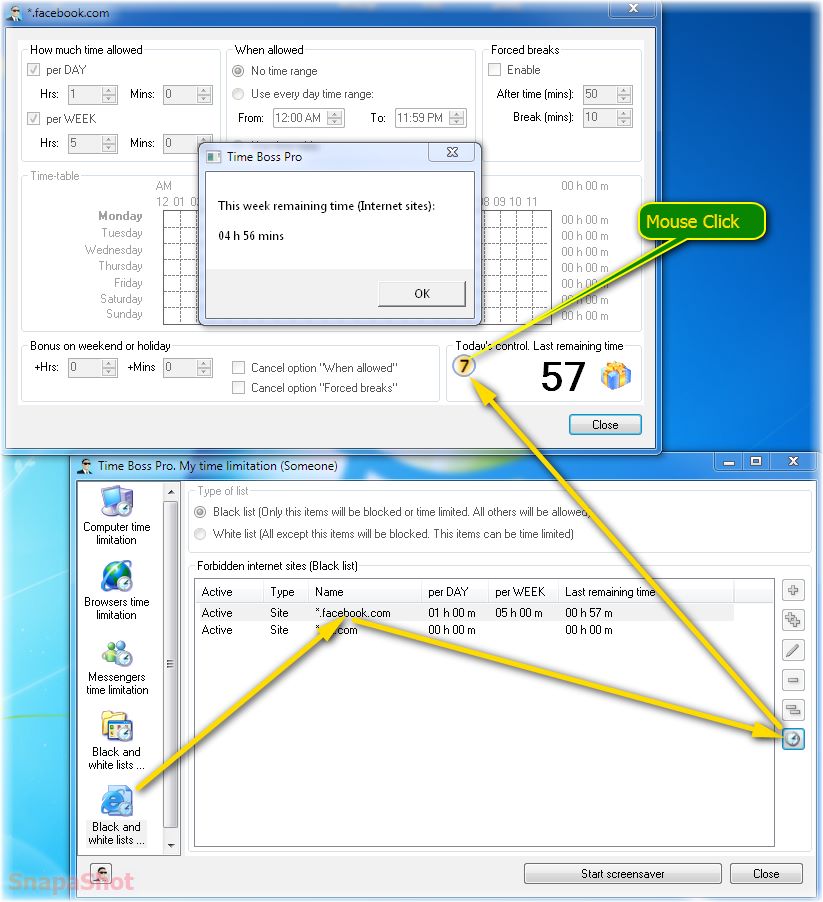
Time Boss Pro features
-
What is the difference between Time Boss and Time
Boss Pro parental controls?
Functionally Time Boss and Time Boss Pro do not differ.
All functions for limiting time, internet, etc. are identical.
However, if you have a desire to control TB Pro on a child's computer remotely via the Internet or via (home) local network, then you need to install Time Boss Pro on the child's computer.
With the help of a small free program Time Boss Cloud installed on a parent's Android phone or computer, or using TB Pro on the parent's computer (with disabled restrictions - user type Parent), you can remotely change TB Pro settings on the child's computer, add promptly time for the user working there (and disconnect his session, reducing the remaining time to 0), send user a text message, view and save screenshots of the desktop of the currently working user.
You can also fully connect to the remote computer and right there to view its event log and the screenshots stored on it. -
Time Boss Cloud allows to manage Time Boss Pro over
the Internet without special settings (such as port
forwarding on the router)? Let's say I'm at work, a
child at home?
Yes.
Time Boss Cloud uses the usual http protocol, there is no need to configure anything special on the router (phone, computer). Time Boss Cloud does not require Windows Administrator rights on a computer when installing. -
How to configure Time Boss Pro for using in your
local network?
There is no necessity to adjust specially Time Boss Pro.
There is no necessity to adjust any lan ports, IP addresses, firewalls and etc in your local network.
Remote connection and synchronization will work faster if you can see all your PCs in Windows in your Network folder (File Explorer->Network). PCs should be in one network workgroup (or domain). -
How to connect to remote PC?
You can connect only to remote PC where Time Boss Pro is installed.
If the necessary PC is absent in menu "Network" then choose menu item "Find remote computer". Press button "Refresh" and select the computer that you need. You will connect to this PC and this PC will be added to menu "Network". In future you would be able to connect to this remote PC using this menu item.
If you do not see kid's PC in the list so you can add it manually. Press the button Add computer manually and input the name of kid's PC.
The right computer name of kid's PC you can see on kid's PC in the Basic information about computer window (Start->Control Panel->System and Security->System).If you have connected to remote PC you can see string "You are on remote PC!" in the caption of program.
After connection you can make ALL changes you need on remote PC. These changes will be saved on remote PC when you return to local PC (menu item "Network->Return to this computer") or connect to another remote PC or close program.
If you cannot connect to remote PC, please check:1. Is TB Pro installed on remote PC and it works?
2. Can you see the name of remote PC in the window "Find remote computer" in TB Pro (Control panel->Menu->Network->Find remote computer)?
Please check, you should see the kid's PC in Windows Network window (Explorer->Network). If you can't see here other computers so read here.3. The TCP port should be the same on remote PC (TB->Control panel->Options->Network->TCP port) and in Menu->Network->Remote computer name->Options on this PC.
By default this TCP port is 18481.4. If the computer uses Wi-Fi connection then activate option Enable connection from internet (TB Pro->Control panel->Options->Network->Connections options). Restart PC to take effect. Wi-Fi connection is the public connection.
5. Open Windows Firewall settings and verify that Time Boss Pro files (time_boss_s.exe, time_boss.exe)
are in the list of allowed programs on remote PC and on this PC. Restart PC to take effect.6. If with 1,2,3,4,5 are ok. Try to connect to remote PC from TB Pro (Menu->Network->Name of remote PC->Connect).
-
If a computer is in sleep mode can Time Boss Pro
still connect to it via the NETWORK menu?
No.
But, if the kid session is blocked (but the kid computer is awake), you can connect to the TB on the kid PC. The kid session will remain blocked.
Also we recommend using Time Boss Cloud to set the remaining time on the remote slipping kids PC. After the kids PC wakes up, the remaining time will become new. -
I want to put Time Boss Pro on three computers -
actually one will Parent the other two. How do we do
this with the one copy I have so far?
1. Please install TB Pro on all PC's.
2. Input your registration name and key on each PC.
3. Reboot all PC's.
4. Set password in TB Pro on kid's PC's.
5. Set needed time limitation on kid's PC: here. You can save-load TB Pro settings to-from files if needed: here.
6. Set zero time limit to Someone user: here.
7. Now kid's PC's is ready to work.
8. Then open TB Pro on your PC and try to connect to kid's PC's: here.
So you can control kid's PC's from your PC. -
Time Boss Pro uses a direct connection to the
protected PC or over a website?
Time Boss Pro uses direct connection. Your data is not sent to our website.
-
Is there any way to access this software over the
Internet (so I could update/change settings from
work)?
Yes, see Time Boss Cloud,
or
you can direct connect to remote TB Pro over internet using TCP protocol, in this case TB Pro should be installed on your PC too. Additionally you should have permanent IP address for your home router (or kids PC).
This permanent address can get you your internet provider.
If you use router then open port 18481 on it for kids PC (TB Pro uses this 18481 port by default, but you can change it and use differnt ports for different PC's, so you can open different ports on router for differnt kids PC's ).
If you want to change 18481 port:
On kid PC use TB->Control panel->Options->Network->Connection options->TCP port panel to set needed port.
On your PC use TB->Menu->Network->KID_PC_IP->Options command to set used port on kid PC. -
I use the router at home, what can I do to connect
to home PC from internet?
You should allow the port 18481 for home PC in the router.
-
'Find Remote Computer' does not find all remote
computers. Why?
Please try to open Time Boss Control panel with administrator's rights in Windows.
For that choose Hide in popup menu for tray icon of Time Boss.
Then open Time Boss with administrators rights (Run->Program files->Time Boss->time_boss.exe->right mouse click and choose Run with administrators rights from popup menu).
Then try to use Find remote computer window.
The next way is to add computer names directly in the file time_boss_network2.ini located in Time Boss folder.
It's a simple text file, you can edit it with Notepad. Each computer name must be on the new line.
If TB has the specific TCP port on some computer, so this port should be set after computers name in the line (e.g. 122.22.22.22 PORT:16000 ).
Please open Notepad with administrator's rights too. -
How to change the remaining time on remote PC?
To change the remaining time on remote PC is two ways:
1. To connect to remote PC you can use TB->Control panel->Menu->Network->remote PC->Connect. In this case the settings will be loaded from remote PC to your PC. You can change remaining time using "Yellow" button on Computer time panel for any needed user.
When you press Save and Menu->Return to this computer all settings will be sent to remote PC.
2. To open Remaining time window for remote PC you can use Menu->Network->remote PC->Today's control. Last remaining time for active user. In this case the last remaining time of current active user on remote PC will be loaded from remote PC to your PC. In opened window you can change the remaining time for active user on remote PC.
If there is no active user with Child rights on remote PC then the warning message will appear instead Remaining time window.
You can do this operations several times in any order. -
How to use Backup Folder for screen shots?
If you define a folder, the program will write screenshots to this folder as well.
This will allow you to view on the one (parental) computer all screenshots that are taken on the other PCs. Of course you 'll have to install TB on all computers you are using.
To do it, you have
1. To give full access (make share) to the screenshot folder on the parental PC (Time Boss/Screenshots) for other computers.
2. Then to chose this folder as a Backup folder on the other computers.
-
How to see the event log on a remote PC?
Choose in menu "Network" necessary PC and press menu item "Connect". If the needed PC works (and Time Boss Pro works on it too) then program will connect to Time Boss Pro on remote PC and load needed data. The caption of program will have string "You are on remote PC!".
Choose button "Event log". Choose panel "Event log". -
How to see the screenshots on a remote PC?
Choose in menu "Network" necessary PC and press menu item "Connect". If the needed PC works (and Time Boss Pro works on it) then program will connect to Time Boss Pro on remote PC and load needed data. The caption of program will have string "You are on remote PC!".
Choose button "Event log". Choose panel "Screenshots". -
Where will save screenshots from remote PC on your
local PC?
When you press button "Save screenshot" then this screenshot will be saved in a defined screenshot folder on local PC. The subfolder will have the same name as the remote PC.
In future you would be able to see this screenshot in a program on a local PC ("Event log"->"Screenshots"). -
Can I connect if Time Boss Pro is installed on
Windows Home computers?
Yes, you can.
Time Boss Pro must be installed on computers.
First, you need to find out the name of each computer. To do this, open the Time Boss Pro event log on each computer, the computer name will be in the computer column.
Use this name to add (plus sign) to the Find remote computer list (menu TB->Control panel->Network->Find remote computer). -
Can I use TB Pro in a mixed network of Windows 10,
Windows 8, Windows 7 and Windows XP computers?
Yes, you can use TB Pro (with the same first number of version) in a mixed network of Windows 10, Windows 8, Windows 7 and Windows XP computers without limitation.
-
I am not clear on what needs to be downloaded onto
my PC laptop in order to control the other 3
computers. I know I need to download timeboss pro
onto my 3 kids’ computers, but what exactly do I
download onto mine?
You can use Time Boss Cloud or you should install TB Pro on your laptop too.
To prevent monitoring of your session - disable the event log and screenshots in TB (TB->Control panel->User->Event log deactivate Enable and Screenshots options).
If you do not want to see the TB icon in the system tray then activate Stealth mode option TB->Control panel->User->Miscellaneous->Extended. In this case you can open the TB Control panel using TB shortcut on the desktop or in the Windows Start menu. -
The syncronization does not work, what can i do?
Please check:
1. The user name - then should be the same on all PC's.
2. The Windows system time should be the same (+- 30 sec.) on all PC's.
3. The options on panel Network->Synchronizing time limitation then should be the same on all PC's
4. The conection from all PC's to the shared resource (file or PC). If you use the synchronization with shared file - this file should be accessible for reading and writing (you can try to delete it - if you can, then is ok) from each PC all time when PC's are working.
If you use Samba for sharing files, please note - the children with blank password in Windows have not access in Samba. So the children for which the synchronisation did not work, were the ones that had a blank password and
therefore could not access the Samba share.
If you use the synchronization with TB Pro on remote PC - this PC should be active all time when PC's are working.
Please check the connection from each PC to this remote PC.
To do that: on each PC add this remote PC to Network menu (Menu->Network->Find remote computer) and send from each PC some text message to remote PC (Menu->Network->Remote_PC_Name->Send text message), all messages should be appears on remote PC.
Please note the shared resource should be accessible each time all PC's work.
For the test you can add (in Windows and in TB) the new user on all PC's - and check the synchronization for him.
Remote connection and synchronization will work faster if you can see all your PCs in Windows in your Network folder (File Explorer->Network, PCs should be in one network workgroup or domain). -
If I have 3 PCs in my house and I want to limit
access to 2 hours/day (cumulative across all PCs),
is that possible?
Yes, it is possible. But you should have shared resource (PC or shared file storage) which will be active all time.
-
Can you explain this more clearly please. In my
setup I have 3 computers running Time Boss Pro.
These three computers are on a domain controlled by
a server running Windows Server 2008R2. All user
accounts have a home directory on the server, drive
"O". What would I need to change/ configure in order
to have those 3 PC's limit access to 2 hours a day
(cumulative across all PC's)?
1. On each PC in TB Pro you should activate the option Synchronization with the shared file... (TB->Control panel->Options->Network) and input the shared file name, any, e.g. O:\\dad\param.dat.
File should be exists, you can create it with Notepad and then rename it. It is not nessesary to install TB Pro on shared device.
2. Try to open this shared folder O:\\dad\ from each PC and test to write(read) any file to it. This folder should be available to read and write.
3. Set needed time limitation (2 Hours) for each kid on the one PC. This settings will be sent on others PCs automatically after 2 mins. Please check - all kids should have the same User names (accounts) on each PC. It's ok if you use domain.
When the synchronization works you can see "synchronizations" events in the event log. -
The description states " TB PRO can *synchronize
time limitation and settings of users on multiple
computers*. ", but does this mean the limitations
are simply the same (i.e. 2 hours/day) on each PC,
or does it mean 2 hours/day no matter which PC in
the house is used?
It mean 2 hours per day no matter PC is used.
-
How to define the folder for screenshots on the FTP
server?
You should enter the name of the destination folder in the fields Subfolder for screenshots and Subfolder for event log.
For example, if you have the folder TB_FTP on FTP server then you need to enter TB_FTP. If you need to use in this folder separate subfolders for screenshots and event log files then use \ notation.
See picture. -
Can I use cloud storage for synchronizing the
remaining time on multiple computers?
Yes, you can.
Of course, if the child is still not able to disable the plugged cloud storage :).
There are many cloud storage.
For example, we will use a free cloud storage Dropbox.
First, you need to register in Dropbox, this would require your email (if needed you can create the new email).
After registration install and activate the Dropbox client on all needed computers for all needed Windows users (children).
In the Dropbox client configuration (Preferences, a button at the top right) activate option General->Start Dropbox on system startup and disable option General->Show desktop notification.
By default, the Dropbox folder located in the users folders, so this folder is different for every users on the same computer. You should set that the folder has been one and the same for all users on this computer, for example c:\Syn01\Dropbox.
To change the location of the Dropbox folder open Account->Location.
Now you can enable synchronization in TB Pro Using file on a shared device on the network and select any file name (e.g. 123.dat) in this Dropbox folder.
Just configure the Dropbox clients on other computers.
Of course the Dropbox folder location on different computers may be different.
Then open TB Pro on other computers and select on panel Using file on a shared device on the network the same file in Dropbox folder that on the first computer (e.g. 123.dat). See picture.
Please note that synchronization only works for users with Child rights in Time Boss Pro. The user name must be the same on both computers. -
Can i use my google drive to store the
screenshots?
Yes, of course.
Please activate your google drive on kid's PC.
Then open TB Control panel and activate the option Backup (TB->Control panel->Options->General->Screenshots) and select the any google drive folder in the Folder text box. -
Is there a way to associate the non-local account
of the user on a Windows 10 machine with the local
account of the Windows 8 machine so that the usage
limits/restrictions remain in sync?
Yes, the full user name should be the same on all PC's.You can see this full user name in TB event log.
E.g.:
user name: mike@outlook.com full name:Mike
user name: mike_local full name:Mike -
How to change the computer identifier used in Time
Boss Cloud?
Please open Time Boss Control panel-> Menu-> File-> Set new computer identifier.